tcp PointCloud Editor
Manual software license activation - PCE
3.3 Manual Software License Activation
- Press the Windows Start button, and in the Aplitop program group, run Sentinel Admin Control Center
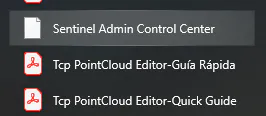
- It will automatically open the default web browser, and at the bottom you can choose the desired language.
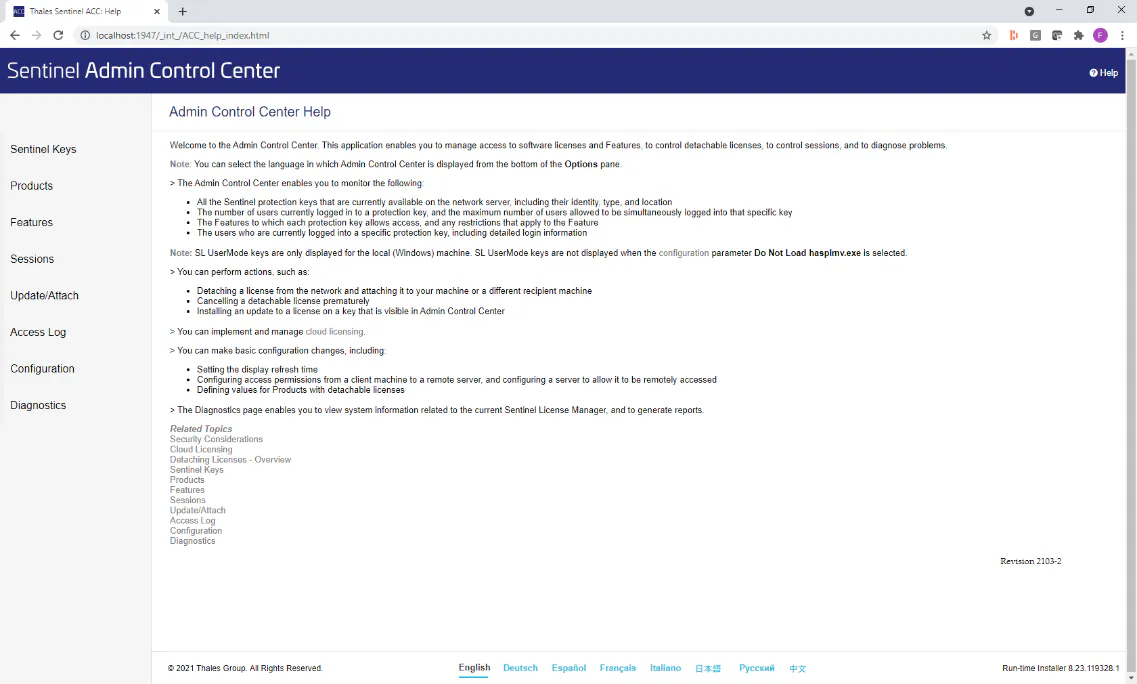
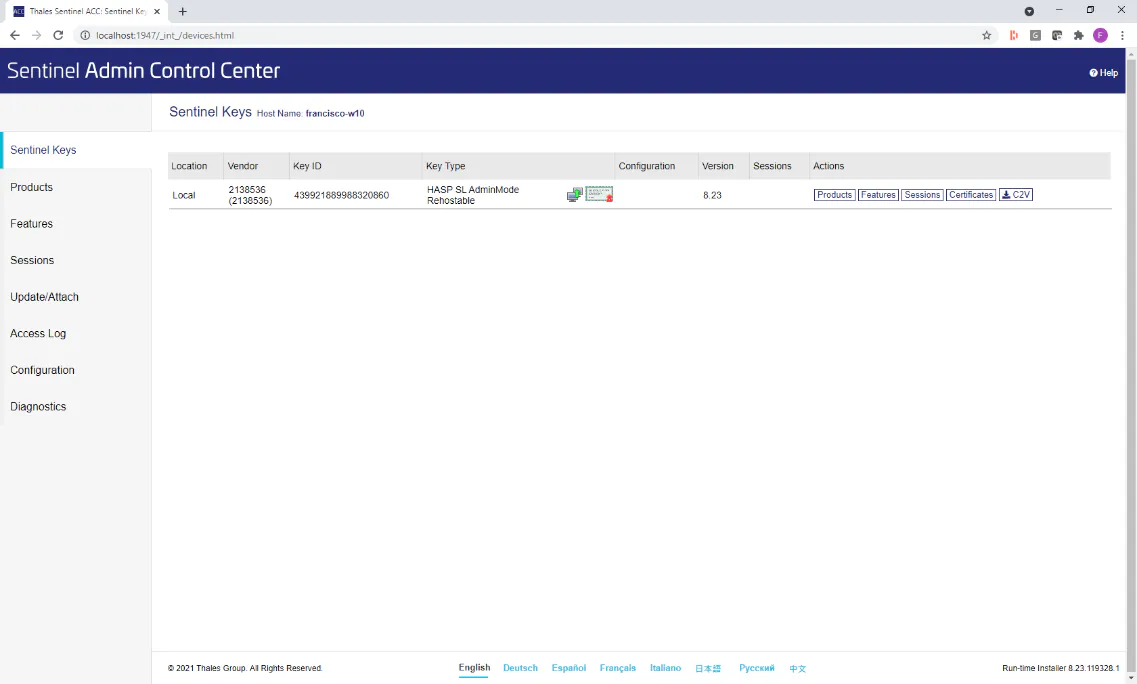
- From the menu on the left, select the Sentinel Keys option
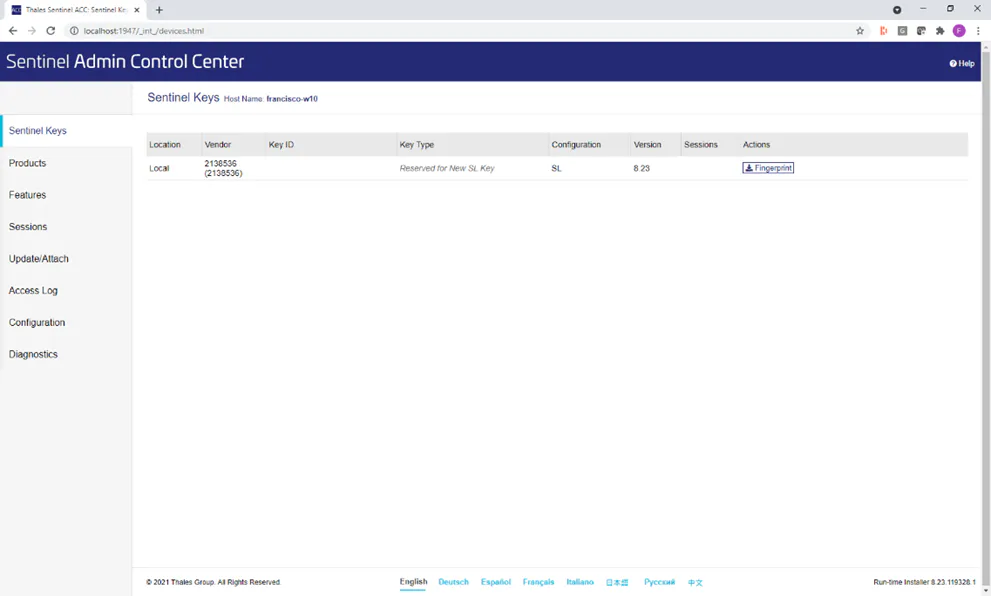
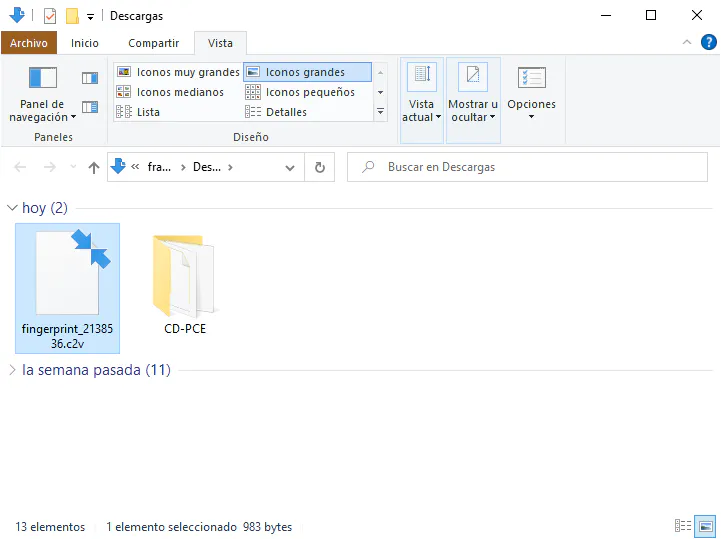
- On the line corresponding to the Vendor 2138536 (APLITOP), press the Fingerprint button, which will download a file with extension .c2v. Send this file to [email protected] with the subject "Tcp PointCloud Editor Activation" to request license activation.
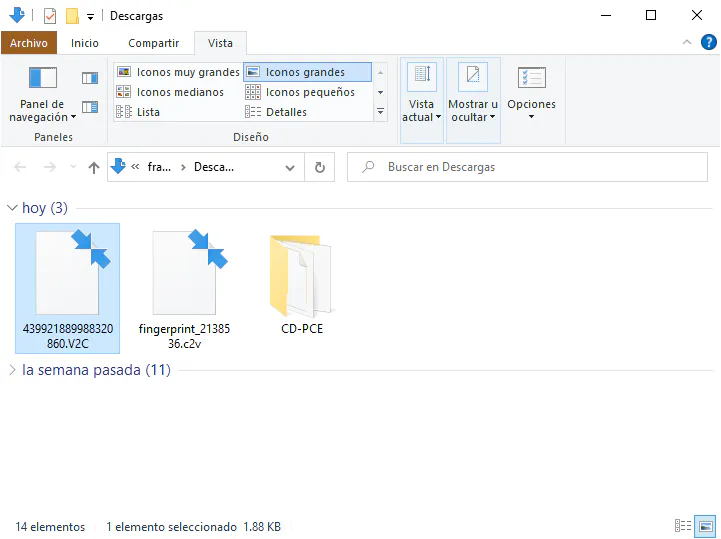
- Once the appropriate checks have been carried out, you will receive an email that will contain a file for the activation of the license with a .v2c extension, which you must download.
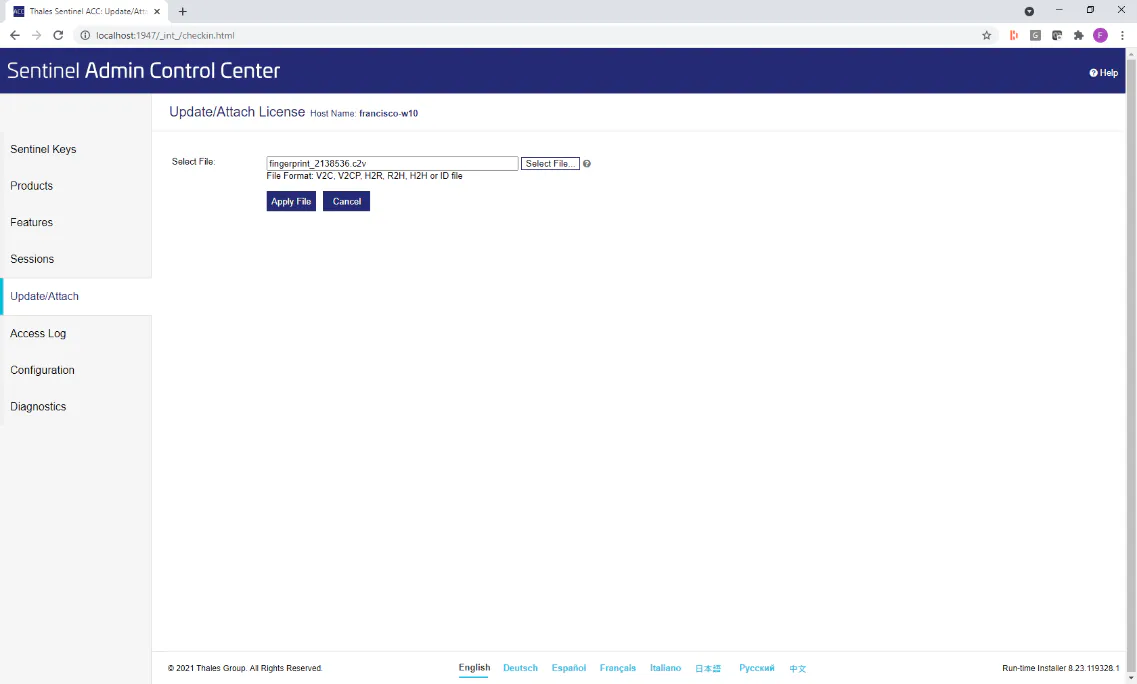
- Open Sentinel Admin Control Center again and in the side menu run the Update/Attach option. Click the Select File button, choose the received .v2c file, and click the Apply File button.
-
A message should be displayed indicating that the update was successful.
-
Go to the Features option, and the license details, such as the product name and expiration date if any, will be displayed.
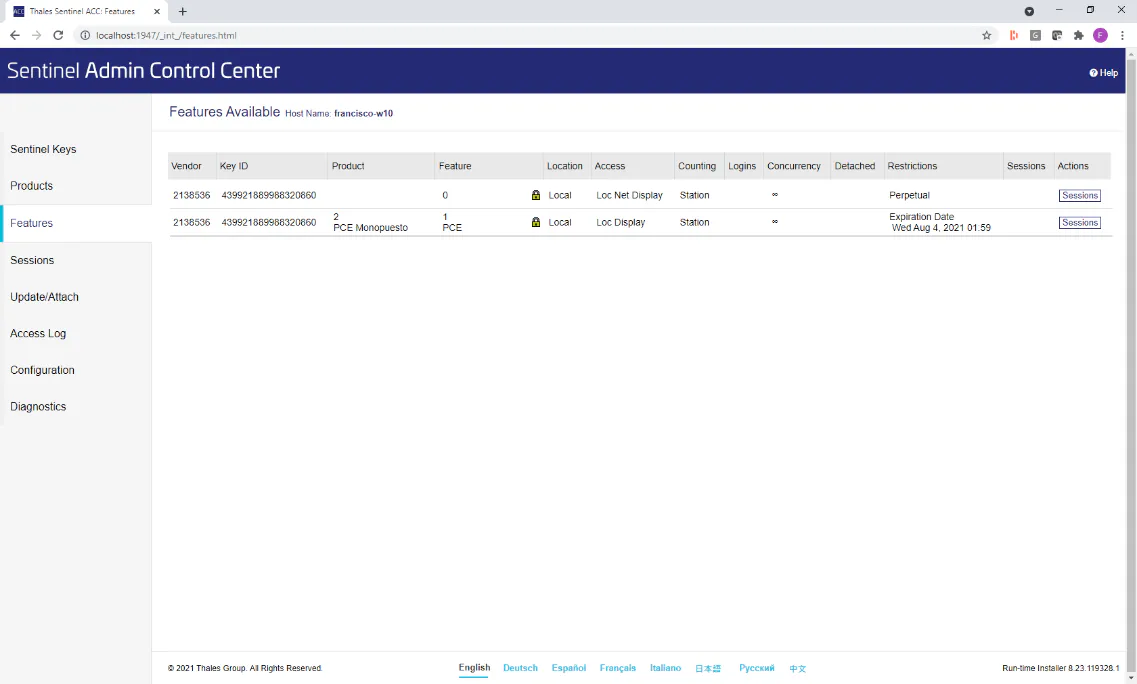
- As an additional check, if we run the Sentinel Keys option again, the license details will also be displayed (second row in the following image).
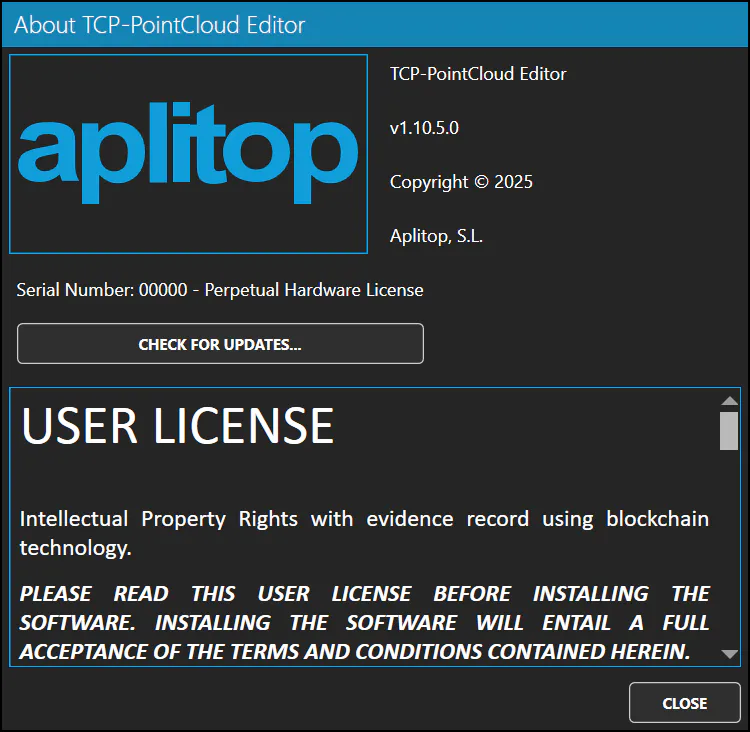
- By running the About option in the title bar of Tcp PointCloud Editor, you also enter the serial number, license type, and expiration date.