tcpMDT
Installation process - MDT26
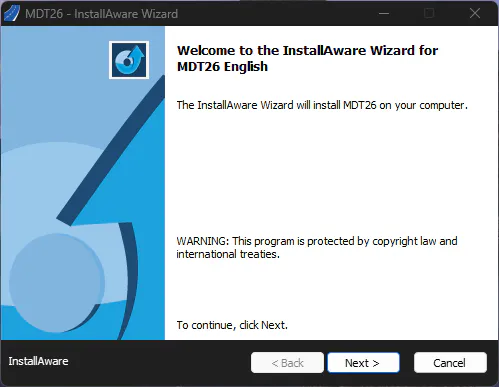
When starting the wizard you will see the welcome screen. Click Next to continue.
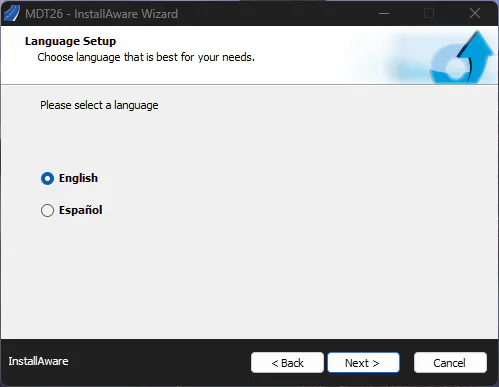
Select the installation language.
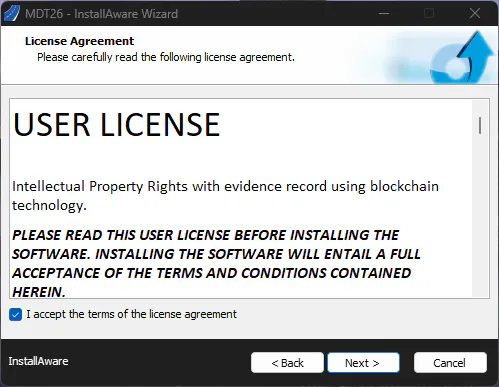
Read the license agreement carefully and check I accept the terms of the license agreement. You cannot continue without accepting.
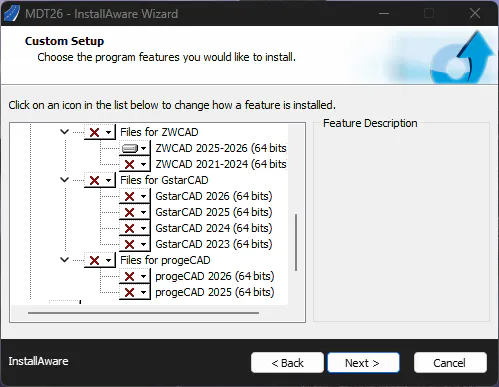
The installer will automatically detect the CAD versions installed on your computer. Verify they are correct; otherwise, manually select the versions you wish to use with the program.
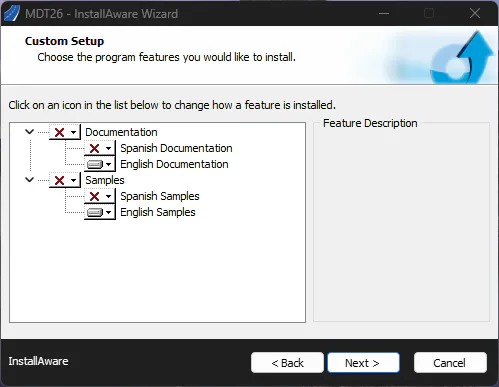
Select the documentation and samples you want to install.
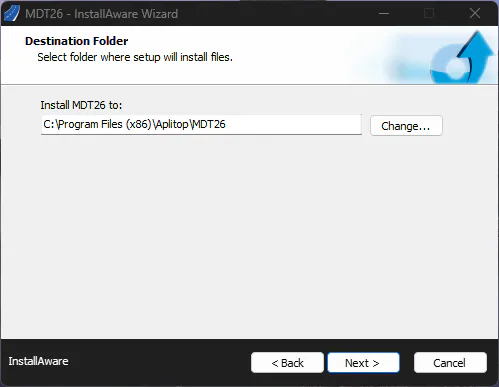
After selecting the desired components, specify the destination folder where the application will be installed.