
tcpMDT
Software license transfer manual - MDT26
5.2 SOFTWARE LICENSE TRANSFER (MANUAL)
This method is useful if automatic transfer is not possible or if you prefer more granular control. The RUS_APLITOP.exe is used for this process. You can download it directly from the link or find it in the Driver directory of your MDT installation (by default, C:\Program Files (x86)\Aplitop\MDT26\Driver).
The process consists of three steps:
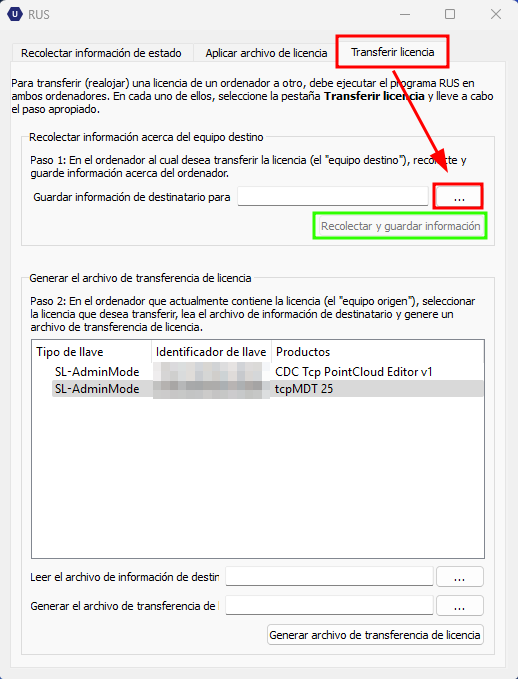
Step 1: Collect information from the target computer (on the new PC):
◦ Run the RUS_APLITOP.exe program.
◦ Select the Transfer License section.
◦ In the Collect Information About Destination Equipment box, click the ... and choose a filename where to save this information (this file will be the "fingerprint" of the new PC).
◦ Tap Collect and Save Information to save the file.
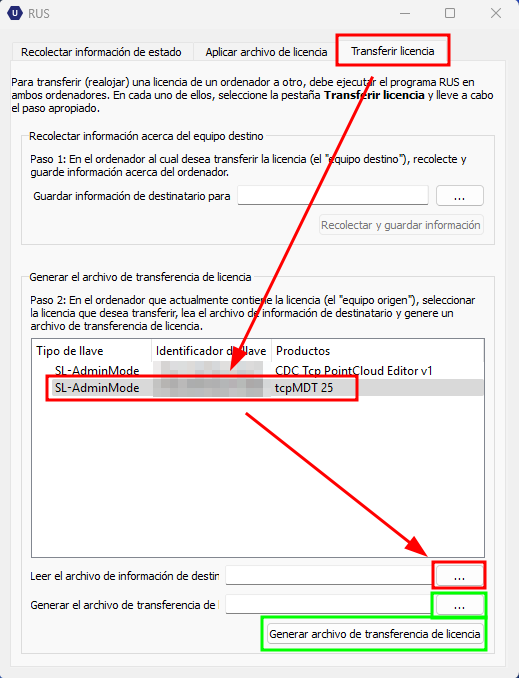
Step 2: Generate the transfer file (on the PC with the installed license):
◦ Run the same program RUS_APLITOP.exe, also in the Transfer License section.
◦ In the Generate License Transfer File box, select the line with the MDT license in the listing.
◦ Use the first button... to select the file generated in Step 1 (the "fingerprint" of the new PC).
◦ Use the second button... to specify a destination for the file where the license will be exported (this will be the transfer file).
◦ Finally, tap Generate Transfer File.
Step 3: Apply the license file (again on the new PC):
◦ Run the RUS_APLITOP.exe program again.
◦ This time, go to the Apply License File section.
◦ Press the ... , upload the file generated in Step 2 (the transfer file).
◦ Tap Apply Update.
By following these steps, the TcpMDT 26 license will have been successfully moved from one computer to another. If any problems arise during the process, you can consult the "Troubleshooting" section or contact Aplitop "Technical Support".
