tcpMDT
Software key offline activation - MDT26
3.5 SOFTWARE KEY (OFFLINE ACTIVATION)
If online activation fails, you can perform the so-called offline process. Follow these steps:
DOWNLOAD THE FINGERPRINT FILE
First, we must generate a .c2v file, for this we will enter http://localhost:1947
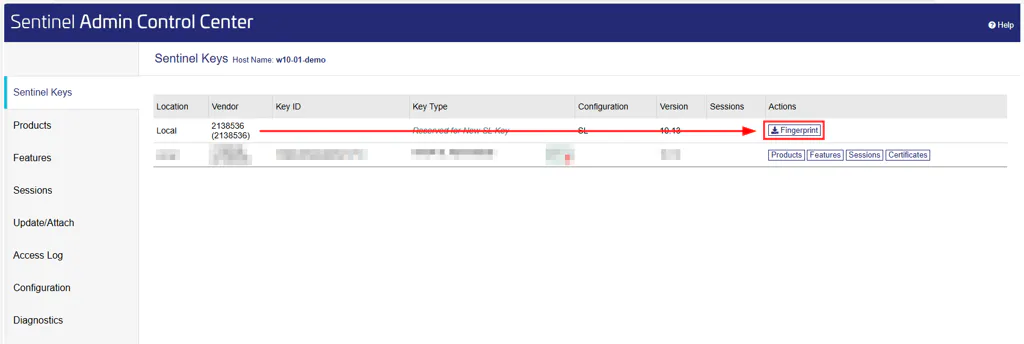
In the "Sentinel Keys" section we will have a line corresponding to the 2138536 provider (APLITOP), with an empty Key ID. We will click on the rightmost button called "Fingerprint" and a .c2v file will be downloaded.
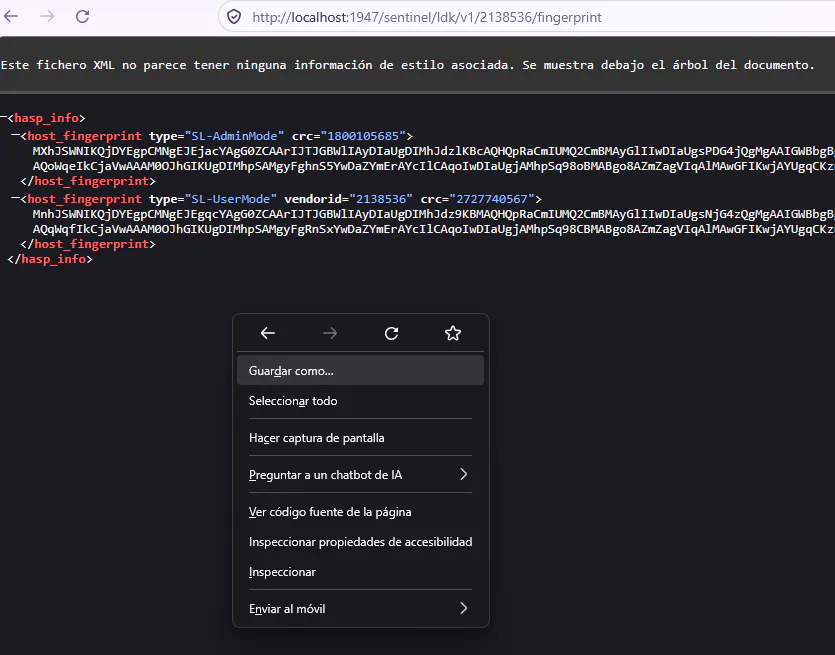
If the line from the previous section does not appear, you can generate the file using the following link: http://localhost:1947/sentinel/ldk/v1/2138536/fingerprint The information displayed can be saved by right-clicking and selecting "Save As..." Add ".c2v" to the name suggested by the browser.
LICENSE GENERATION
With the file downloaded, we head back to https://aplitop.prod.sentinelcloud.com/customer/login
In the "Entitlements" section, click on the "Activate Offline" button.
In the window that appears, click on the "Select File..." button and we upload the .c2v we got previously.
Click on "Complete Activation".
Download the generated .v2c file .
UPLOAD OF THE ACTIVATION FILE
We reopen the Sentinel Control Center in http://localhost:1947
We go to the section in the column on the right that says "Update/Attach"
Click on the "Select file..." button and select the .v2c file generated in the previous section.
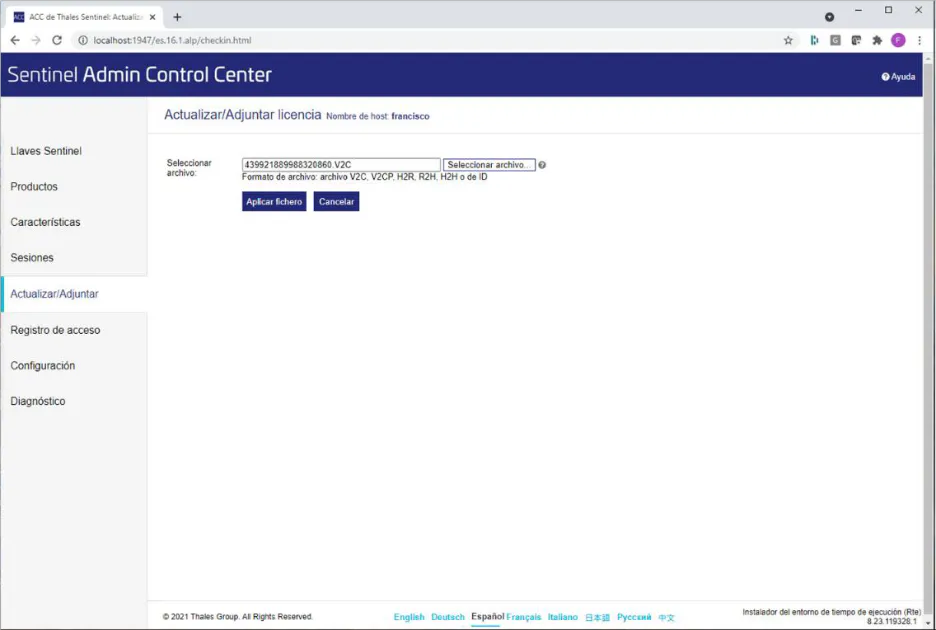
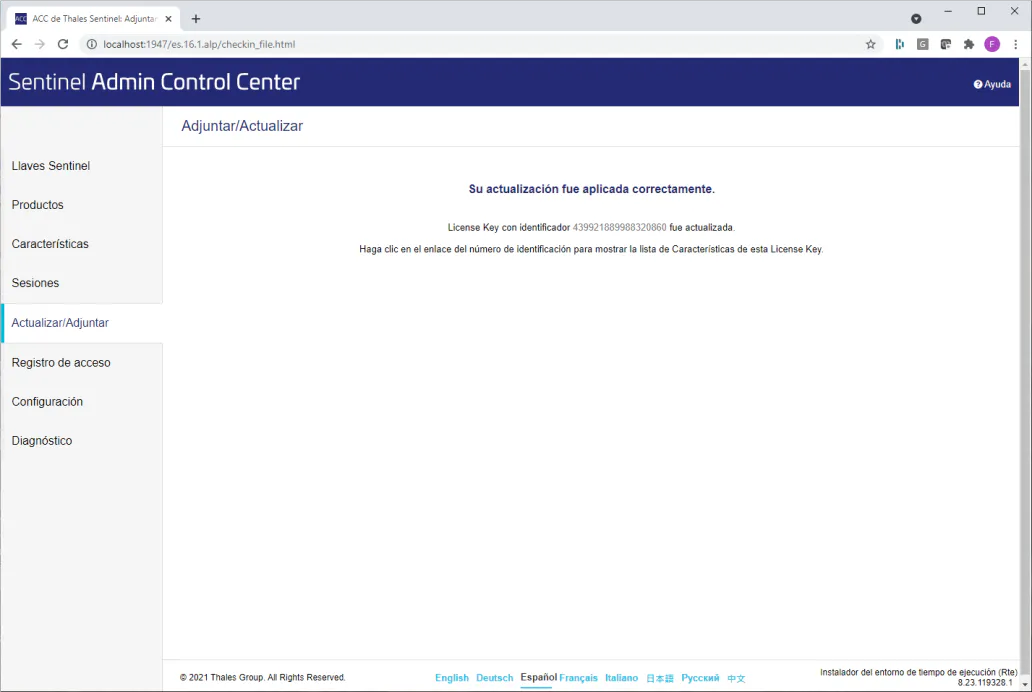
Click on the "Apply File" button, it should display a message indicating that the update has been successful.