
Support
How to contact APLITOP Technical Support?
How to contact APLITOP Technical Support?
Detailed
Step-by-step guide to report technical issues related to MDT and receive specialized assistance.
When to contact Technical Support
Contact Support when: - ✅ You have a technical error that you cannot resolve - ✅ You have followed the diagnostic steps without success - ✅ You need remote assistance to check your INSTRUMENT - ✅ You require configuration verification - ✅ Performance issues or anomalous operation
Incident opening process
Step 1: Access the form
Go to: https://private.aplitop.com/support/form
Step 2: Complete the form
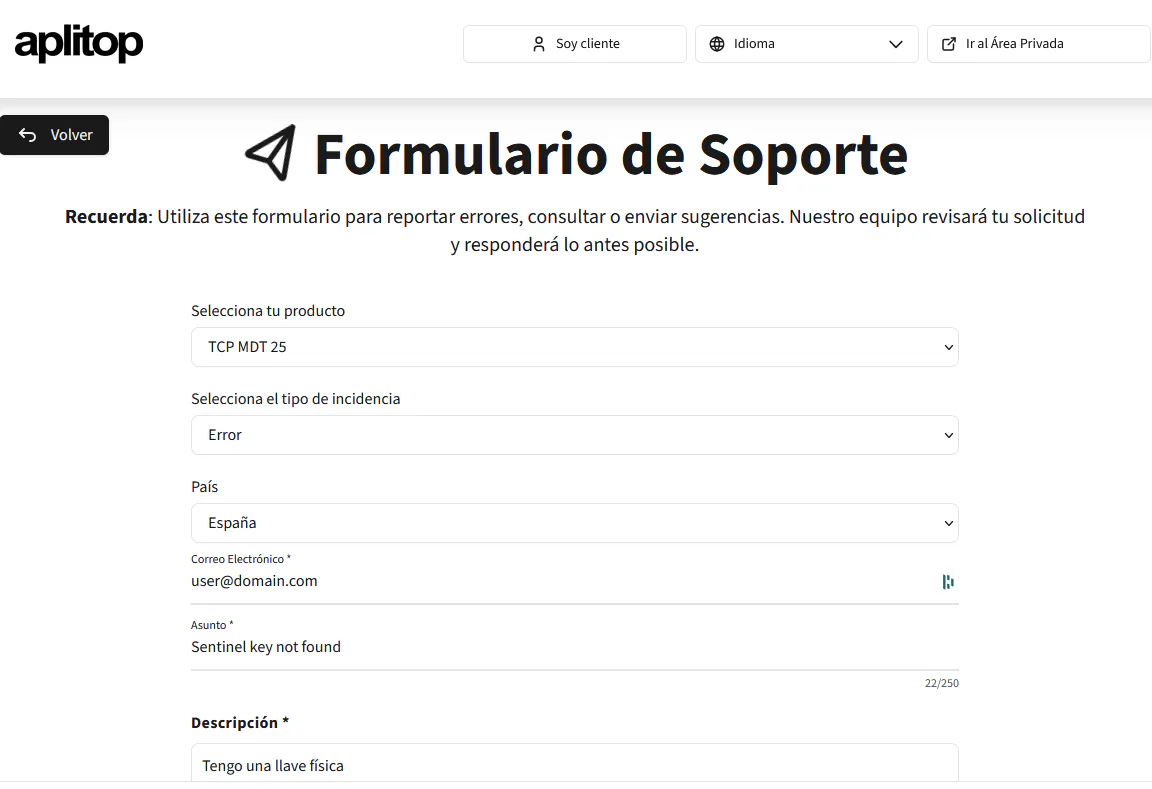
Fill in the following fields:
2.1 Product
Select: TCP MDT 25
2.2 Incident type
Select: Error
Other available types: - Query - Improvement request - Documentation
2.3 Subject
Briefly describe the incident (maximum 100 characters)
Good examples: - ✅ "Sentinel key not found when Start MDT" - ✅ "Board not found Error in Windows 11" - ✅ "LICENSE expired but recently renewed"
Examples to avoid: - ❌ "It doesn't work" - ❌ "Problem with the key" - ❌ "Urgent help"
2.4 Description
Provide relevant details:
Information to include: - Operating system (Windows 10/11, version) - AutoCAD/BricsCAD version - Key type (hardware/software, LDK/Sentinel) - Serial number (if known) - When the problem started - What you were doing when it occurred - Steps you have already tried
Example of complete description:
System: Windows 11 Pro (22H2)
CAD: AutoCAD 2025
Key: Hardware LDK (serial number: 149)

When trying to run MDT this morning appears
"Sentinel key not found". Yesterday it worked correctly.

I have already tried:
- Reconnect the key
- Restart the equipment
- Check the service (it is running)

The key has LED on and Windows detects it.
Step 3: Attach screenshots
- Click the Browse button
- Select file(s) with relevant screenshots
Useful screenshots: - Full error message - Window "ABOUT Tcp-MDT" (if it can be opened) - USBDiag.exe showing key information - Control Center - Device Manager
Recommended Format: PNG or JPG
Step 4: Send
Click the Send button
After sending
Confirmation
You will receive a confirmation email with: - Ticket number - Summary of your incident - Estimated response time
Response times
| Priority | First response time |
|---|---|
| Critical (production stopped) | 2-4 business hours |
| High | 4-8 business hours |
| Medium | 24 business hours |
| Low | 48-72 business hours |
Follow-up
You can follow up: - By replying to the confirmation email - By accessing the support portal with your ticket number - By calling by phone with the ticket number at hand
Remote connection
If Technical Support requires remote connection: - They will send you instructions by email - They use TeamViewer or AnyDesk (secure) - NEVER share passwords or sensitive data - You can observe everything they do on screen
Tips for quick response
💡 Best practices: 1. Be specific and detailed in the description 2. Attach relevant screenshots 3. Indicate steps already attempted (avoids duplicate suggestions) 4. Respond quickly to Support requests 5. Have availability for remote connection if necessary
Alternative contact
Phone: Consult the portal or confirmation email Direct Email: [email protected] (for emergencies or follow-up) Schedule: Monday to Friday, 9:00 - 18:00 (Spain time)
Category: Support and Contact Level: Basic Channel: Web, Email, Phone Availability: Business hours