
Support
Extracting Error Log
Date
07/08/2023
Requirements
Hardware: Android device
Software: Android OS, TcpGPS for Android 2.5+
Objective
Extract the Android logcat with information on the error produced for Support and Aplitop developers to be able to fix it.
Details
Download the Android Debug Bridge .zip and unzip it.
Enable “Developer Mode” in your device. This is slightly different between each manufacturer, so it must be searched online. There’s many short guides, they usually involve pressing the “Build Number” in “Information About Phone” seven times, but it varies. Here’s an example video.
Once active, in “Developer Options”, activate the option “USB Debugging”.
Connect the device to your computer via USB.
Open the folder named “adb” and type “cmd” in the explorer address bar and press Enter.
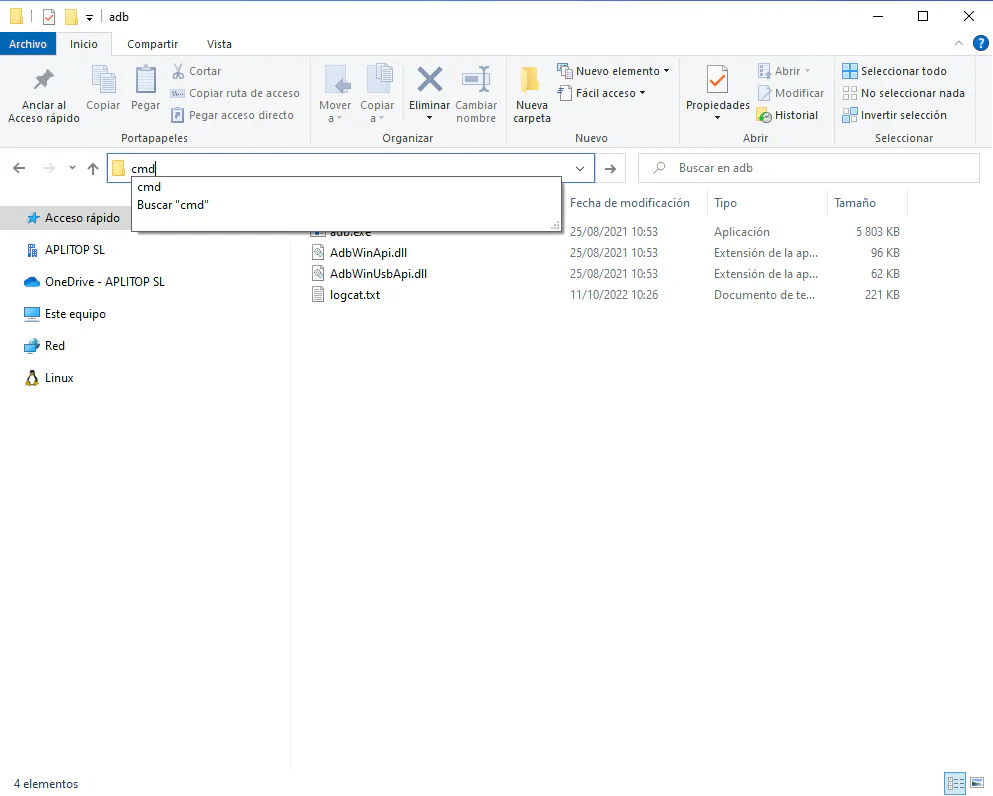
If done correctly, the following window will open.
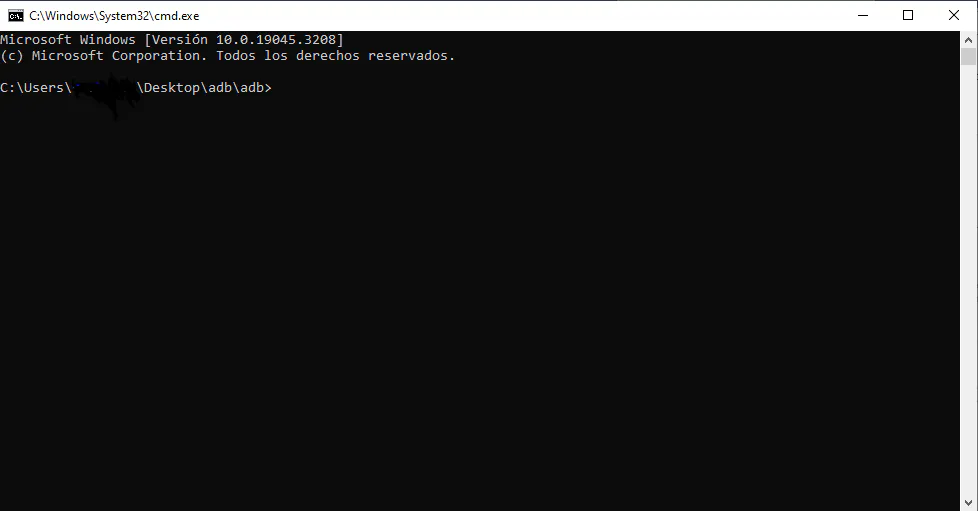
It should show the location of the “adb” folder so you can begin using it.
Write “adb logcat *:E > errorlog.txt”
If you get an error, make sure to look at your device to agree to enable debug from the computer, in case it asks, and try again.
A new file called “errorlog.txt” will be created in the “adb” folder.
Wait a few minutes, and then either unplug the device from the computer or close the cmd.exe window.
Send the “errorlog.txt” file to our technicians, alongside any other information, such as a video or a project .zip so they can solve the issue.