
tcp PointCloud Editor
Publication - PCE
5.1 Publication
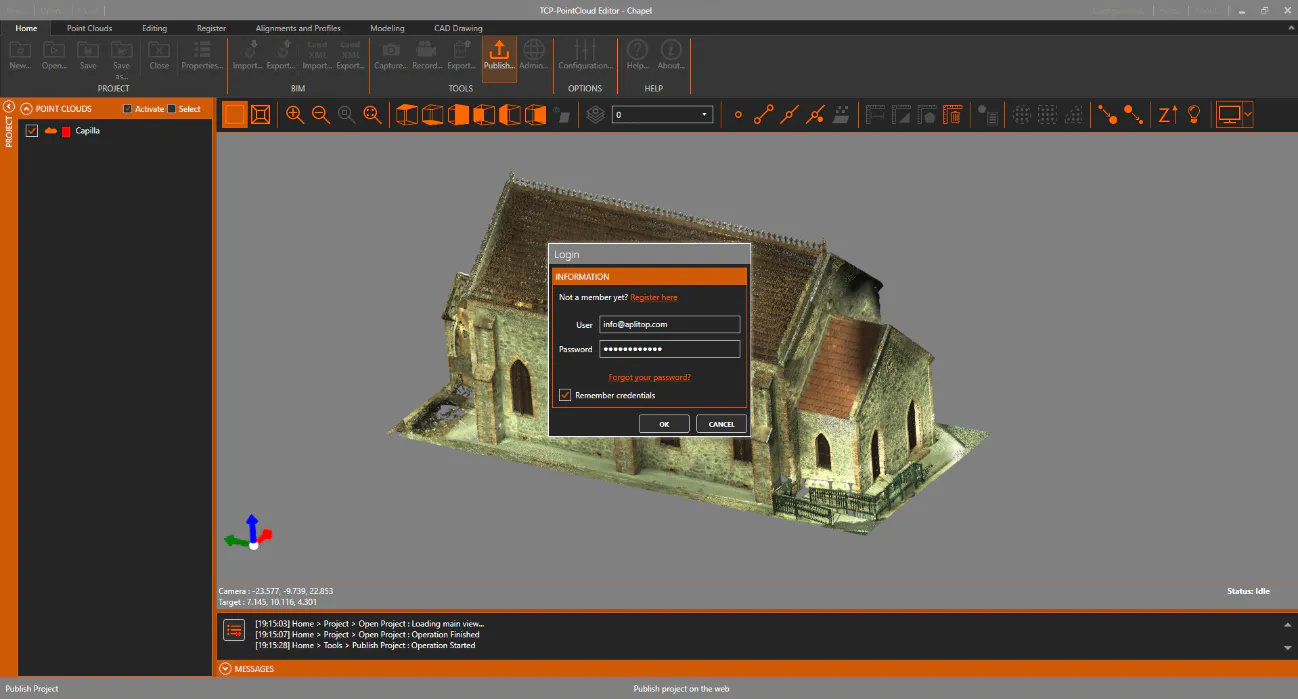
- Activate the Home ribbon and within the PROJECT group click the Open icon, and select the file Chapel.pce created earlier.
-
In the TOOLS group, click the Publish icon
-
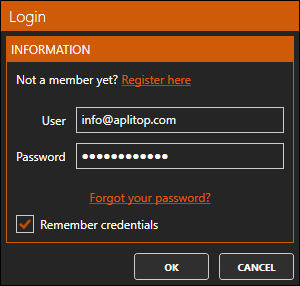
If you have not registered, click the link to proceed to registration, where you will check if you have the corresponding rights. If you are already registered, enter username and password and press OK.
-
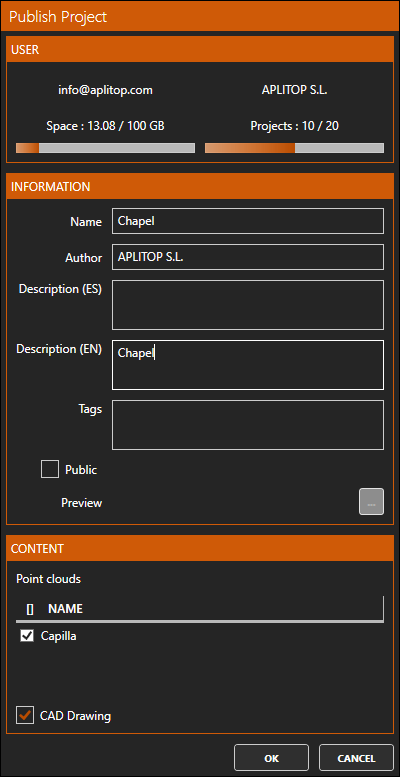
The application then connects to the server and displays data such as available space, number of projects uploaded, etc. Write a description in English, and leave the Public box unchecked.
-
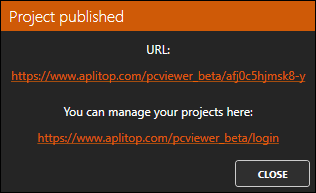
Press OK to start the publication, and at the end a dialog similar to the following will be displayed:
-
Click the link under the URL text to open the default web browser with the point cloud web viewer. This same link can be shared to other people. The point cloud can only be viewed if the URL is known unless it has been marked as public.