
tcpTunnel Scan
Front - TSCAN1
7.1 Front
Allows one stake out, without iterations, the points where it will be drilled on the front face.
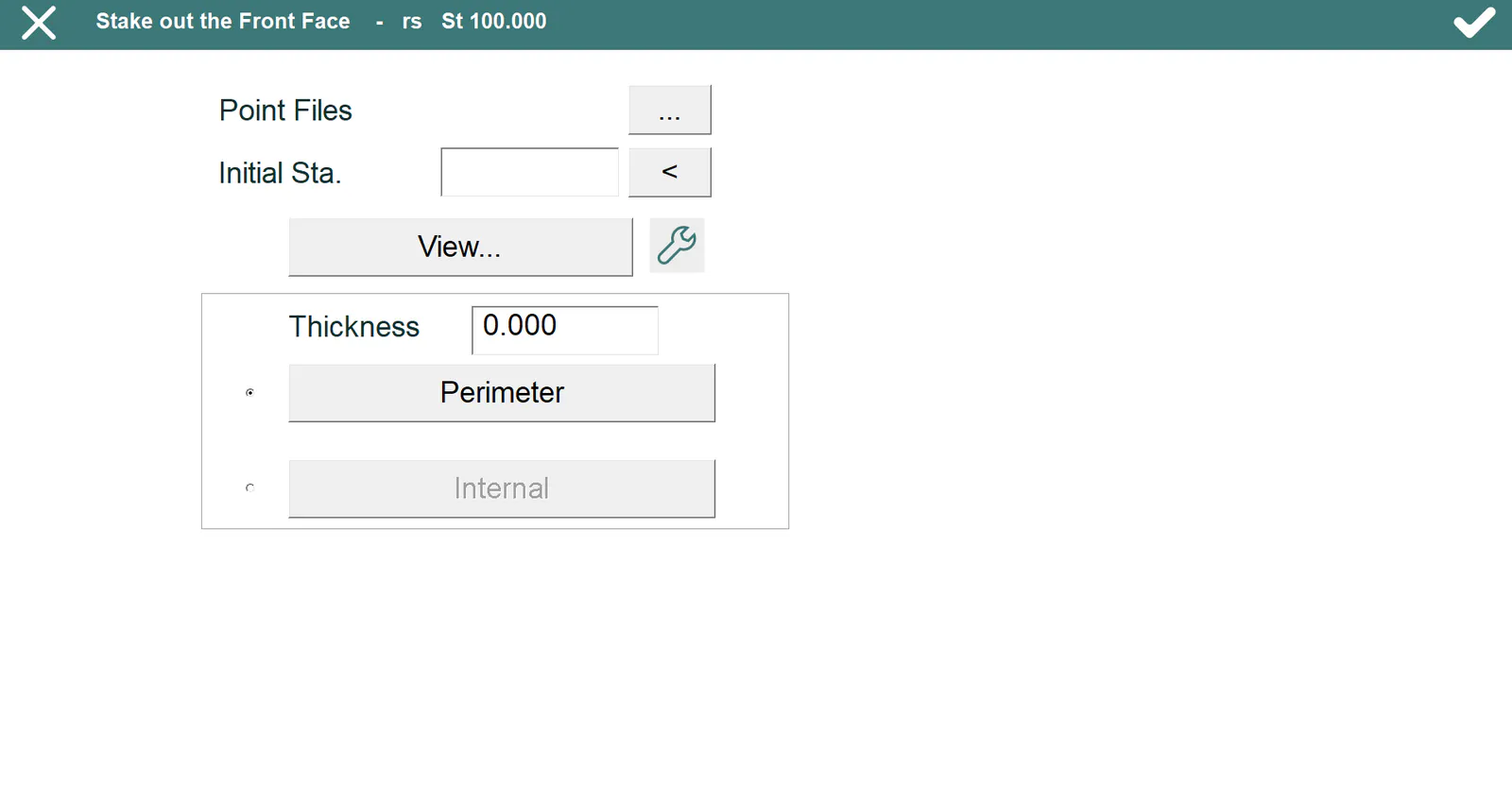
This option needs that the project has, at least, one point cloud which contains the front face.
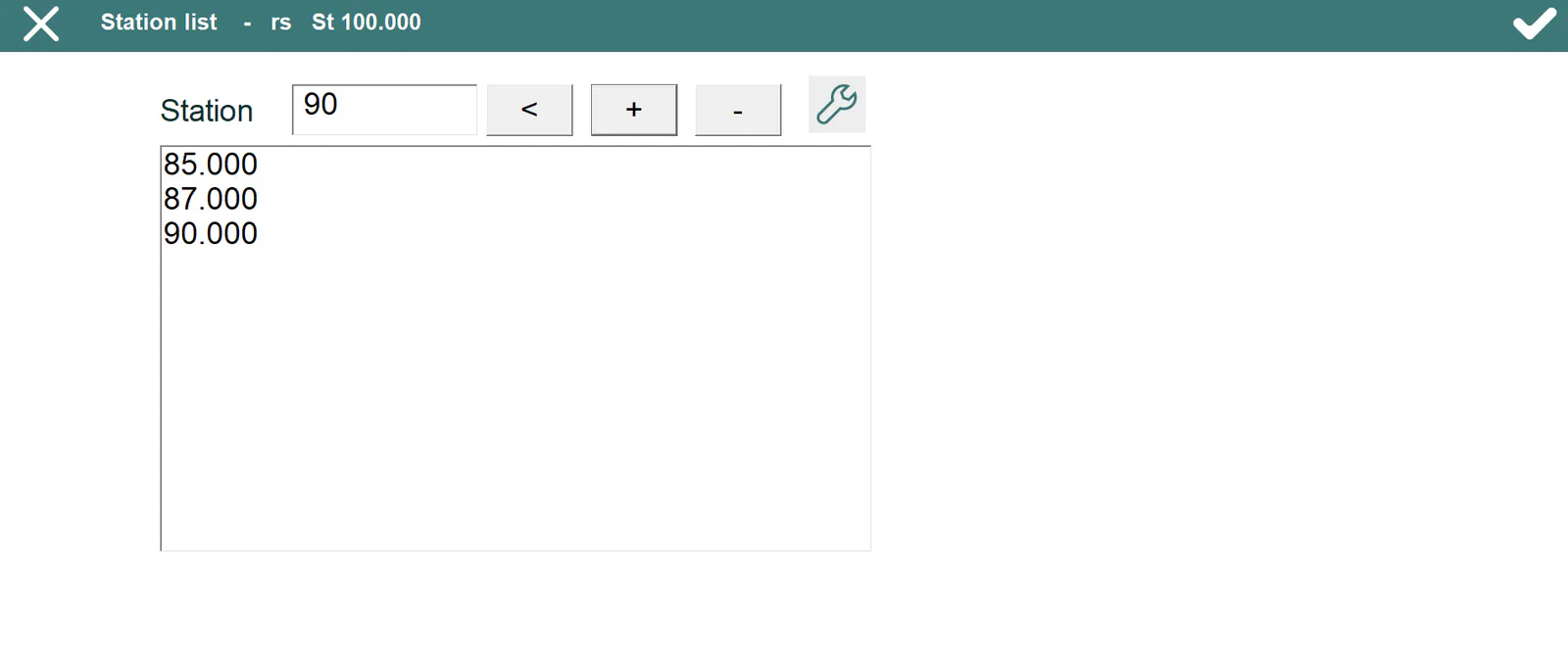
Then, the program asks for an Initial station which will be used to calculate the surface defining the front. This station is calculated by averaging the stations measured or entered manually in the screen which is shown when clicking < button.
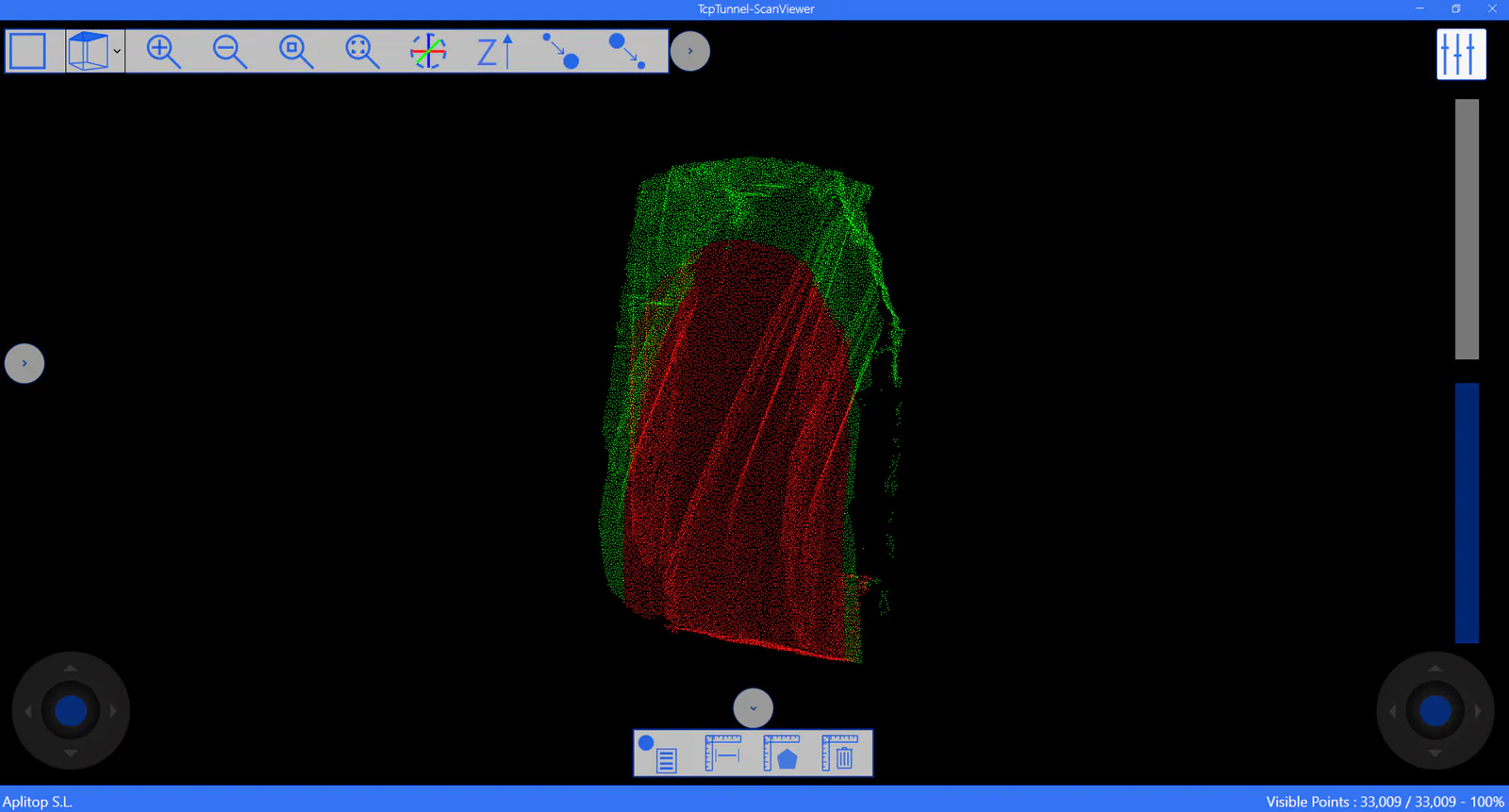
After calculating the initial station, the point cloud which defines the front face can be shown clicking View... button.
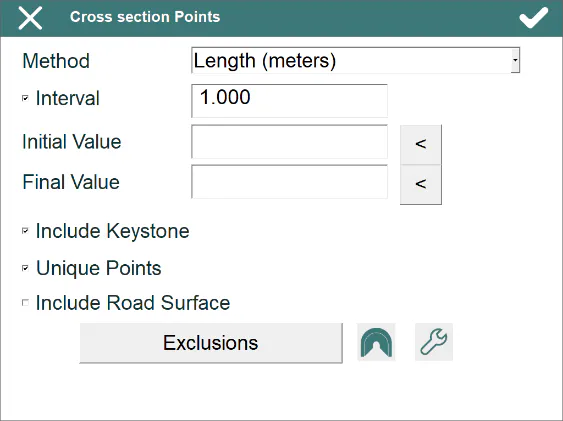
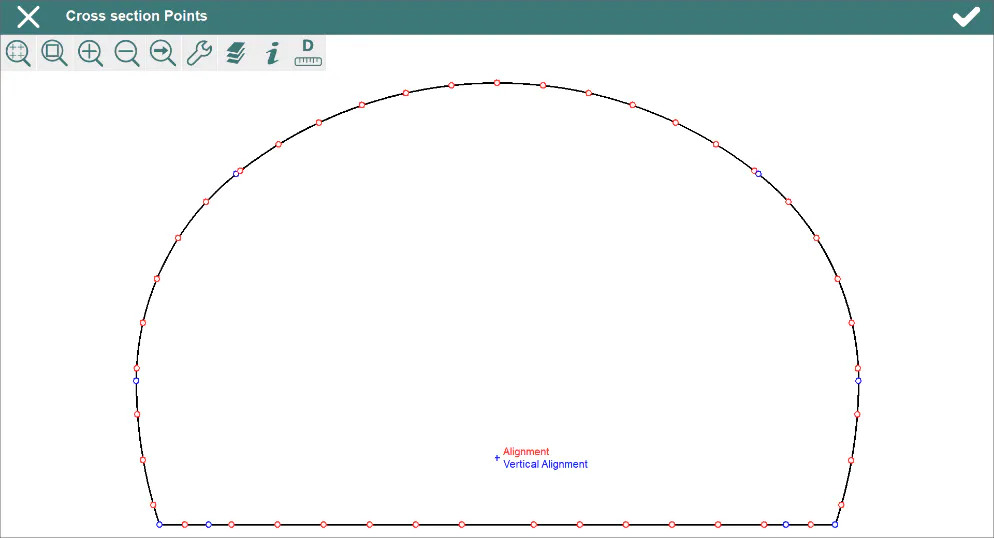
The user can select points on the tunnel template (Perimeter), inside it (Internal) or outside it (Perimeter + Thickness). In the first and third cases, there are several methods (see Features and Functionality > Theoretical Points of the Tunnel Template).
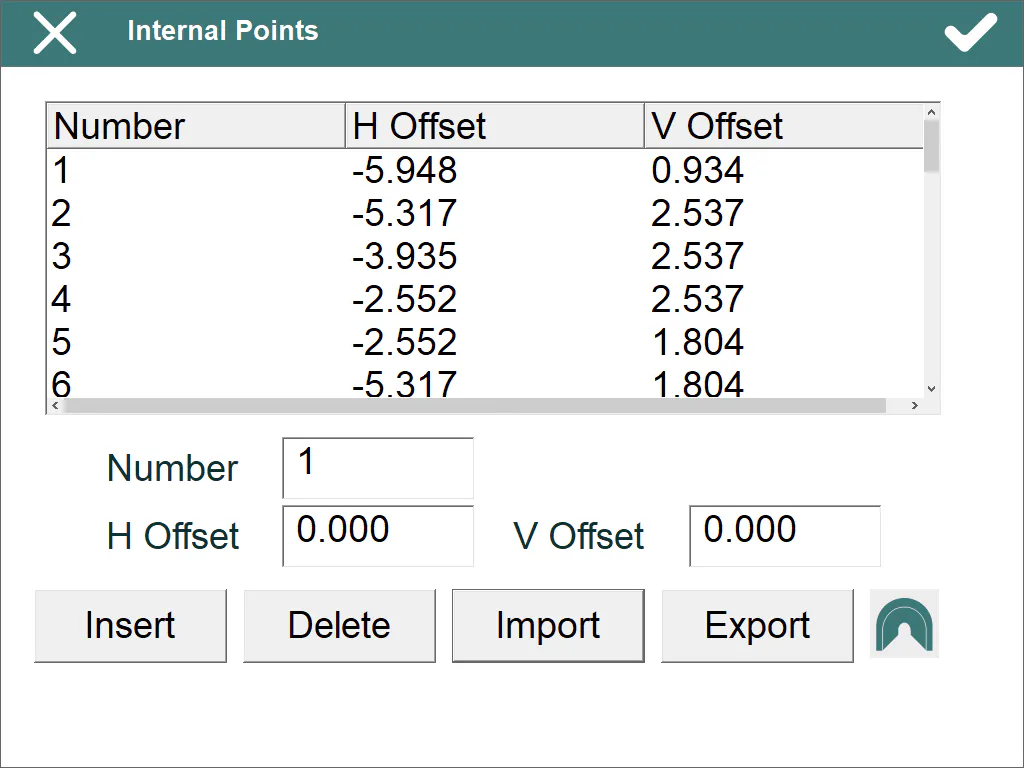
On the other hand, the program allows one to define theoretical points by entering a horizontal and vertical offsets regard to horizontal and vertical alignment application points. These points can be entered manually or import them from file. Each line in the file must have the format: number h_offset v_offset. A blank space must be entered between fields.
Once theoretical data is entered, clicking on accept button, the program shows the graphic screen for staking out.
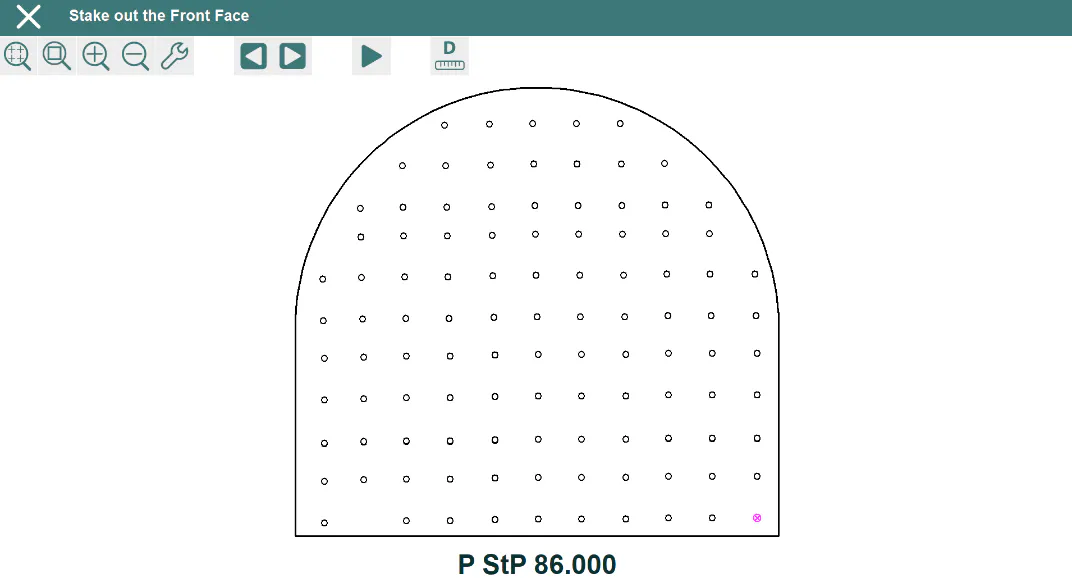
P StP: Theoretical station of the cross section (or profile).
 Change total station settings.
 Go to the previous point to stake out.
 Go to the next point to stake out.
 Start the stake out of the current point.
 Start area and distance calculations.
After finishing the setting out of the point, it will be drawn in blue color if everything is right and it has been stored in result file, otherwise it will be drawn in red.