tcpTunnel Scan
Points - TSCAN1
7.4 Points
Allows one to set out one or more points of any points file.
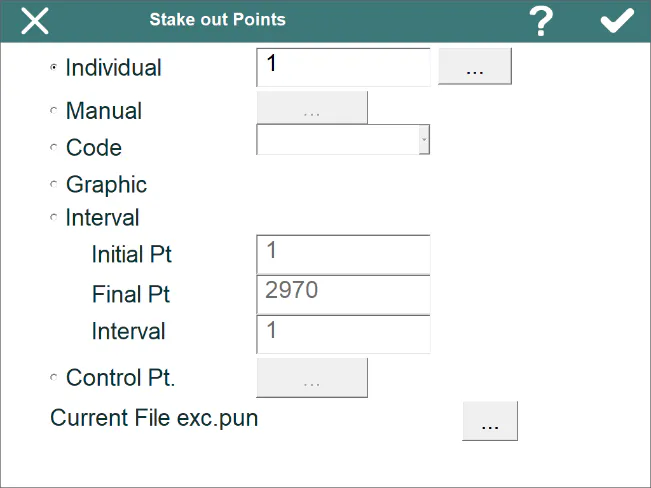
The name of the project's current points file is shown in the lower part of the screen. Clicking on the  button allows one to select any other points file.
Information about the points to be set out can be supplied by any of the following ways:
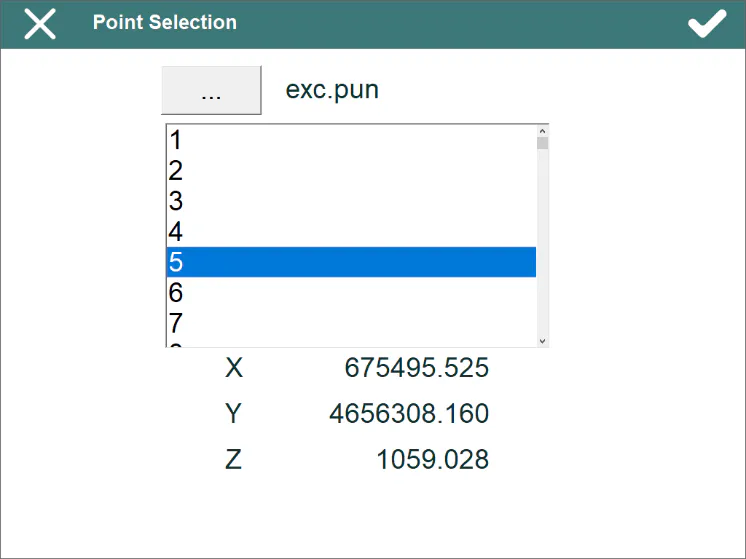
Individual: Sets out an isolated point. It shows the name of the first point in the currently selected file by default.
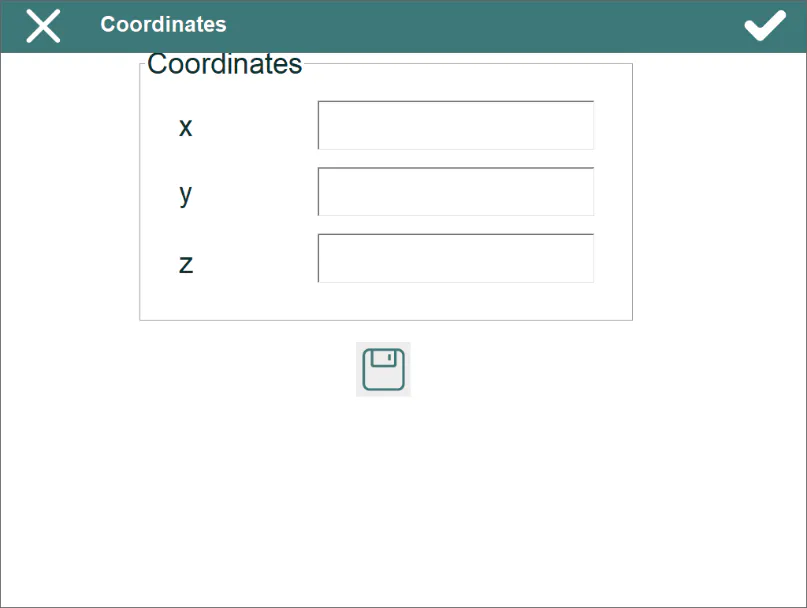
Manual: Allows one to manually enter the coordinates of the point to be set out. This point can be saved in the current file by clicking on the record button. It will be assigned with the number of the last point plus 1.
Code: Sets out the points of the file having the code indicated.
Graphic: Allows one to select a point or a control point graphically.  button must be clicked to select the point.
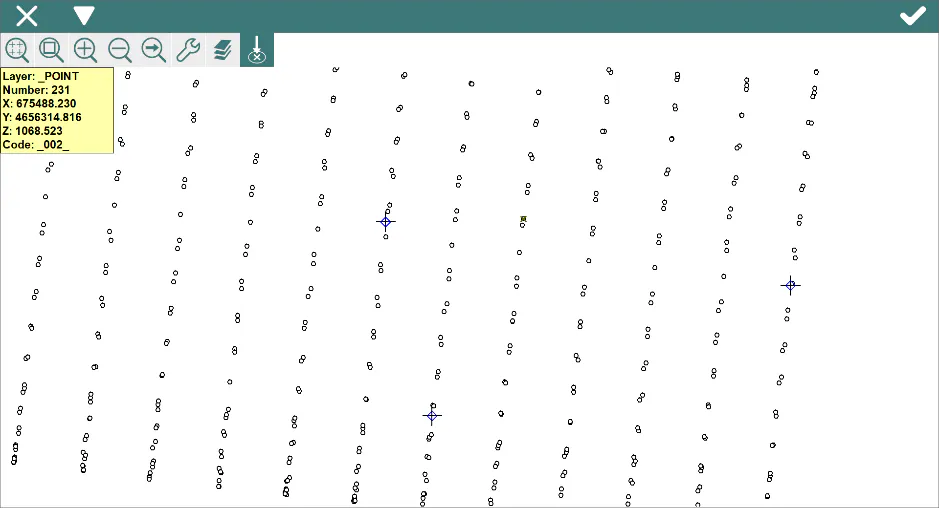
Interval: Allows one to set out from the initial to the final point in accordance with the interval entered. This marks the number of positions jumped within the file.
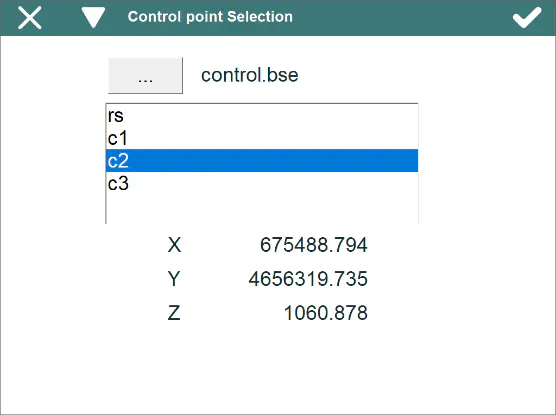
Control Point: Allows one to select a point from any station file.
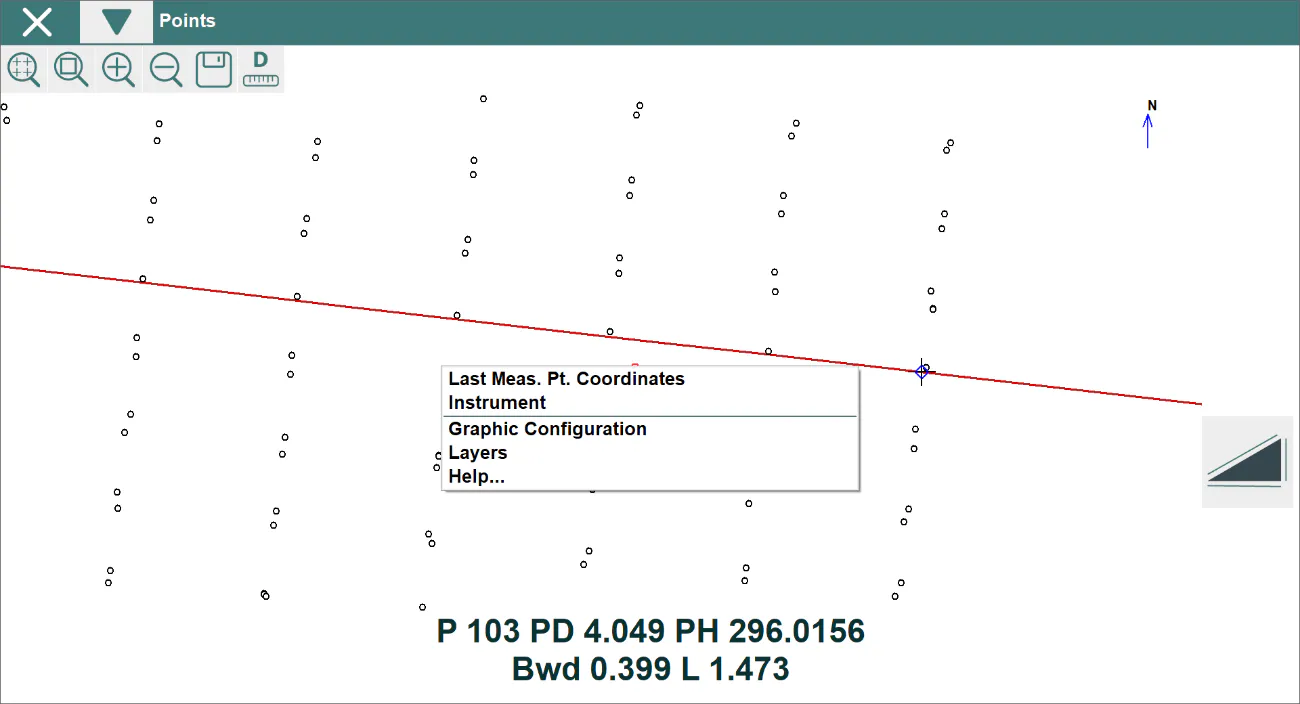
Once the information of the point to stake out is supplied, the next screen appears:
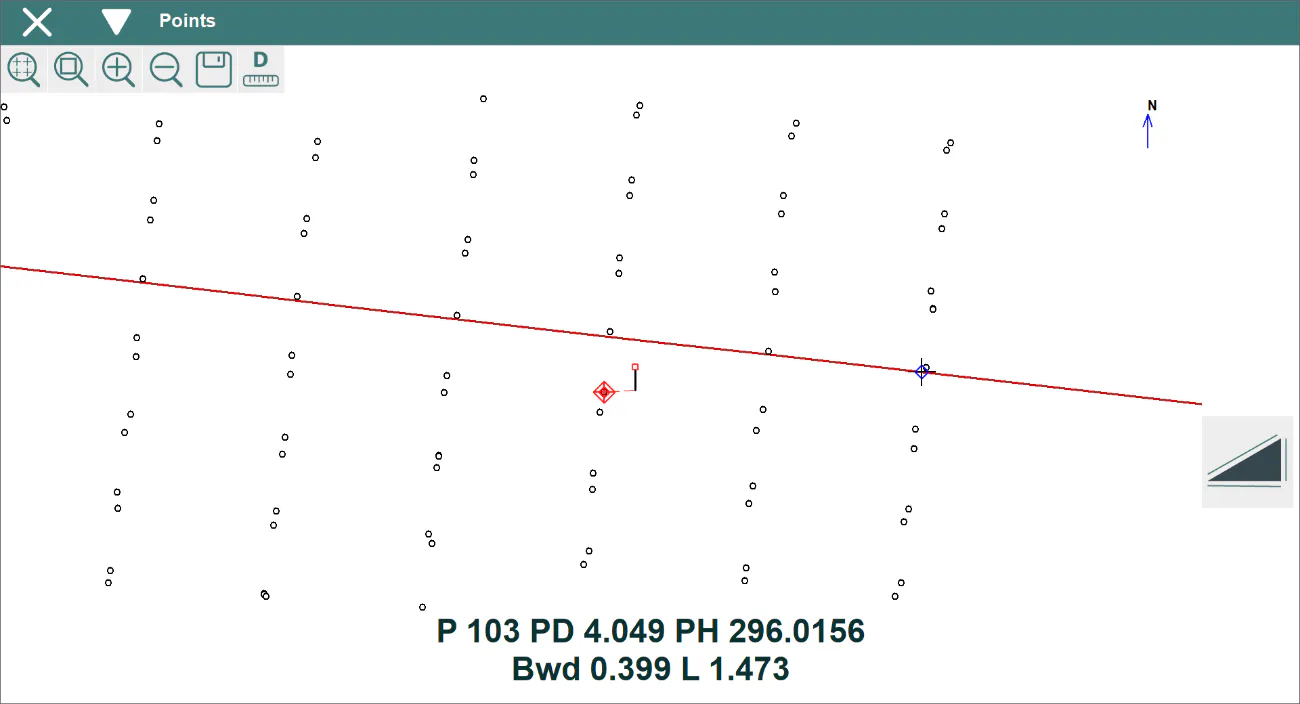
P: Point number or name.
PD: Project or theoretical distance.
PH: Project or theoretical horizontal angle.
After measuring, this information is shown:
Bwd or Fwd: Distance to move backward or forward to reach the point.
R or L: Move up or down (R or L) to reach the right height.
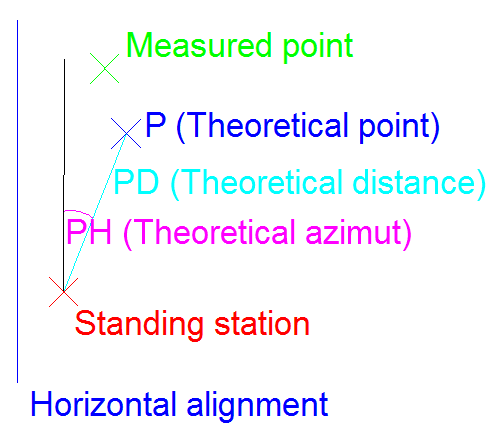
If the point is not in line, the program displays a prompt with the angle that the station must be moved to the right or to the left. In motorized stations, this information is not shown if the Horizontal and Vertical options have been selected in the Instrument section. The station will automatically move to the theoretical point.
The cross section and longitudinal tolerances are established in the Settings > Tolerances section. Both are in meters.
Other options are available in the menu on the title bar, such as indicate a point read by its name or number, viewing the coordinates of the last observed point, accessing the total station configuration, enabling/disabling layers of the drawing, etc.