
tcp PointCloud Editor
Quick profile editor - PCE
14.1 Quick Profile Editor
Description
The Quick Profile Editor is shown after launching the Quick Profile command and defining a polyline or segment for the profile.
It exposes a subset of commands available in TCP-PointCloud Editor, that allow interaction with the points in the project's point clouds.
Details
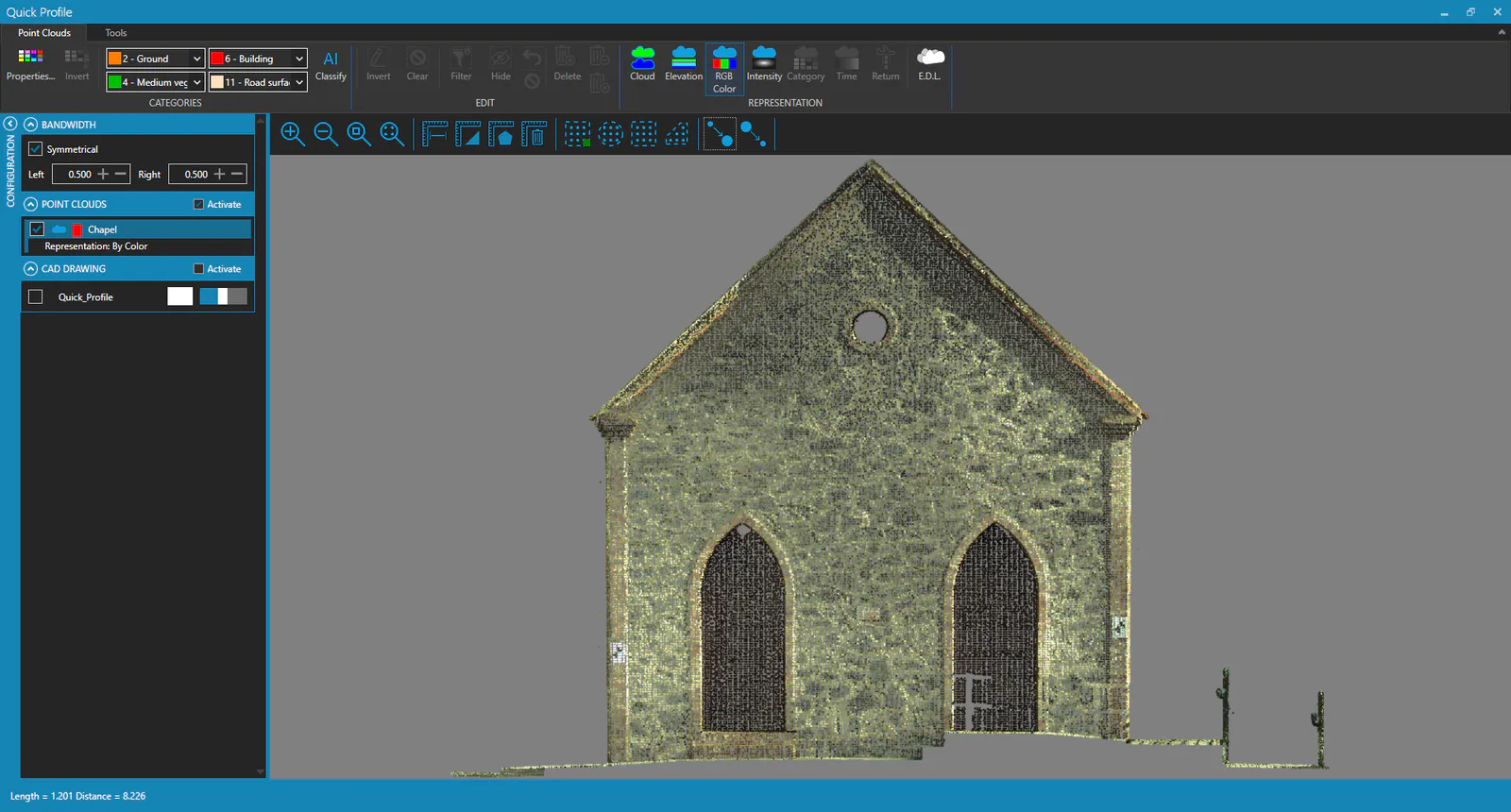
This editor is like a secondary application that has a configuration panel, a ribbon menu, a tools bar, a view area and a status bar.
Configuration Panel
BANDWIDTH
Fix symmetric bandwidth to the left and right of the profile line. Left and right bandwidths.
Project elements
- List of point clouds available.
- List of grids available.
- List of surfaces available.
- List of CAD layers available.
The user can choose which elements to show in the profile view, configure its representation and access to the commands related to each element.
Ribbon Menu
Point Clouds Tab
CATEGORIES Group
Provides access to several commands related to point clouds classifcation.
EDIT Group
Provides access to several commands related to the editing of selected points.
REPRESENTATION Group
Point clouds representation options.
Tools Tab
TOOLS Group
- Capture: Capture the current view of the profile editor and save it as an image.
- Export: Export view content to drawing (DWG or DXF format).
- Edit: Launches de Profile Editor with the current data.
- Raster Editor: Launches the Raster Editor with the current data.
Tools Bar
Zoom Tools
- Zoom in
- Zoom out
- Zoom window
- Zoom extend
Measure Tools
- Measure Distance
- Measure XY, Z and 3D Distances
- Measure Area
- Clear Measurements
Selection Tools
- Selection/Deselection Mode
- Select by Circle
- Select by Rectangle
- Select by Polygon
Points Tools
- Increase Point Size
- Decrease Point Size
View Area
Shows the configured project elements. It is similar to the 3D viewer of the main application, but without rotations.
Status Bar
Shows the Length and Distance of the cursor position with respect to the profile line.