
tcpGPS
Importing points - GPS v2
16.1 Importing points
It is possible to import points previously taken in other platforms or from other projects made with tcpGPS using files of the following types
TXT or PUN: The format of the points in these files must be:
<point id> <X> <Y> <Z> <point code>
For example:
1 324177.421 4041653.935 0.85 SURV
2 324177.436 4041653.925 0.62 SURV
3 324177.422 4041653.937 0.63 SURV
4 324177.418 4041653.932 0.75 SURV
5 324177.432 4041653.942 0.55 SURV
6 324177.433 4041653.928 0.49 SURV
7 324177.414 4041653.939 0.65 SURV
8 324177.416 4041653.935 0.77 SURV
9 324177.427 4041653.919 0.76 SURV
10 324177.412 4041653.941 0.81 SURV
 |
|---|
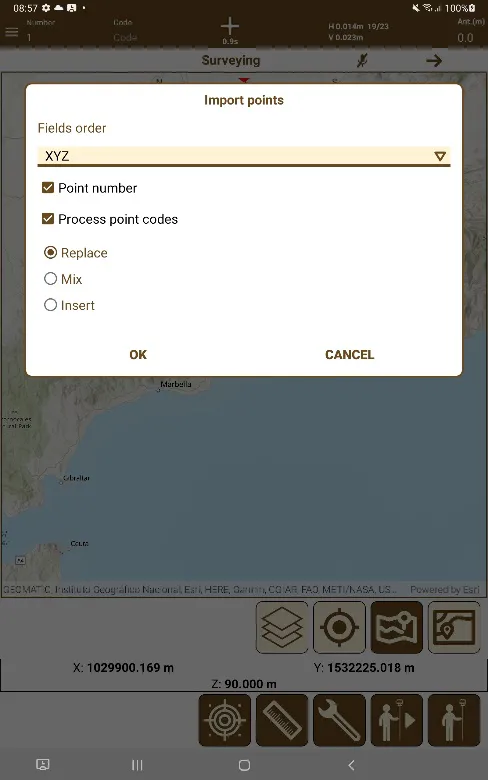
Figure 146. Import points |
Point Number: Uses the indicated point in the folder instead of creating the number automatically.
Process Point Codes: Compare the point codes with the ones in the database to interpret it as open polylines, closed, or individual points, all of them with their codes.
DXF: The POINT entities contained in the file will be taken.
KML / KMZ: Point entities will be taken as valid points.
GSI: The coordinates, point number, and code are obtained from elements 41, 42, 11, 81, 82 and 83. The rest of elements are not considered.
CSV: The coordinates, point number, and codes that are separated by commas or semicolons are obtained. As well as the files exported by tcpGPS
Selecting the file with the desired points will open a dialog with the following options to import these points:
The default option is Replace, that will erase all the points in the drawing and replace them with the imported points.
Insert adds the points at the end of the list of existing ones. The ordinal of the points of the file to be imported is ignored, and the new points will be imported from the initial number specified in the dialog.
Finally, the Mix option considers the point names, adding from the new file only those points whose number does not already exist in the point cloud.