
tcpTunnel CAD
CAD viewer - TNC3
13.6 CAD Viewer
In the CAD viewer, the grade is drawn as a polyline along with its annotations. If a longitudinal profile reference file (.lon) has been loaded, it is also displayed as a separate polyline.
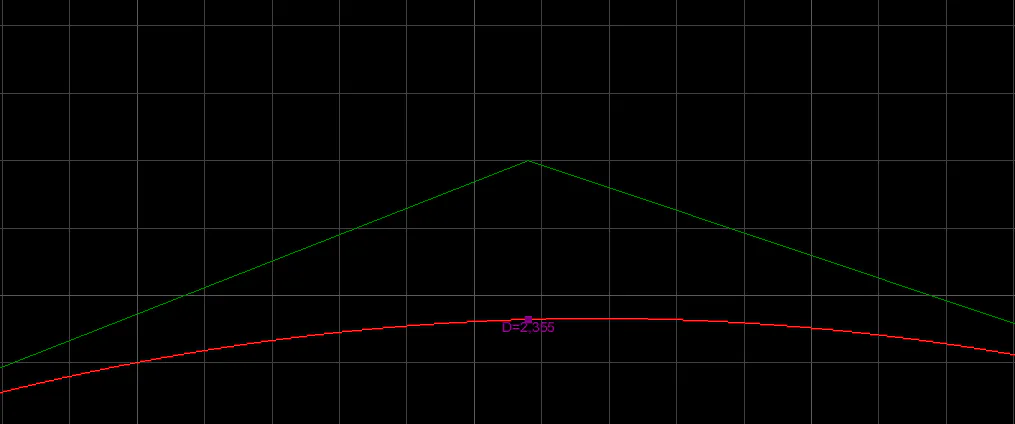
If the grade polyline is clicked, it will be highlighted graphically in the CAD viewer and in the grade panel. When selected, the grade is displayed as a dashed line with greater thickness, the polyline vertices are shown, and the polyline color is inverted.
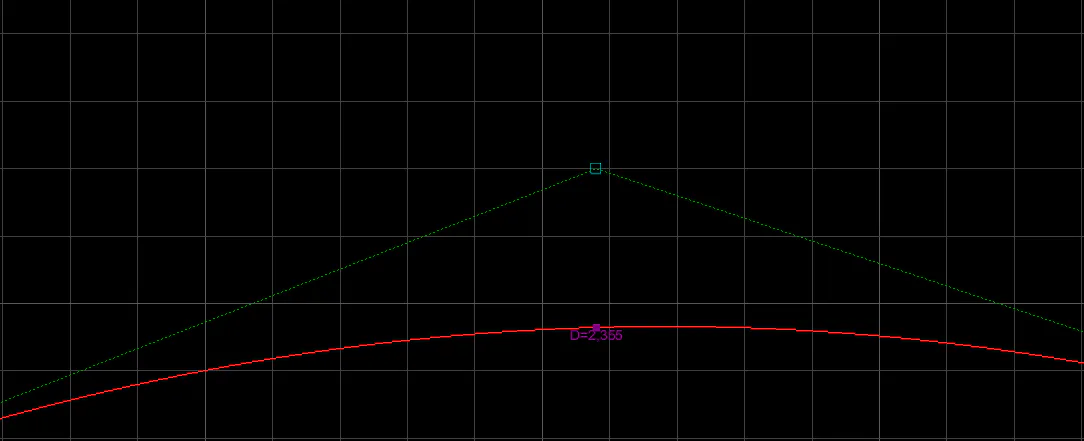
At this point, if the cursor is placed over one of the vertices it will be highlighted and the radial context menu will appear.
Radial Context Menu
When the cursor is placed over a vertex of the selected grade, the radial menu appears with the available editing options:
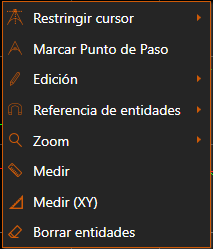
Edit: Displays the Edit Grade Node dialog for the selected node.
Edit Agreement: If the selected node has a vertical curve (Kv ≠ 0), displays a dialog to edit the vertical curve parameters.
Insert: Inserts a new node at the designated position.
Delete: Removes the node. It can also be deleted, once highlighted, by pressing the Delete key.
More options: Shows the context menu.
Context Menu
At any time when right-clicking on the CAD viewer, the application context menu appears:
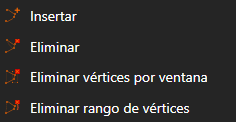
The measurement and entity deletion operations are the same as in the Measurement and Delete Menu of the toolbar.
Likewise, in the Entity Reference and Zoom submenus, the commands from the menus of the same name in the toolbar are found.
If the application is in a command and the context menu is opened by right-clicking in the CAD viewer, additional options will be given to end the command via Enter or Escape.