
tcp PointCloud Editor
Move and rotate point cloud - PCE
8.4 Move and Rotate Point Cloud
Location
- Ribbon menu
- Register
- TRANSFORMATION
- Move and Rotate (Move and Rotate Point Cloud)
Description
This command displays the Move and Rotate Point Cloud dialog.
Parameters
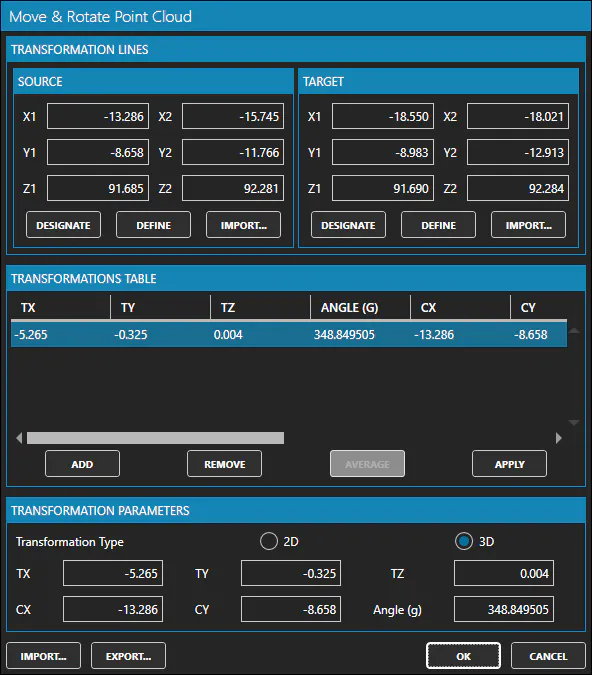
| Name | Meaning |
|---|---|
| Source X1 | X-coordinate of the starting point of the source line |
| Source Y1 | Y-coordinate of the starting point of the source line |
| Source Z1 | Z-coordinate of the starting point of the source line |
| Source X2 | X-coordinate of the end point of the source line |
| Source Y2 | Y-coordinate of the end point of the source line |
| Source Z2 | Z-coordinate of the end point of the source line |
| Target X1 | X-coordinate of the starting point of the target line |
| Target Y1 | Y-coordinate of the starting point of the target line |
| Target Z1 | Z-coordinate of the starting point of the target line |
| Target X2 | X-coordinate of the end point of the target line |
| Target Y2 | Y-coordinate of the end point of the target line |
| Target Z2 | Z-coordinate of the end point of the target line |
| 2D | Checked if tranlation is in 2D (XY) |
| 3D | Checked if tranlation is in 3D (XYZ) |
| TX | Translation in X-coordinate |
| TY | Translation in Y-coordinate |
| TZ | Translation in Z-coordinate |
| CX | X-coordinate of the rotation center |
| CY | Y-coordinate of the rotation center |
| Angle (g) | Rotation angle around (CX,CY) in gons |
How to use
There are several ways to move (translate) and rotate a point cloud. In general, the process is as follows:
-
Set the source and target lines, each line given by 2 points (2d or 3d coords).
-
Click the "ADD" button int the Transformations Table.
-
Select the transformation in the table and click the "APPLY" button.
-
Once the transformation parameters are set, click the "OK" button to apply the transformation.
-
The Transform Point Cloud dialog window will be shown. There you can check which point clouds will be transformed.
Remarks
-
Only rotation around the Z-axis is applied.
-
You can set the center of rotation in X and Y coordinates.
-
The rotation angle is given in gons (1 gon = 1/400 of a full circle) in clockwise direction.
-
You can import the source and/or the target lines.
-
You can use 2D or 3D transformation.
-
You can have multiple transformations in the table, and get the averaged parameters.
-
You can set the transformation parameters directly.
-
You can import and export the transformation parameters.
-
You can apply the same transformation to several point clouds.