tcpMDT
Calculating coordinates - MDT25
15.2 Calculating Coordinates
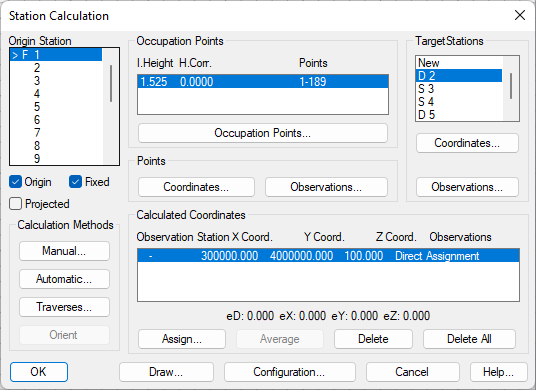
We can now proceed to calculate the station and point coordinates. The list in the top left-hand side of the screen (Origin Station) corresponds to the stations where we positioned the instrument in the field. Scanning this list shows how the program informs us of the observed stations from the selected ones (Target Stations), the instrument heights and the point read from it (Occupation Points). For example, from station 1, stations 2, 5 and 6 were measured in Double mode, i.e., back and forth, and 3 and 4 were measured in Simple mode, i.e., one way only. Select other stations to see how the information changes.
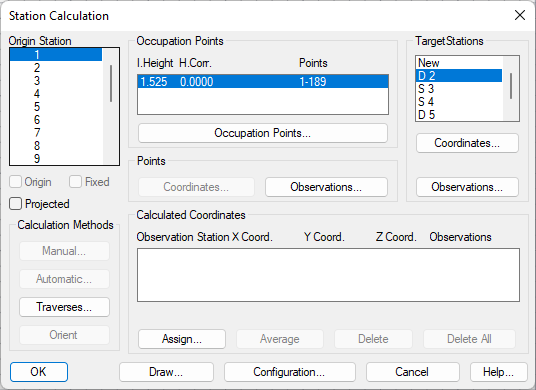
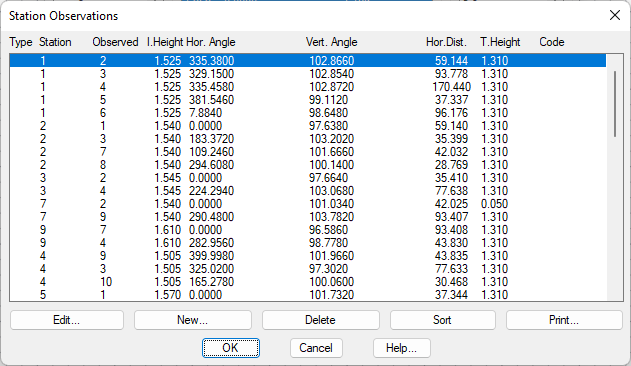
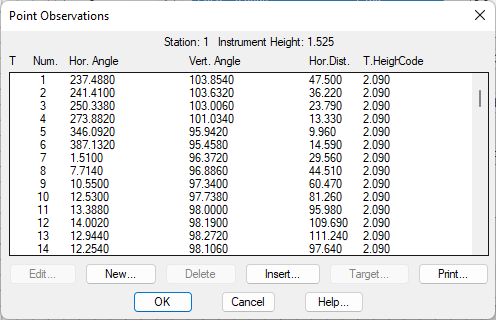
We can edit or view the station and point observations easily. Use the Observations button in the Target Stations frame and a complete observations list is shown. Double clicking on any of them or pressing the Edit button allows viewing or modification to any field. For point observations, use the Observations button in the Points frame.
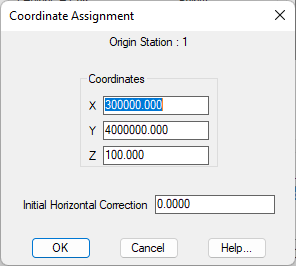
The next step is to assign some coordinates, starting from the origin station (in this case number 1). Select this station and press Assign. Type x=300000, Y=4000000, Z=100 and validate, observing that Fixed check box in the Station Calculation dialog box is now active and that the coordinates also appear in the Calculated Coordinates frame.
Now we proceed to automatically calculate all the stations and points, following the sequence of the original field file. First we tell the program, which is the station of origin, selecting 1 and we activate the Origin box. Observe that the Automatic button is highlighted.
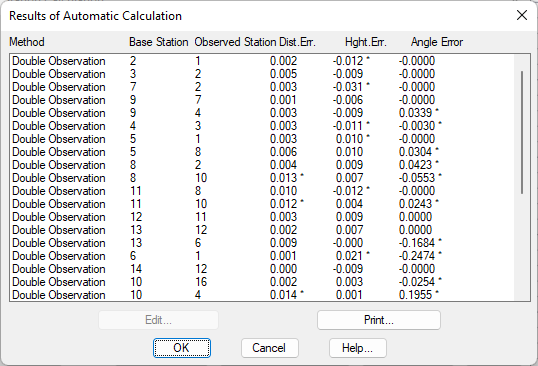
Press the Automatic button to show a results report in which are shown the calculated stations, the method used and any errors in distance, elevation or angle. Asterisks indicate that the pre-set limits have been exceeded. Pressing OK assigns all of the coordinates to their corresponding stations and points.
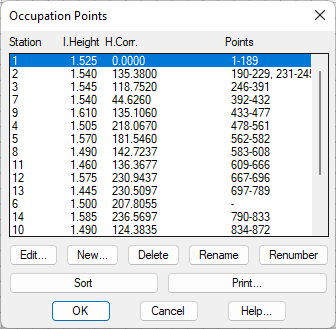
We can check that all the stations have been oriented. Press the Occupation Points button and a dialog box appears showing the instrument heights and the horizontal corrections for each one. Click OK.
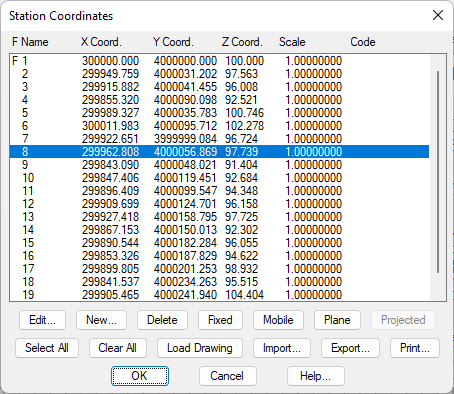
Selecting other stations, the calculated coordinates appear as before. Choose station 8 in Origin *Station list. We can see that the calculated coordinates appear from 5, 2, 10 and 11. Further on we will see other methods to help us better understand this concept. If we wish to check the station coordinates, we press the Coordinates button in the Target Stations* frame.
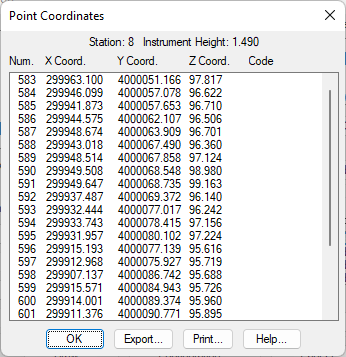
The points also have assigned coordinates. To view them press the Coordinates button in the Points frame.