
tcpMDT
Drawing stations and points - MDT25
15.3 Drawing Stations and Points
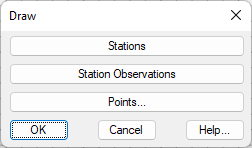
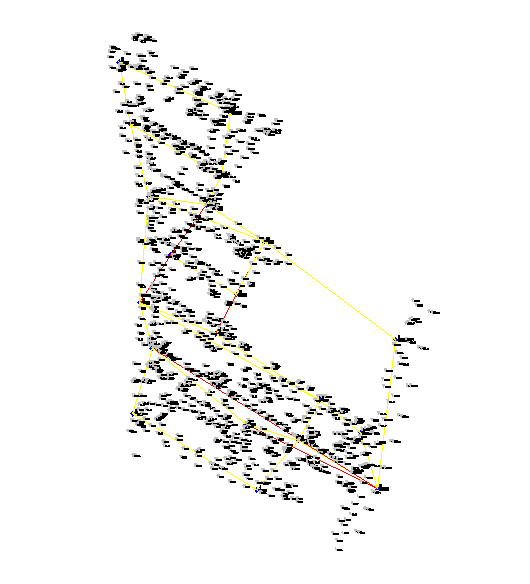
Now we can draw the stations and the points. For stations, in the Station Calculation dialog box, press the Draw button, then Stations and then Station Observations. Lastly, press OK** twice and perform a zoom extension.
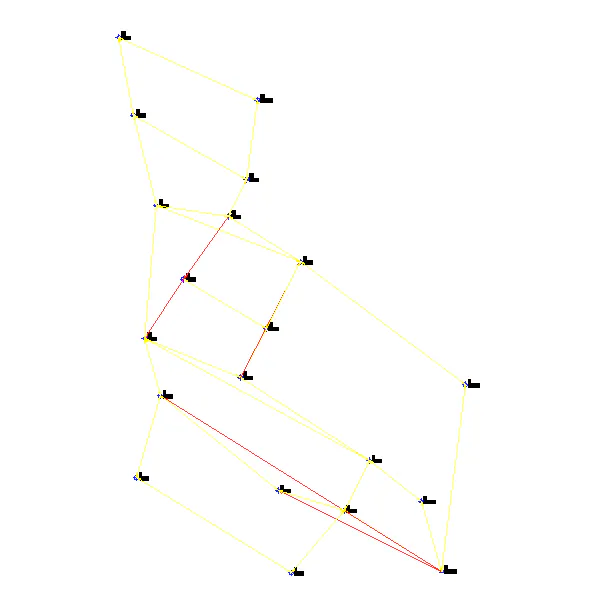
We can see the drawing structure. A triangle, and the mobile stations by a circle represent the fixed stations. A yellow line represents double observations and simple observations are shown in red.
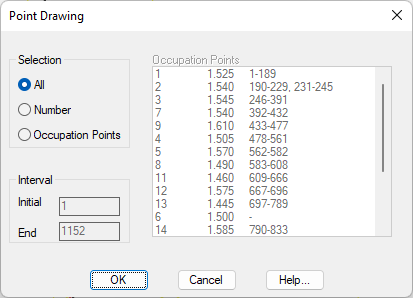
In order to draw the points, we enter again into Station Calculation , but this time choose the Surveying > Drawing > Draw Points command, with the All option on and press OK.
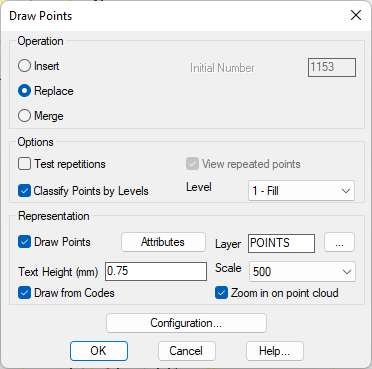
The next dialog box controls the drawing parameters. We use a scale of 1:500 and leave the rest of the values unaltered. Click OK.
From this point on, it is now possible to use the points in MDT to create a digital model.
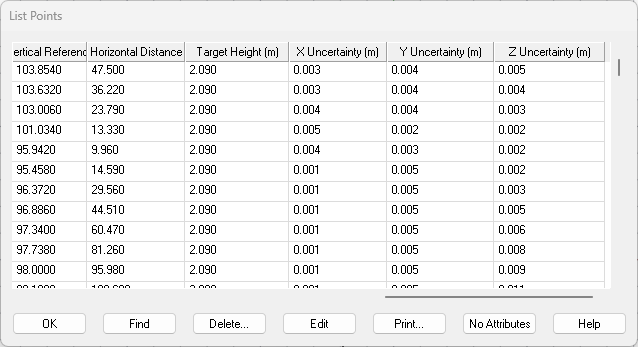
If we list the points and press the Attributes button, we can see how the uncertainties have been automatically associated with each of the points.
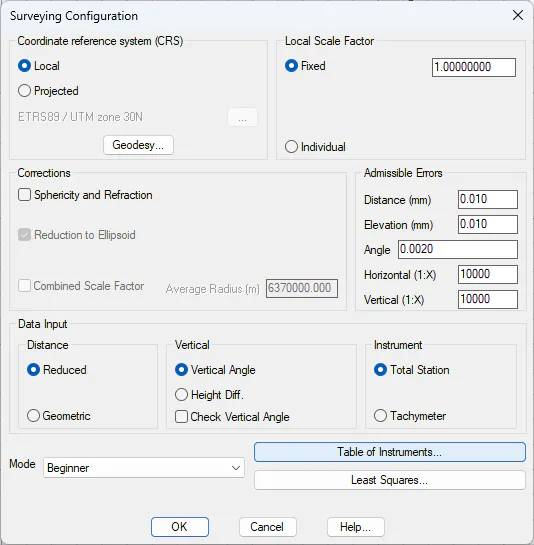
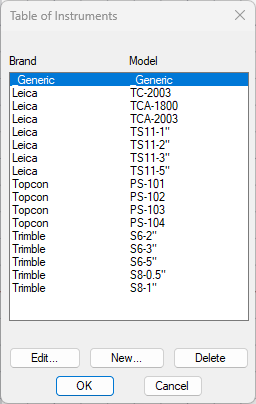
These uncertainties have been calculated according to the apparatus selected in the Table of Instruments in the Surveying configuration. In this case, the selected device can be visualized in the following image.
 |
 |
|---|---|