
Support
Excel Number Format Change Instructions
Update date
18/07/2022
Requirements
Hardware: Android Device
Software: Android OS, TcpGPS para Android 2.3.0
Goal
Clarify how to change the number visualization format in .csv
Details
Format Change Instructions
It is possible that when a .csv file is opened, the format of the numbers might be shown incorrectly despite the file itself having the numbers in the correct format.

To solve the issue of number visualization, so it appears without thousands separator, you must follow the following steps:
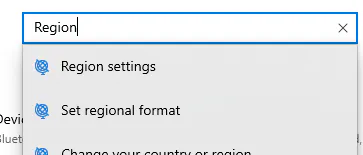
Open configuration and access Set Regional Format
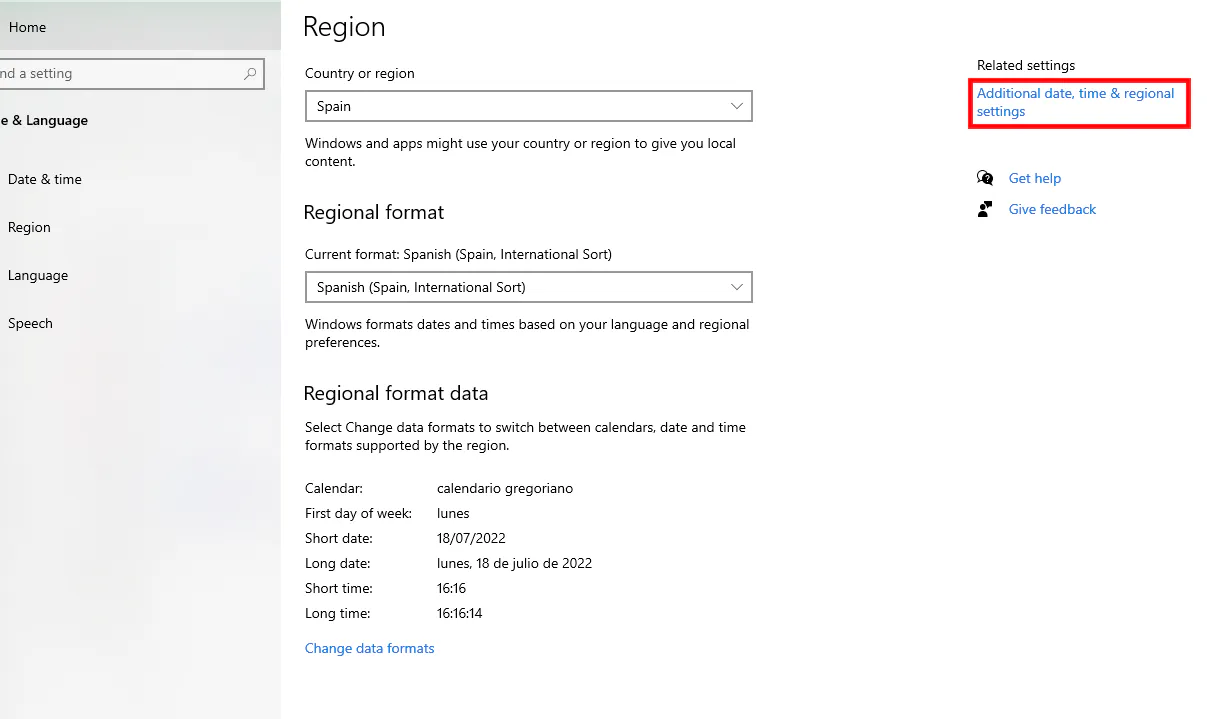
Access the option “Additional date, time & regional settings”
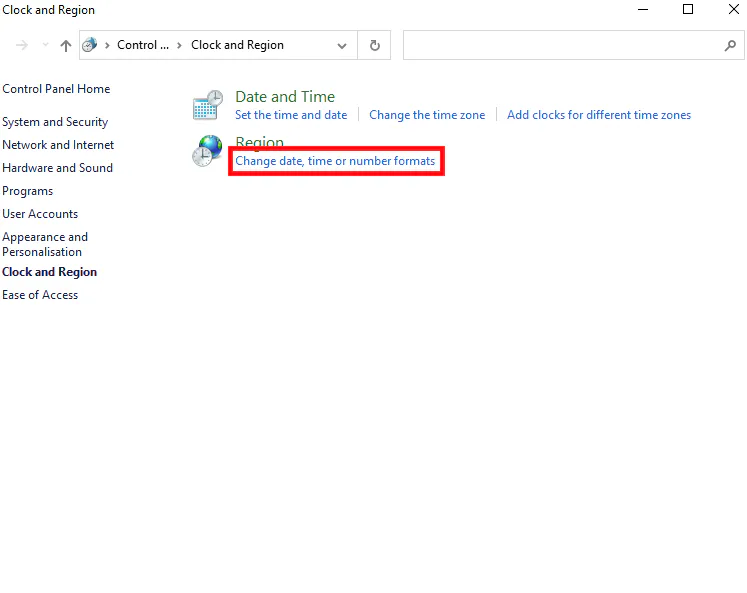
Access the option of “Change date, time or number formats”
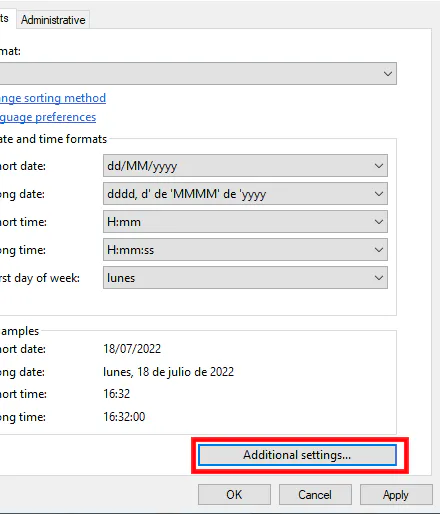
Access the option “Additional settings…”
Change “Decimal Symbol” from “,” to “.”
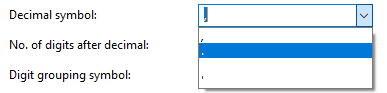
Change Digit grouping symbol from the current option to a blank space. Important for it to not be empty, but for it to be a blank space (“ “).

Apply change and accept.
Open the file again in Excel.
