
tcpGPS
Backup - GPS v2
4.5 Backup
tcpGPS allows backup files of all projects to be created, which are exported in .zip, and then restore them after, both by chosen projects or fully restored. These options can be accessed from the menu, under the Application section.
Create backup
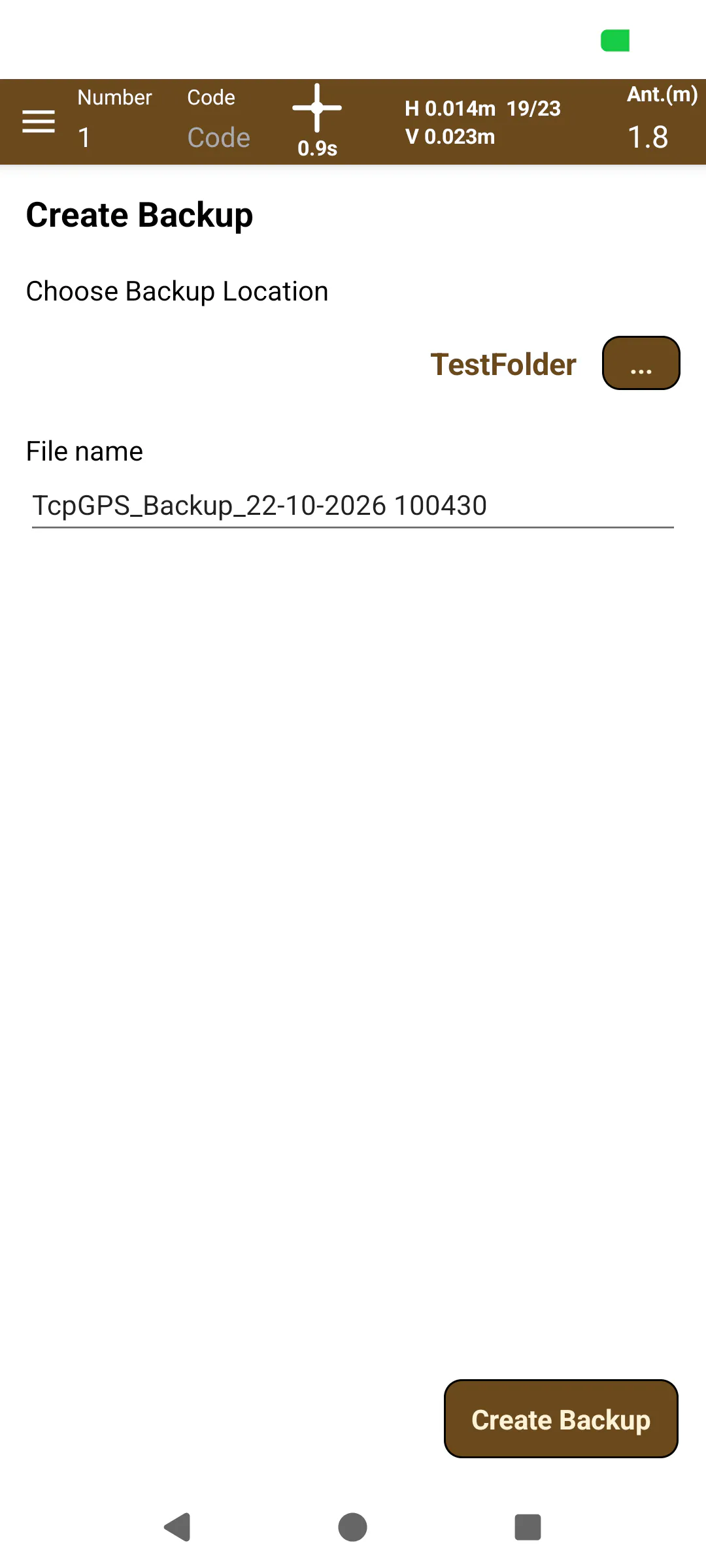
To create a backup, the folder must be chosen using the  button to give the application permission to be allowed to write on the folder that has been chosen. Once this is done, the button Create Backup will enable, and a .zip will be created in the chosen folder.
This .zip can be shared, (see 14.8 Share exported files) but it is important to keep in mind that it is probable that the file is of a large size, and it is possible that some applications can't use it, but it can be exported to Google Drive without any issue.
Restore Backup
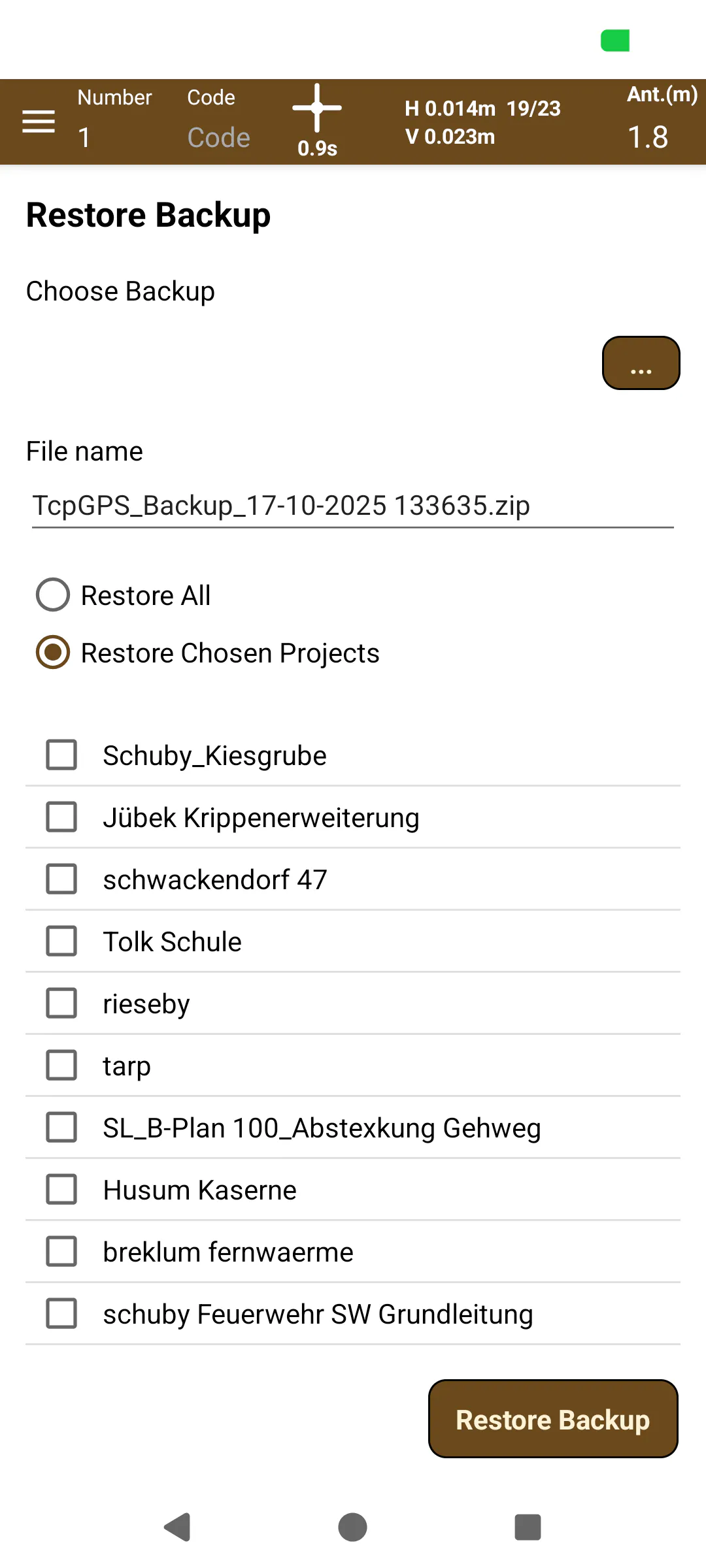
To restore a backup, the button must be pressed to open the Android Explorer, choose the backup .zip file. It Will be read to obtain all the projects inside of the backup.
If the Restore All option is chosen, all the projects will be restored from the backup. If the Restore Projects is chosen instead, the projects to be restored from the backup may be individually picked from the list.
NOTE: If a project to be restored shares a name with a previously existing project, it will be replaced! Make sure that there will not be any data loss.
Once the backup restoration has been performed, the application will close to avoid errors and data loss.
 |  |
|---|---|
Figure 32. Restore Backup | Figure 33. Create Backup |