
tcpMDT
[PRO] Roadbed Measurements Report - MDT26
Roadbed Measurements Report
 | Command to execute in the CAD |
|---|---|
Vertical menu | MDT26 > Measurements > Areas > Roadbed Measurements Report |
Ribbon menu | Volumes > Road > Roadbed Measurement Report |
Command line |
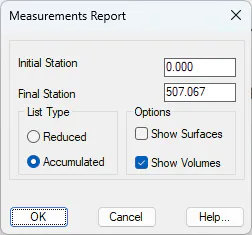
With this option, the program generates a list of measurements of the selected segment. Initially it requests the segment or road previously defined then with the below window we indicate the stations between which the calculation will be made.
It includes the stations in each cross-section together with the following measurements:
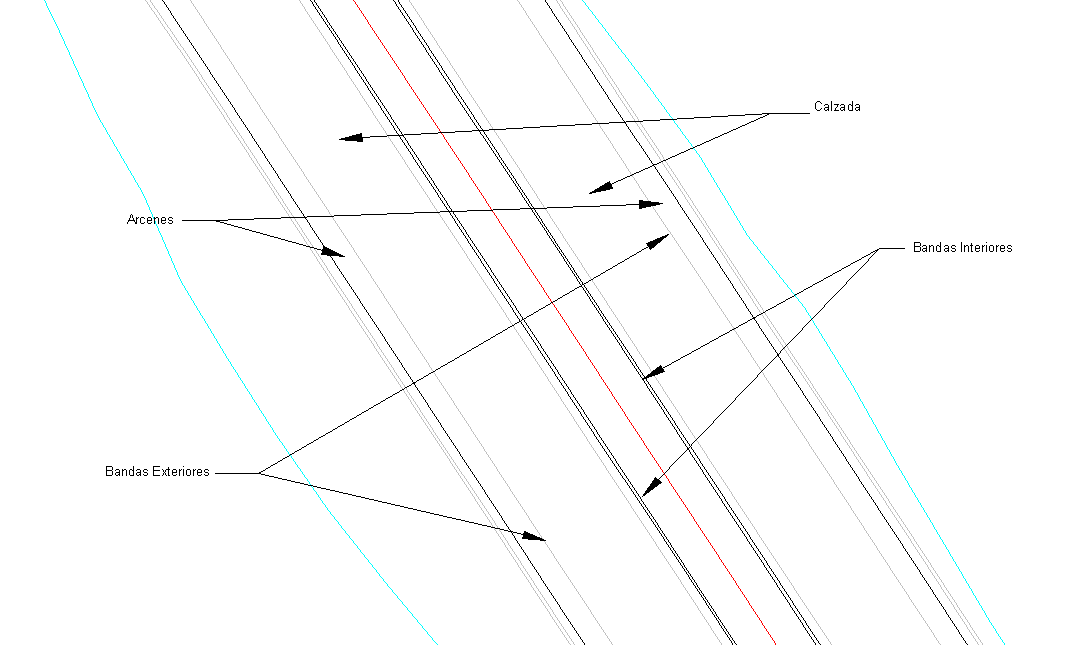
Road Surfaces (Rd.Surf.): It is the sum of the areas of the road to the left and right of the horizontal alignment and the area of the internal hard shoulders between two consecutive stations.
Area of Left and Right-Hand Shoulders. (Surf.R.Shld. L.Shld) It is the area of the external hard shoulder to the left or right of the horizontal alignment between two consecutive stations on the list.
Roadbed volume (Rd.Bd.Vol.): It is the volume of the roadbed between two consecutive stations on the list.
Reinforcements
If the existing roadbed is used, the program also calculates the volume measurement of the reinforcement layers. In order to do so, the reinforcement layers should have been previously defined to the segment selected (see Definition of Roadbeds in the Cross-Section Templates section) Should this be the case, the following parameters are displayed:
Reinforcements Area (S.Ref.): It is the area between the reinforcement marks and two consecutive stations.
Reinforcement Volume (Vol.Ref.): It is the volume of the reinforcement between two consecutive stations.
The program initially requests the segment containing the cross-section defined. One then has to enter the station interval, as well as choose whether Normal or Accumulated list is desired. Lastly, the resulting list is displayed.
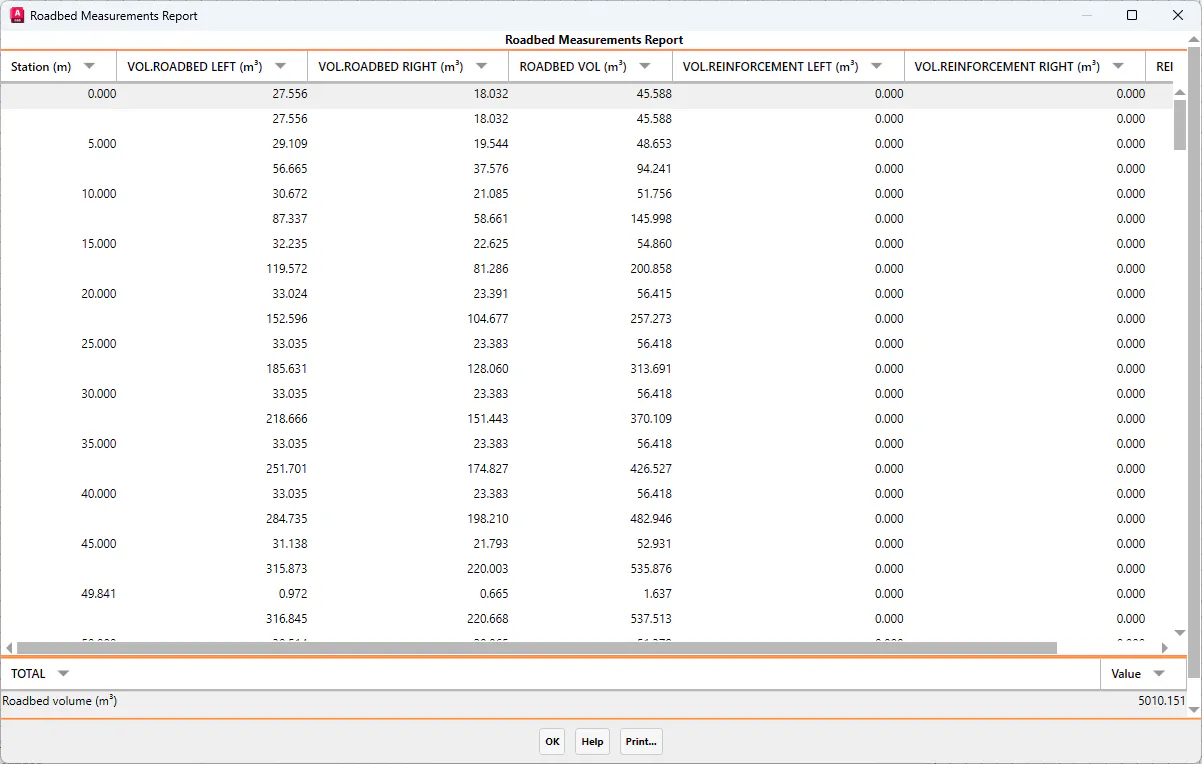
The information can be sent to the system printer or exported to an Excel spreadsheet from this window.