tcpMDT
Creating long section - MDT26
2.8 Creating Long Section
Then, we will generate the longitudinal profile of the alignment in the same way that we have proceeded with the cross sections.
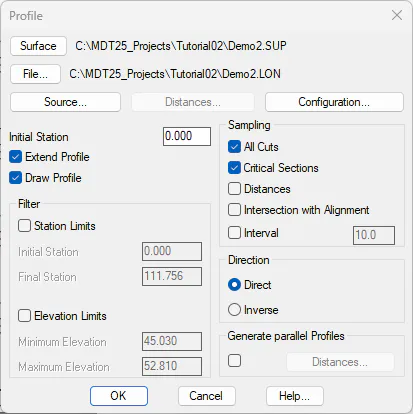
For that, we execute the command Long Sections > Create Long Section (or Long Sections > Create > Create Long Section). We graphically select the alignment and then the following window will pop up where we will establish the generation parameters. We observe how the program proposes DEMO2.SUP file as surface, which is the current surface of the drawing, and proposes the longitudinal profile to bear the same name of the alignment file, with LON. extension. We check the All Cuts and Unique Points boxes and the Draw Profile box, so that as with the cross sections, the profile is drawn automatically.
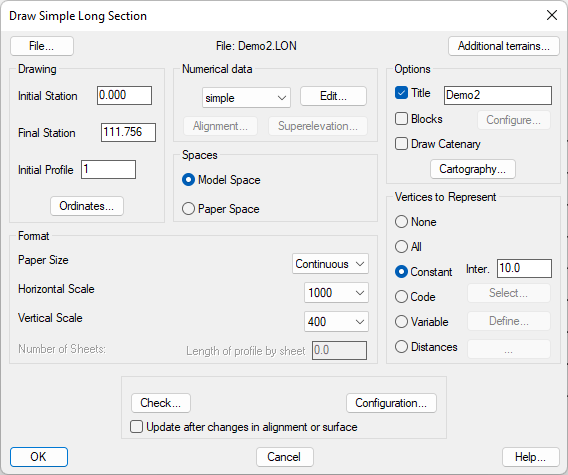
Once the profile has been generated, the window for the longitudinal profile drawing will automatically appear. For the drawing, we will draw it according to the settings that are displayed in the following image.
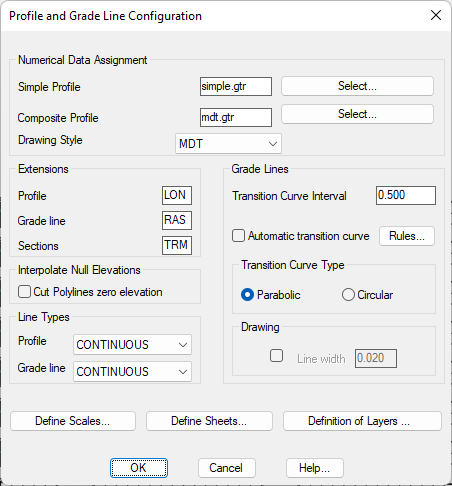
At this point it is important to note that MDT has the ability to draw the profiles according to the different representation styles associated with each country. Hence, if we press the Configuration button in this window, we will be able to select the drawing style according to the country.
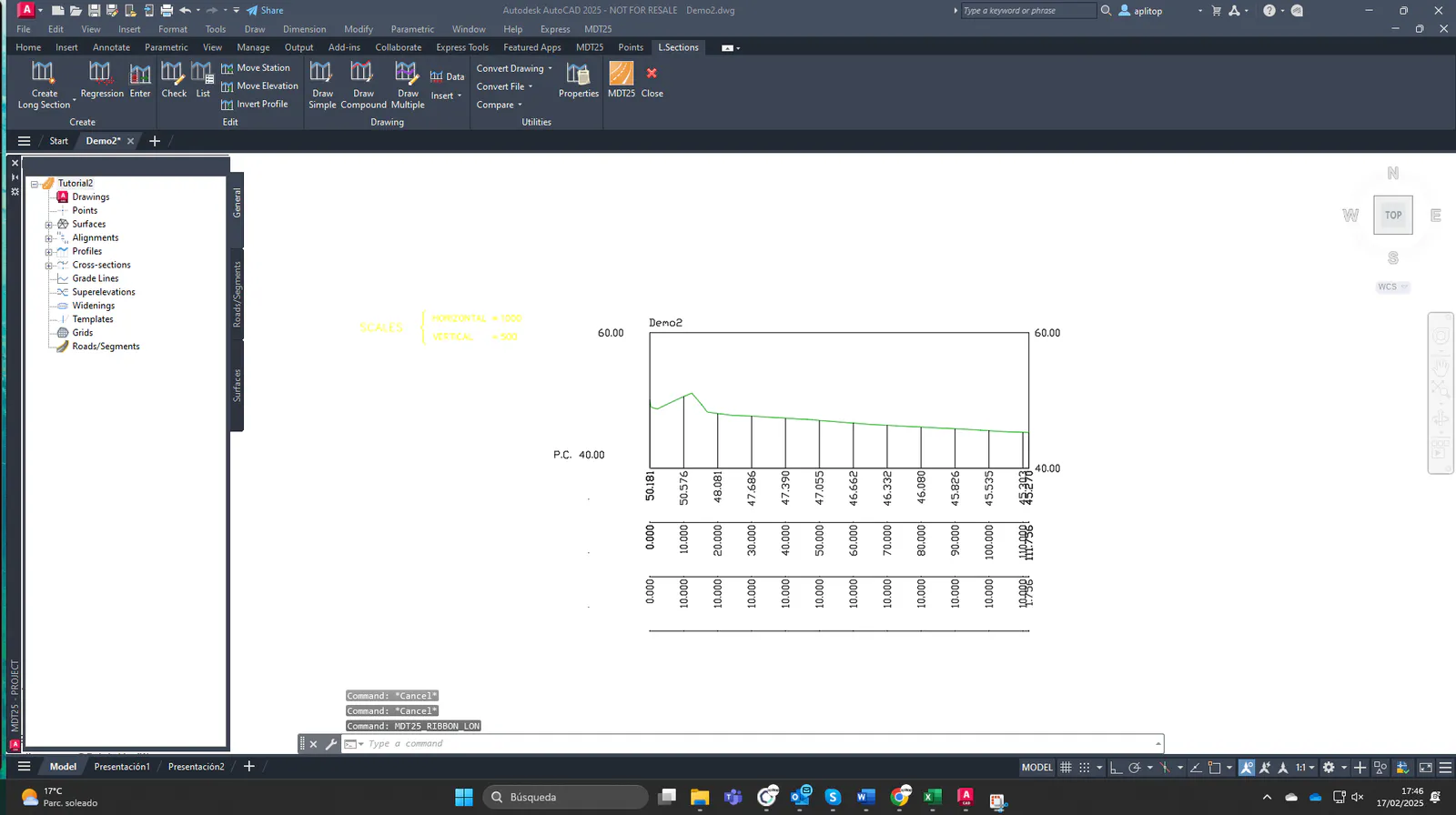
We validate the window and draw the profile in a free drawing zone.