
tcpTunnel CAD
Settings - TNC3
12.2 Settings
In the upper right corner of the window there is a Settings button. Clicking on it will display the following dialog:
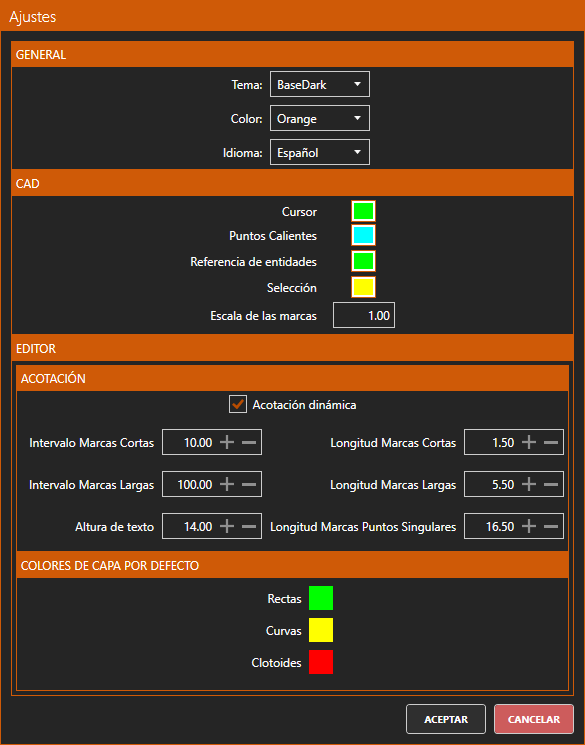
General
Theme: Defines the visual appearance of the application. By default it is set to BaseDark, giving the application dark backgrounds and light text. The alternative value is BaseLight, which reverses the color scheme: light backgrounds and dark text.
Color: Defines the color palette used by the application. By default it appears in orange (Orange). A variety of possible colors are offered.
Language: Allows one to select the application language.
CAD
Cursor: Sets the cursor color in the CAD viewer. This cursor is only visible when there is an active editing command.
Hot points: Sets the color of the hot points of the selected entities in the CAD viewer.
Entity reference: Sets the color of the entity reference marks on the CAD viewer when in an operation that uses those references.
Selection: Sets the color of the selected vertices of an entity in the CAD viewer.
Mark scale: Sets the size scale for the CAD viewer marks: hot points and entity references.
Dimension
Dynamic dimension: If enabled, the mark intervals are automatically readjusted according to the zoom level.
Short mark interval: Determines the distance between short marks.
Short mark length: Determines the length of the short mark lines.
Long mark interval: Determines the distance between long marks.
Long mark length: Determines the length of the long mark lines.
Text height: Sets the size of the dimension text.
Singular point mark length: Determines the length of the singular point mark lines.
Each type of mark is drawn on its own layer, which can be set as visible or not visible at any time.
Default Layer Colors
Allows one to define the colors set to represent straight, curve and clothoid segments. By default, straights are green, curves are yellow and clothoids are red. It is also possible to change the colors of these layers manually with the CAD viewer layer manager at any time, but if the color scheme is not modified from the Settings dialog the changes will not be remembered.
Once the dialog is accepted, the configuration is applied and remembered for future program executions.