
tcpMDT
Left intersection - MDT26
14.1 Left Intersection
Select the option Roads/ Segments > Road Intersection > Create Link the following window will appear, in which we select Road1.seg as the Main Road and Road2.seg as the Secondary Road.
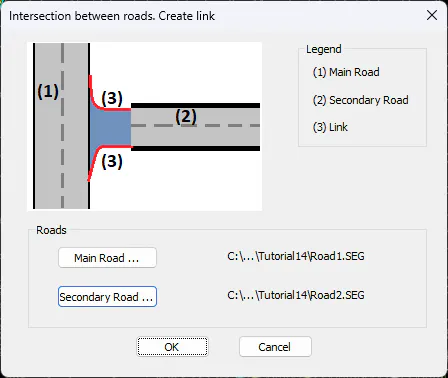
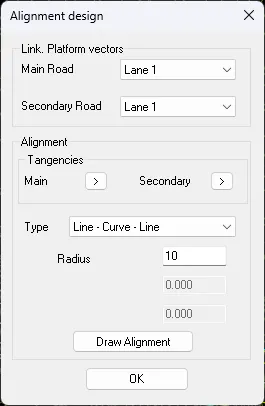
Once the files have been selected, we validate the window and this other window will appear in which we will define the alignment, in this case on the left side.
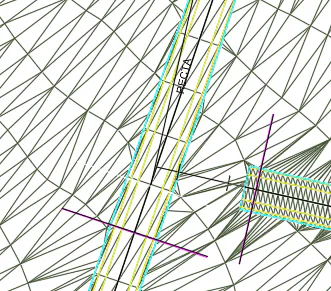
First of all, it will ask us for the tangency points of the secondary and main road, we place them in approximately the same position that we can see in the following image.
We configure the new axis to be created according to the information that appears in the following screenshot and press the "Draw Alignment" button, then we validate the dialogue.
It will ask us for the name of the new segment to create, by default it will propose Road1-Road2-End-Left.seg, we validate it.