
Support
ANTIVIRUS - Recommendations During MDT Installation
Antivirus Recommendations During MDT Installation
To help ensure that MDT is installed correctly, we recommend reviewing the computer's antivirus protection before starting the installation.
In most cases, MDT can be installed while the antivirus remains active without any issues. However, some security solutions apply particularly restrictive controls and may incorrectly identify certain legitimate installer operations as a potential threat. For this reason, and provided that your organisation's security policy allows it, temporarily disabling the antivirus during installation may be advisable.
This is intended as a preventive recommendation and not as an essential requirement for installing or using MDT.
IMPORTANT TO CHECK:
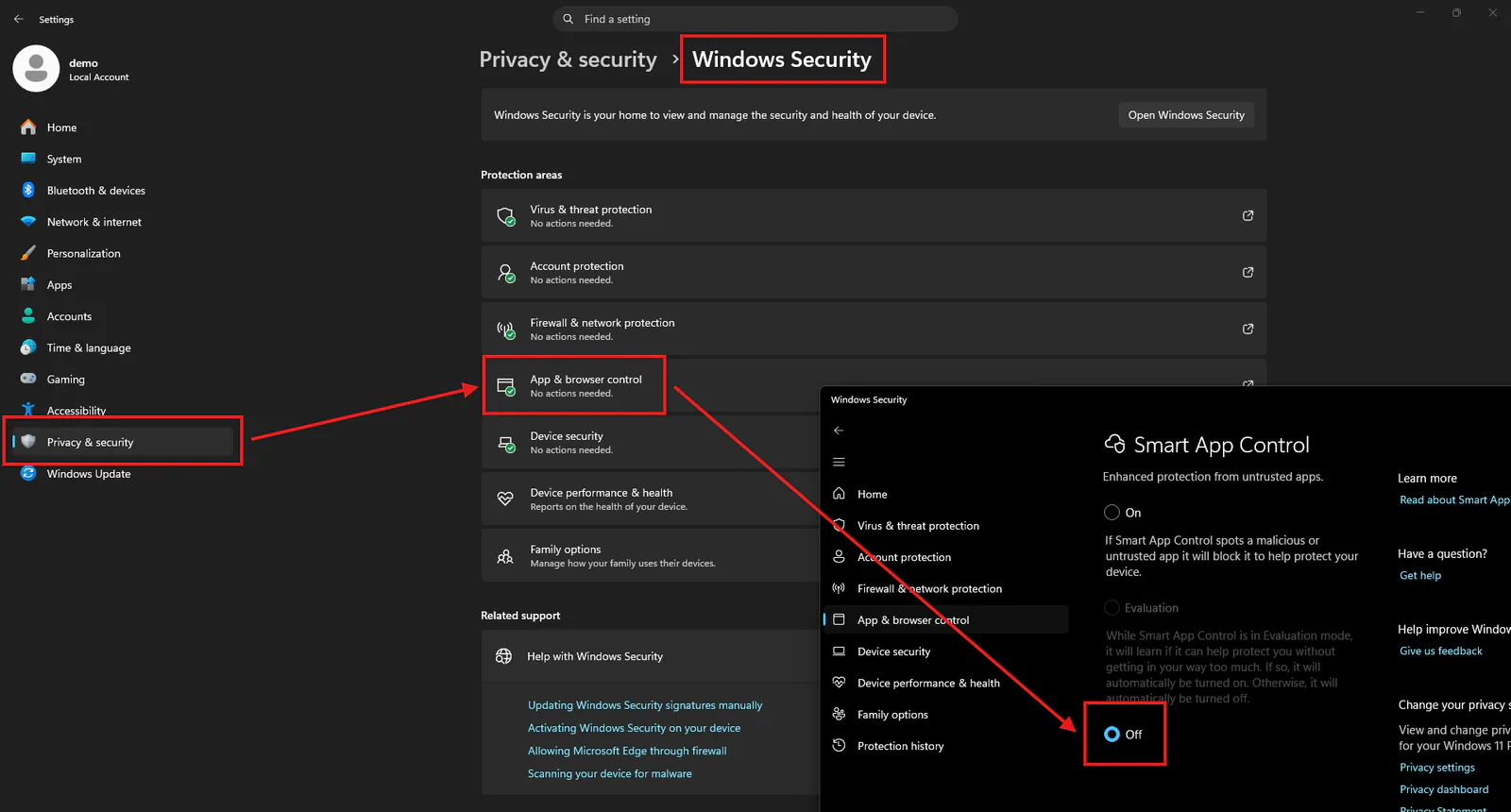
Some Windows 11 security settings are enabled by default and can cause problems when using MDT, such as "Smart App Control".
If you use MDT 25 or an earlier version and this option is enabled, the program will not work correctly and will show an error. In that case, turn it off before installing MDT.
With MDT 26 you do not need to turn it off: its files are digitally signed, including those that Smart App Control used to block by mistake (false positives).
To do this, go to Settings > Privacy & security > Windows Security > App & browser control > Smart App Control settings > Off
Warning: on some computers, turning this option off may not be reversible. On versions of Windows 11 without the latest updates, and on computers with optional diagnostic data turned off or running in S mode, it can only be turned back on by resetting or reinstalling Windows. Recent versions of Windows 11 do allow you to turn it back on from Windows Security.
More information from Microsoft: Smart App Control frequently asked questions
Why might the antivirus interfere?
During installation, the setup wizard needs to extract packages, create folders, copy and register files, install additional components and, in some cases, communicate with the services required for activation or licence management.
Although all these operations are part of the installer's normal behaviour, antivirus software may block or delay some of them, or move certain files to quarantine. Occasionally, this can happen without a sufficiently clear notification being displayed to the user.
As a result, the installation may appear to have completed successfully even though a required component has not been copied or configured correctly.
Possible signs of antivirus interference
Antivirus protection may be affecting the installation if you experience any of the following:
The installer reports errors while extracting or copying files.
The installation stops before completion or remains unresponsive for an unusually long time.
Messages appear stating that a file cannot be created, written, replaced or registered.
MDT is installed but does not start correctly afterwards.
Files or components that should have been installed are missing.
Activation or communication with the licence server cannot be completed.
The antivirus displays a warning or moves an installer file to quarantine.
These symptoms may also have other causes. Nevertheless, checking whether the antivirus has intervened is one of the first recommended steps when installation problems occur.
IMPORTANT NOTE
If your antivirus blocks or prevents any files from being copied during the installation, the installer will automatically create a file named err.txt on the desktop.
Open this file to view information about the files whose copying was blocked by the antivirus.
If you cannot or prefer not to disable the antivirus
It is not mandatory to disable the antivirus as a preventive measure. You may first attempt the installation while keeping the protection active.
If the installation completes successfully and MDT operates normally, no changes will be required. If an error occurs, review the antivirus detection history and quarantine, and contact your IT department or APLITOP Technical Support for assistance.
You may also explicitly allow the installer and MDT components, provided that this complies with the applicable security policies.
Computers managed by an organisation
If your computer is managed by an IT department, do not change its security settings without consulting them first. Antivirus protection may be controlled through corporate policies, and the user may not have permission to disable it.
In these situations, IT staff can supervise the installation or configure specific exclusions for the MDT installer, folders and components. This approach allows the computer's general protection to remain active while preventing legitimate MDT files from being blocked.