
tcpMDT
Import Mesh - MDT26
Import Mesh
 | Command to execute in the CAD |
|---|---|
Vertical menu | MDT26 > Meshes > Import Mesh |
Ribbon menu | Meshes > Utilities > Import |
Command line |
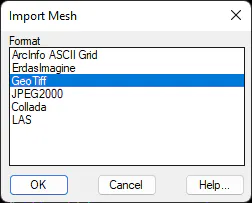
This command allows the importing to MDT format mesh files in other formats A dialogue appears with the list of formats supported and, after selecting one of them, the program asks for one or more files: first those existing in the selected format, and then the file or files to be created in MDT format.
When selecting several files to import, it shows us a dialog where it is asked if you want to merge all the selected files into a single file. To be able to merge several files into one they have to have the same cell size, otherwise the application will warn that it cannot perform the merge.
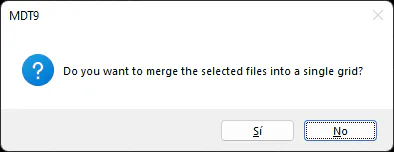
If the answer to the previous question has been affirmative, the selected files will be merged into one, the application will ask for the name of the target file.
In the specific case of the GeoTiff format, and that the answer to the previous question has been negative, it shows us the following dialog as many times as files we have selected, where you can select an area to only convert the area that interests us.
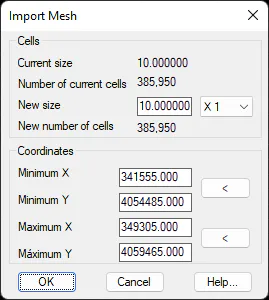
Moreover, once the mesh has been converted, if the size of the same is excessively large we may execute the Resample Mesh command and change the size in accordance with our needs.