
Support
Guide: Update NVIDIA drivers (CUDA version) with NVIDIA App
1. Check if NVIDIA App is already installed
Open the Windows Start menu and type NVIDIA App in the search bar.
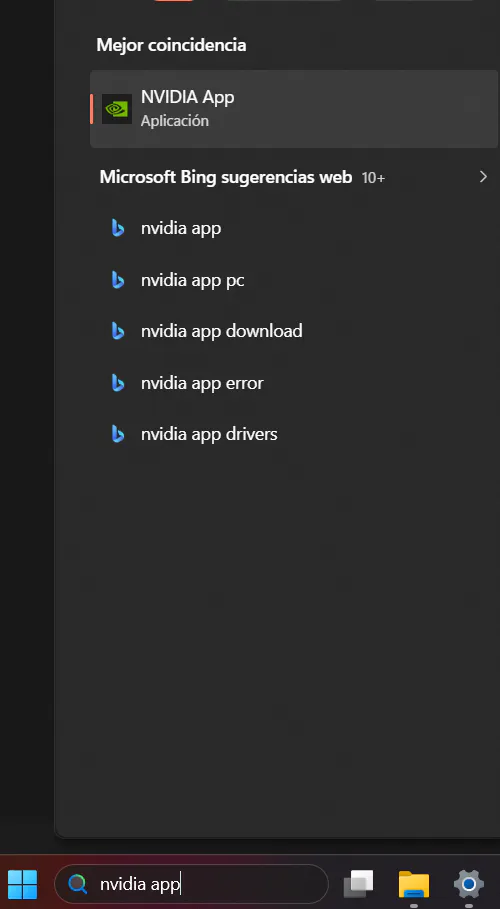
If NVIDIA App appears, click to open it and proceed to section 3 Notice before installing or updating drivers.
If it does not appear, continue to the next section to install it.
2. Install NVIDIA App (if not installed)
Open your browser and go to the official NVIDIA page to download NVIDIA App:
On the NVIDIA website, locate the NVIDIA App download section and download the installer corresponding to your system.
Once downloaded, run the NVIDIA App installer. If the system requests it, accept the administrator permissions.
Follow the steps in the installation wizard: accept the license terms, choose the recommended options, and wait for the process to finish.
When the installation is complete, check the option to open NVIDIA App or launch it from the Start menu.
3. Notice before installing or updating drivers
Before installing or updating NVIDIA enterprise drivers:
Save all your open work.
Close all applications using the GPU, for example: CAD, PointCloud Editor, 3D design applications, and similar.
4. Update NVIDIA enterprise drivers from NVIDIA App
Open NVIDIA App from the Windows Start menu.
In the application, go to the Drivers section.
Click on Check for updates so that NVIDIA App checks if a newer version of the enterprise driver is available.
When an available update is displayed, review the recommended version and click Download.

Wait for the download to complete, and then select Install to start the installation of the NVIDIA enterprise driver.
Follow the instructions in the installation wizard. In enterprise environments, the quick/express installation option is usually recommended, unless your IT department indicates otherwise.
5. Reset and verify the installation
If the installer or NVIDIA App requests it, reset the instrument to complete the driver installation.
After resetting, open NVIDIA App again and access the Drivers section to verify that the NVIDIA enterprise driver version appears as installed and updated.
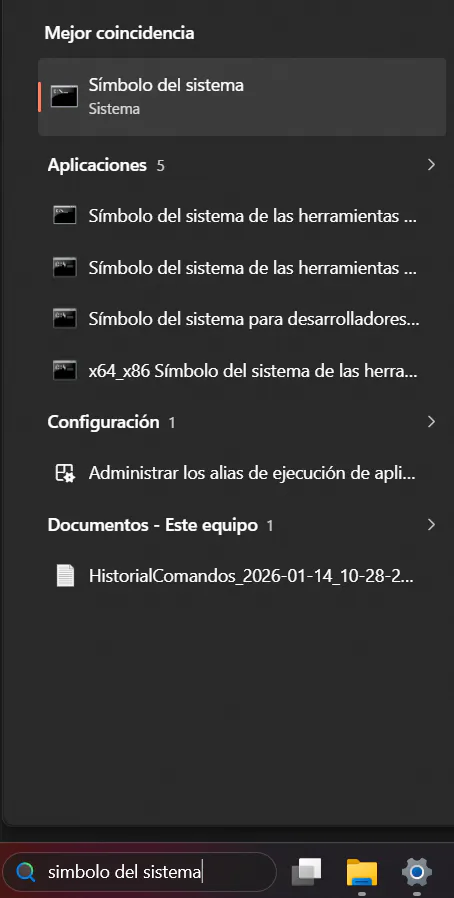
You can also find out the CUDA version you have installed by accessing the Terminal, typing "cmd" or "Command Prompt" in the Windows Start menu:
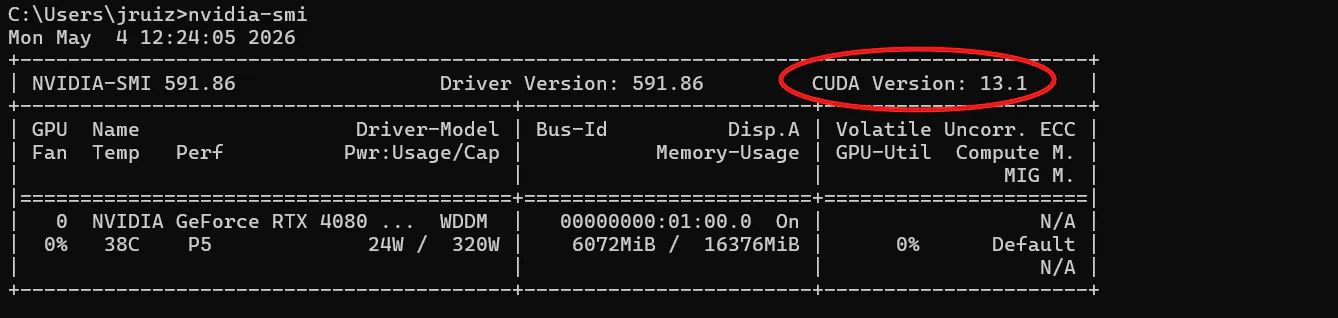
And once Open, type "nvidia-smi" in it, as shown in the image, and you will be able to see the CUDA version installed on your Device at the Top of the response:
Reopen your usual applications that use the GPU (CAD, PointCloud Editor, etc.) and verify that they function normally.