Support
Configuring tcpGPS for Android to work with EMLID Reach RX
This tutorial shows how to configure TcpGPS to work with EMLID Reach RX GNSS receivers in RTK mode, sending RTK corrections over the Bluetooth link.
Overview
Aplitop TcpGPS is a mobile app for Android devices that allows you to collect and stake out data in the field.
To integrate your Reach GNSS receiver with the Aplitop TcpGPS app, you'll need the following:
EMLID Reach RX GNSS receiver
A device with Android OS v7.0+
Aplitop TcpGPS v2.6+
Workflow
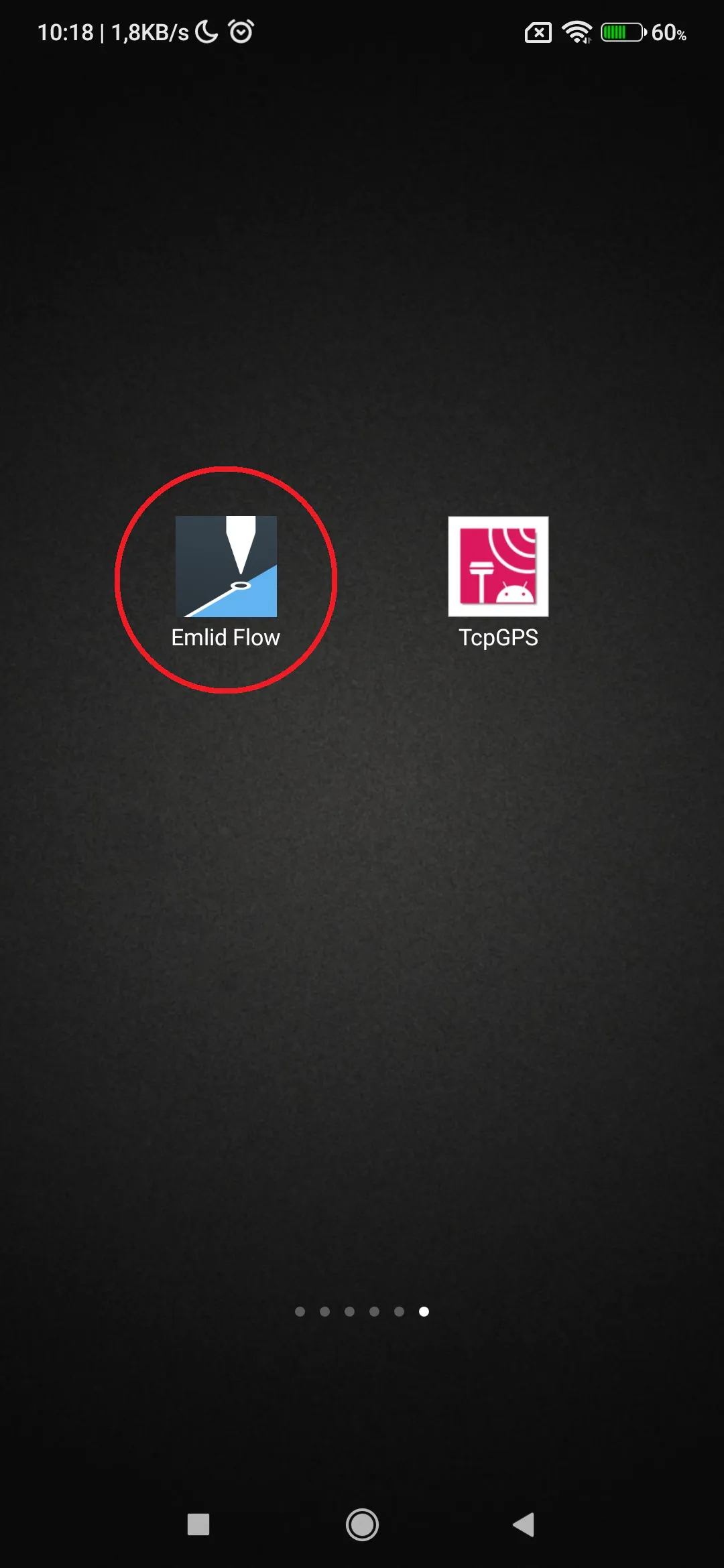
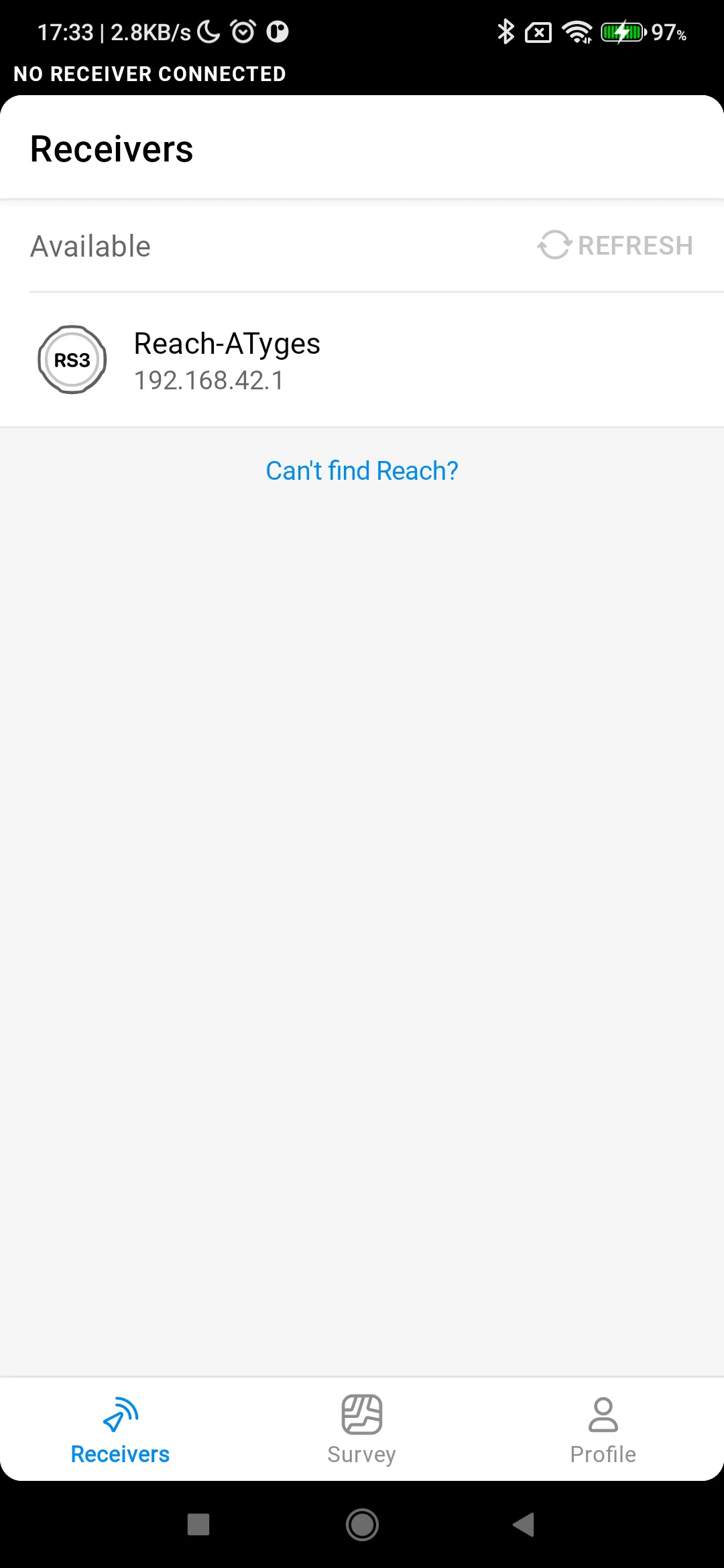
Open EMLID Flow and connect with the Reach GNSS receiver using WiFi or Bluetooth
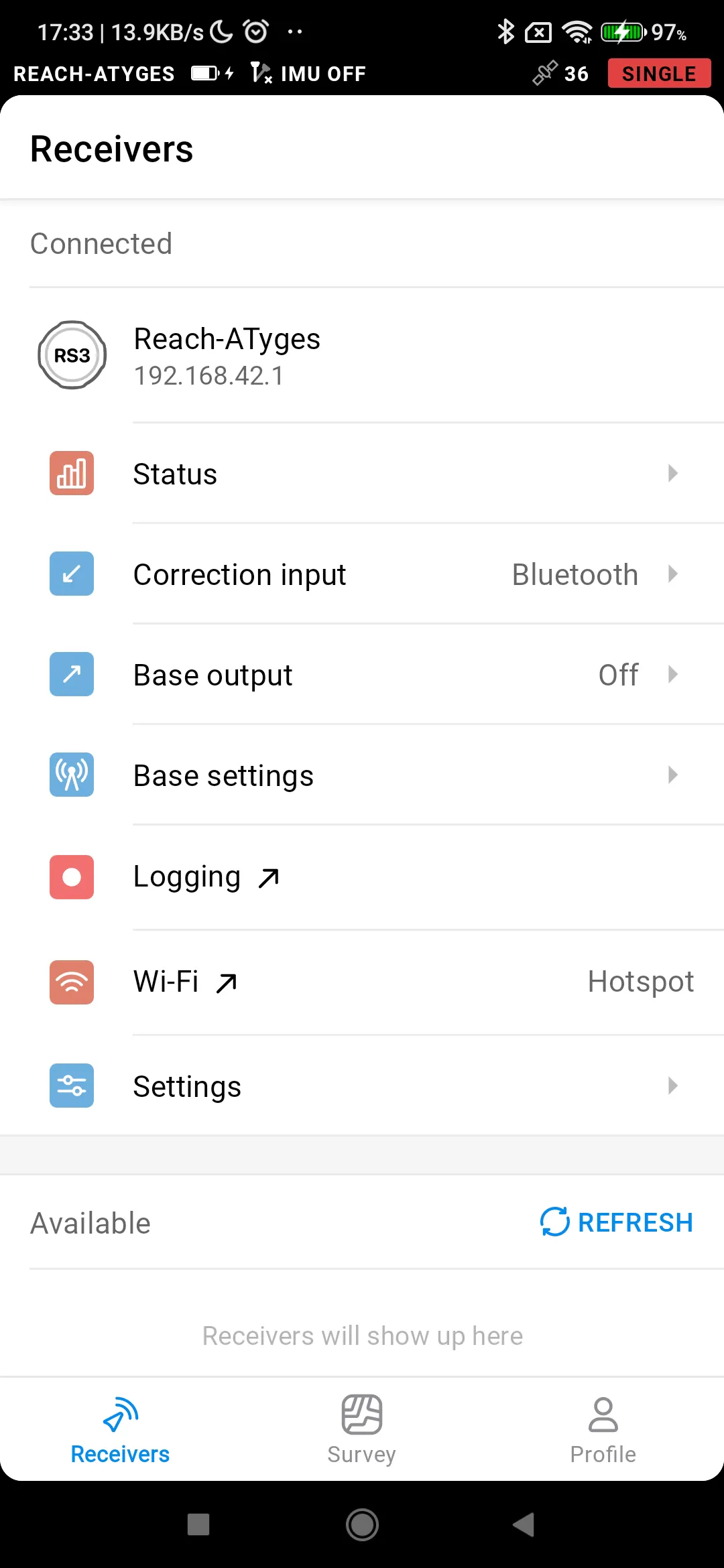
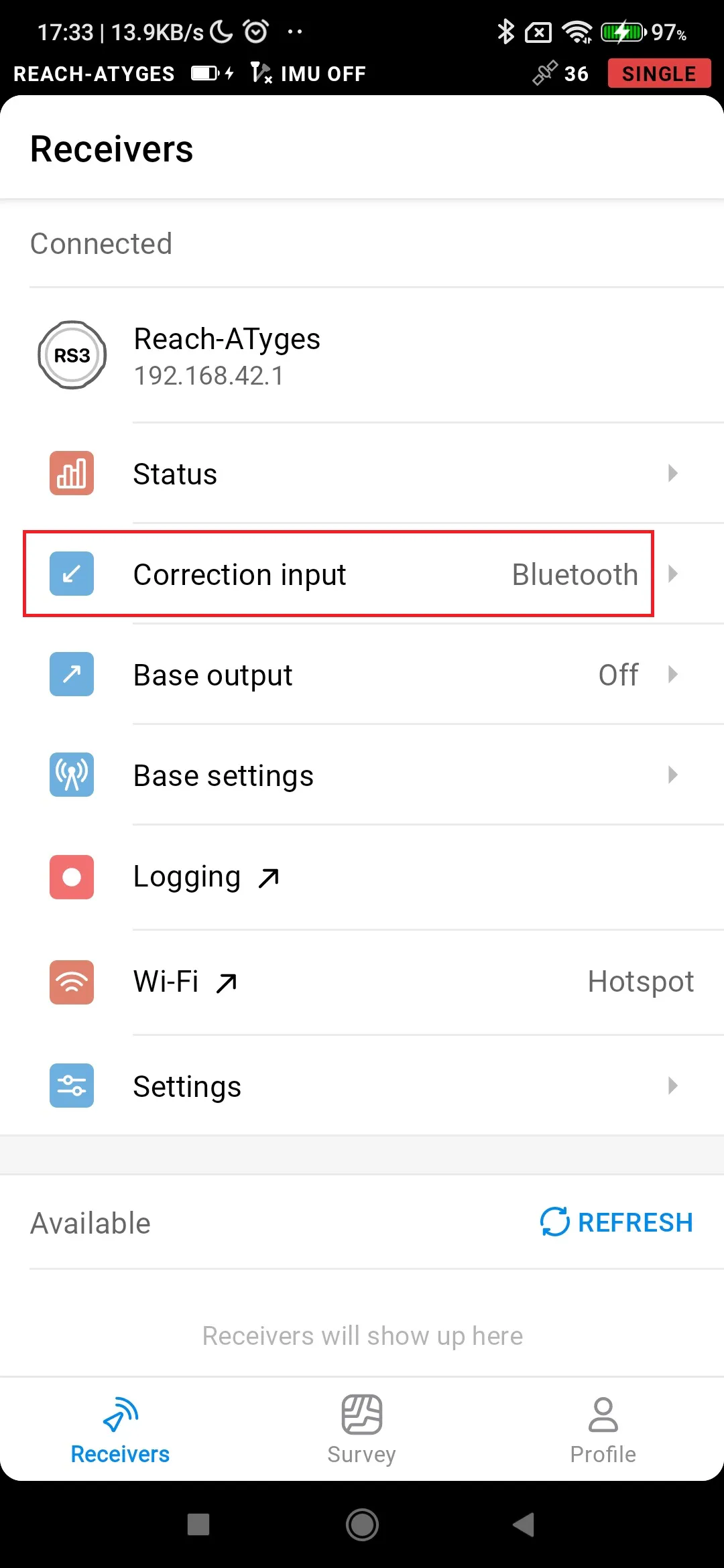
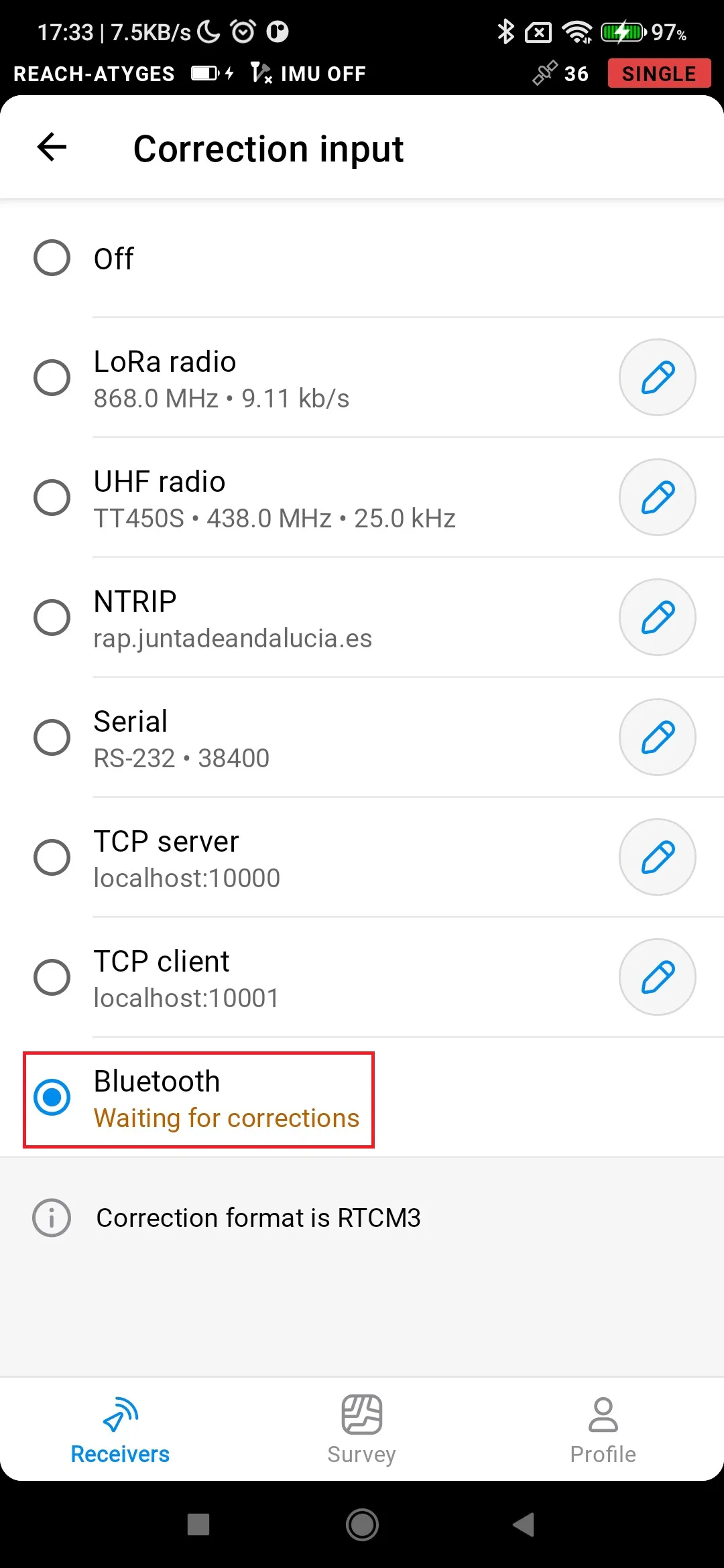
Go to Correction input and select Bluetooth
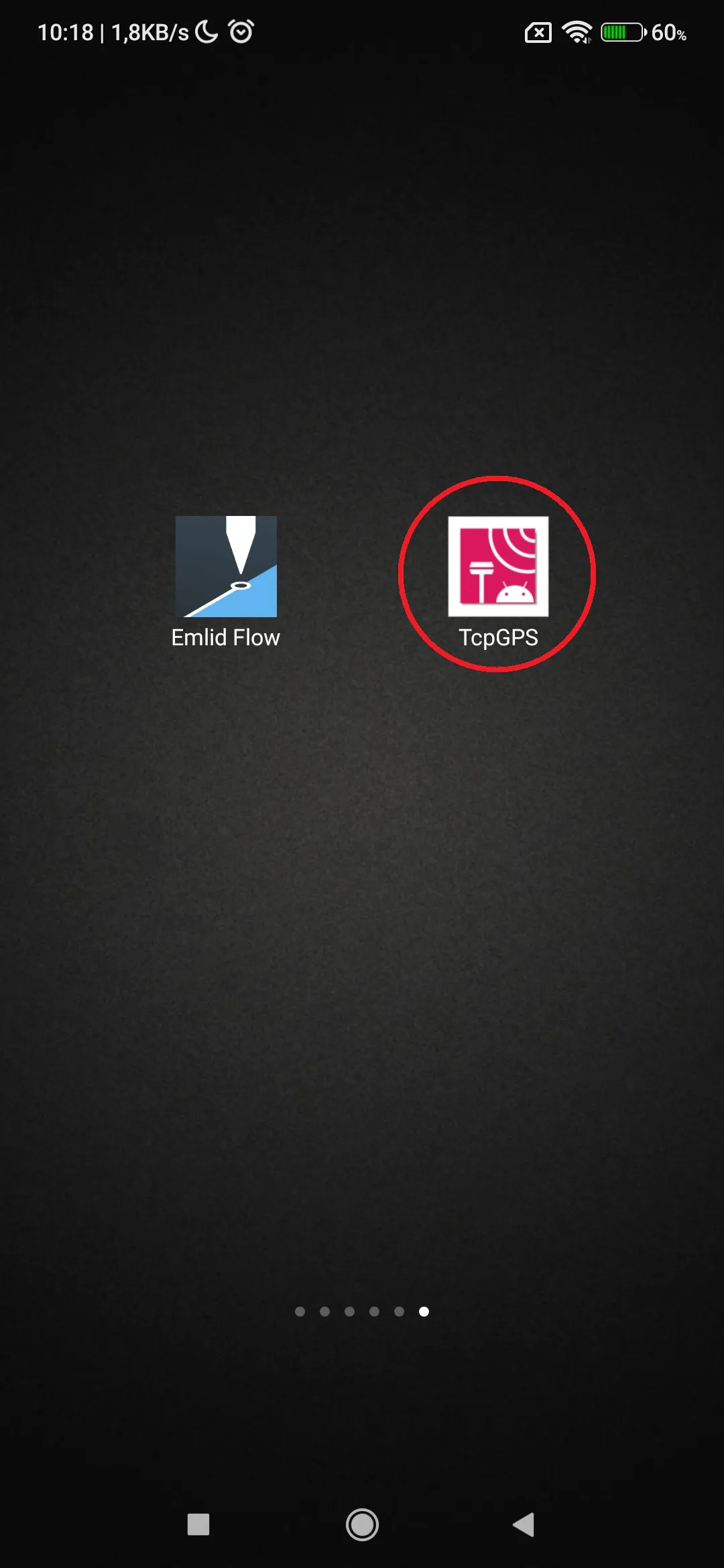
Close EMLID Flow and open Aplitop TcpGPS
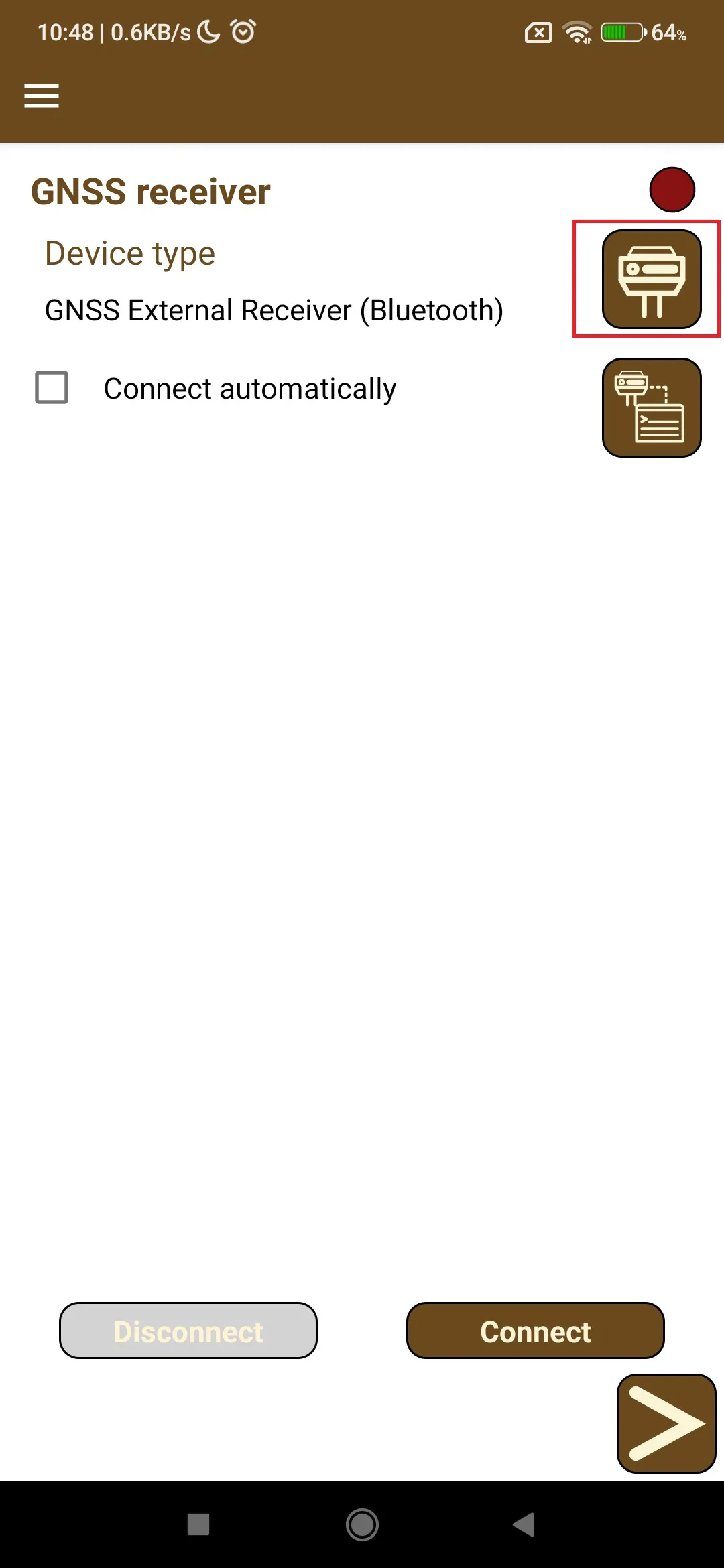
Tap the receiver icon next to Device type. On the screen that opens, select the following:
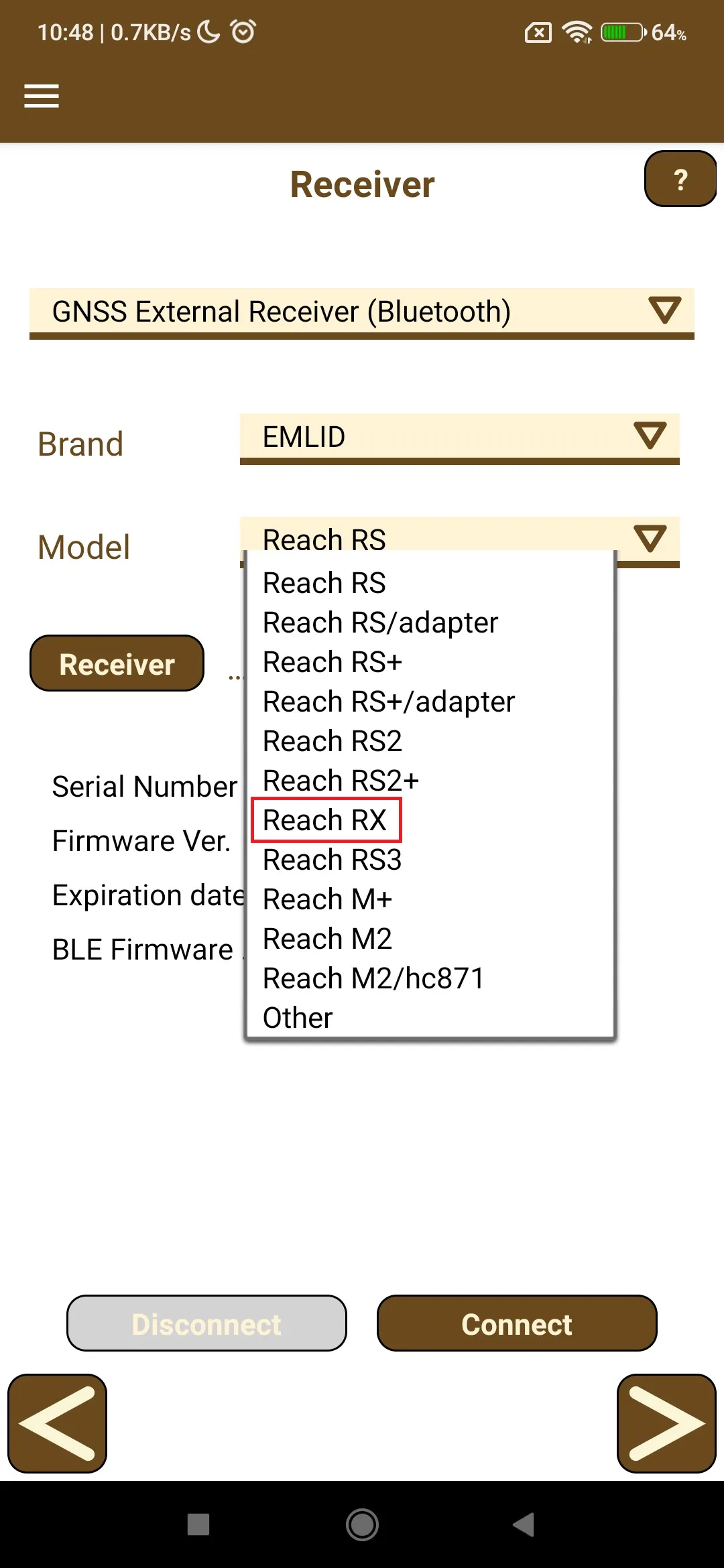
GNSS External Receiver (Bluetooth) for Device type
EMLID for Brand
Reach RX for Model
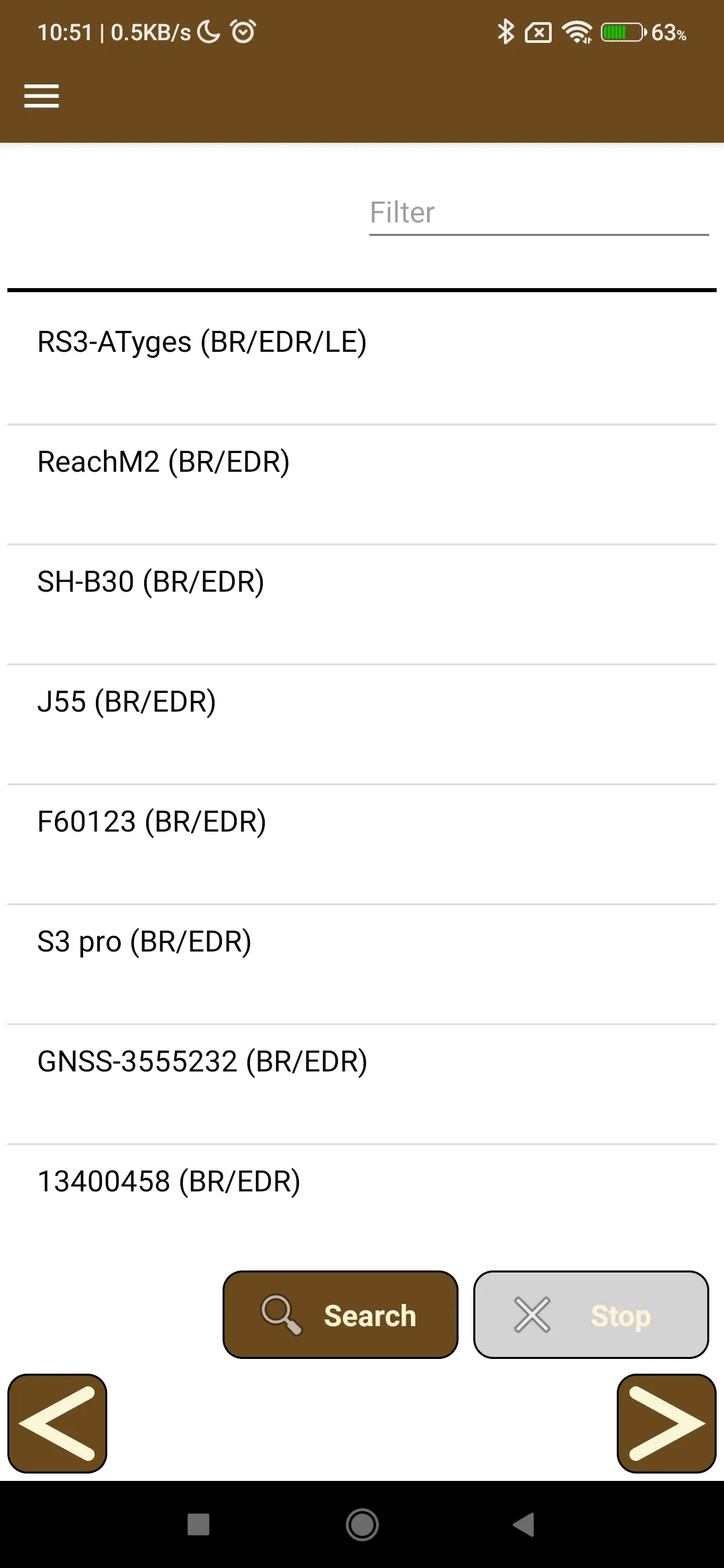
Tap the Receiver button and select the Bluetooth device. If the receiver is not in the list, tap the Search button
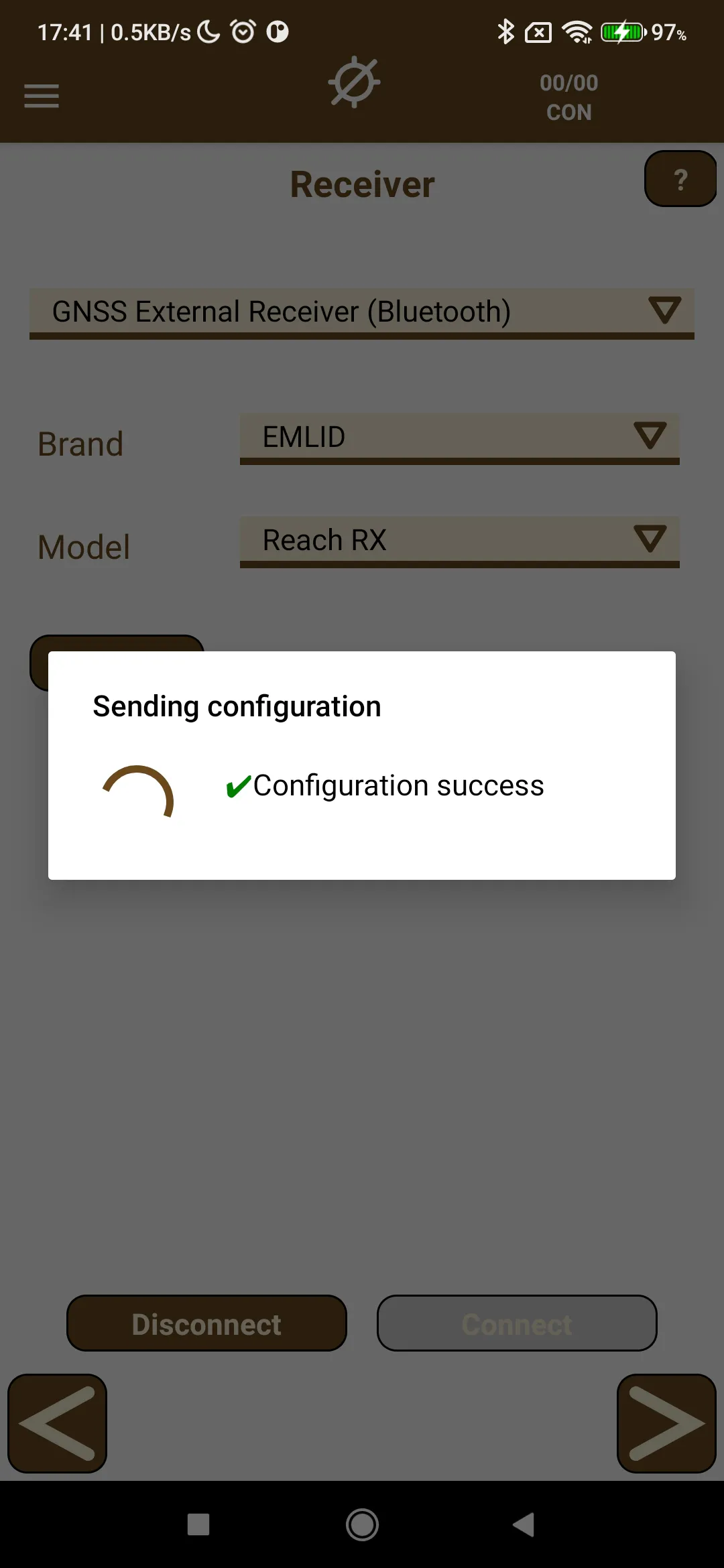
Tap the Connect button and wait for the Reach GNSS receiver to finish its configuration
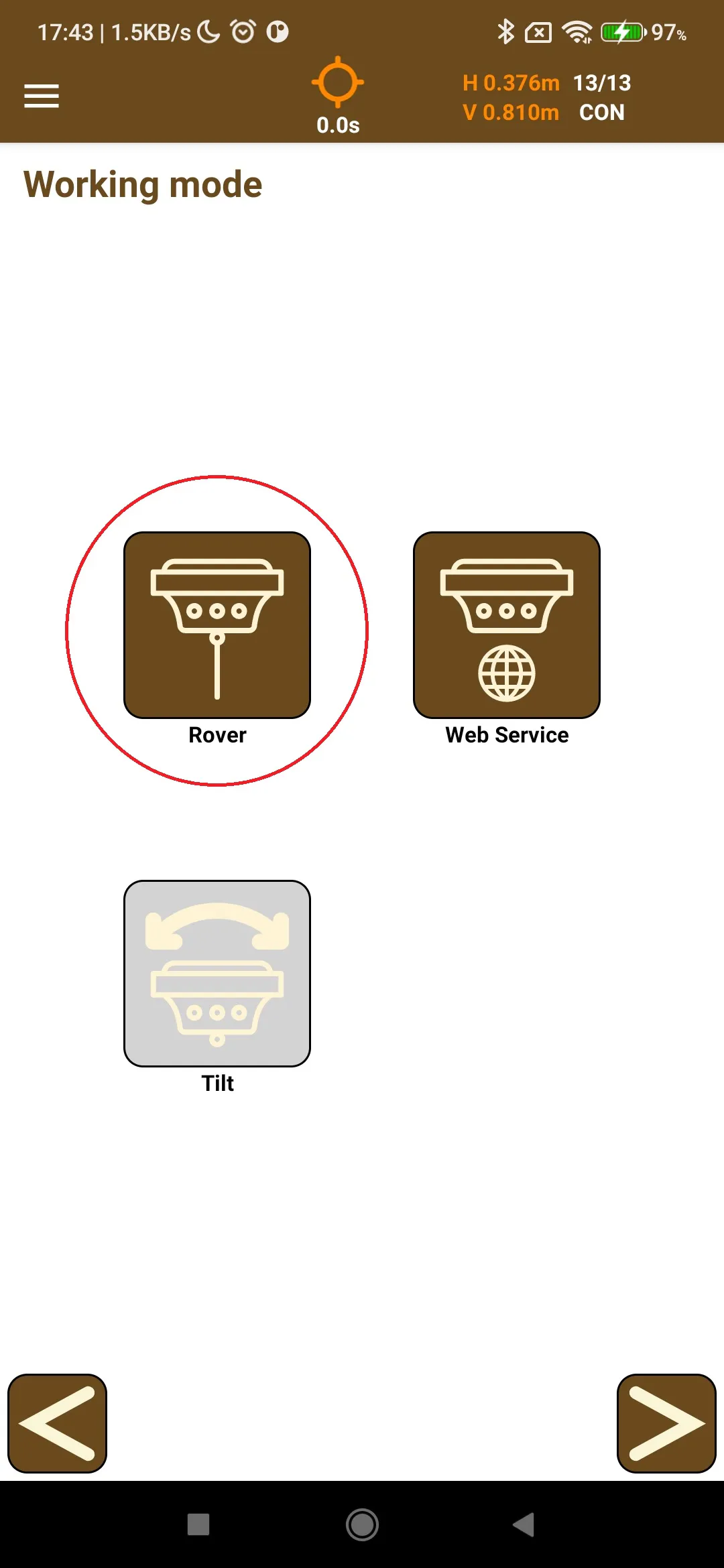
Tap the forward arrow button and, on the Working mode screen that opens, tap the Rover button
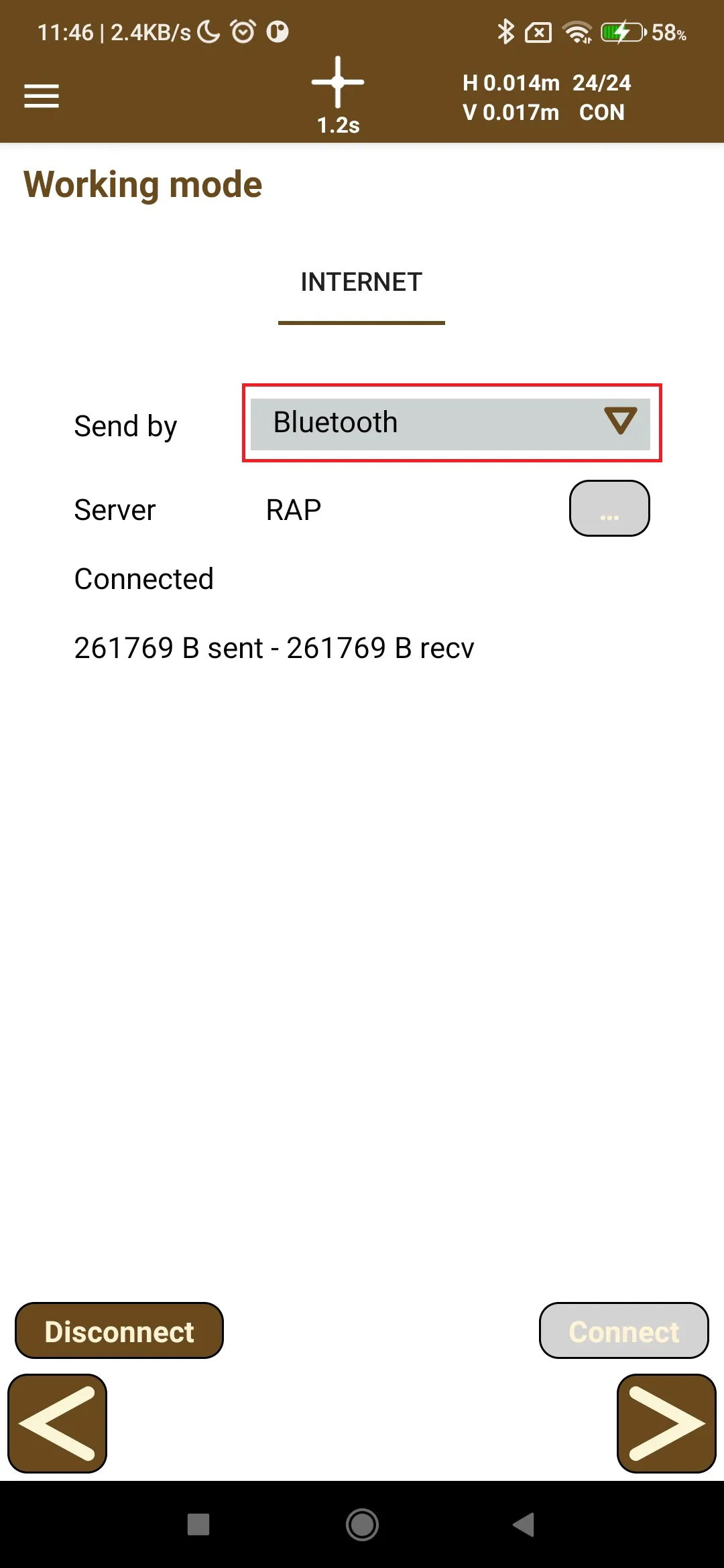
Configure NTRIP to send RTK corrections through Bluetooth
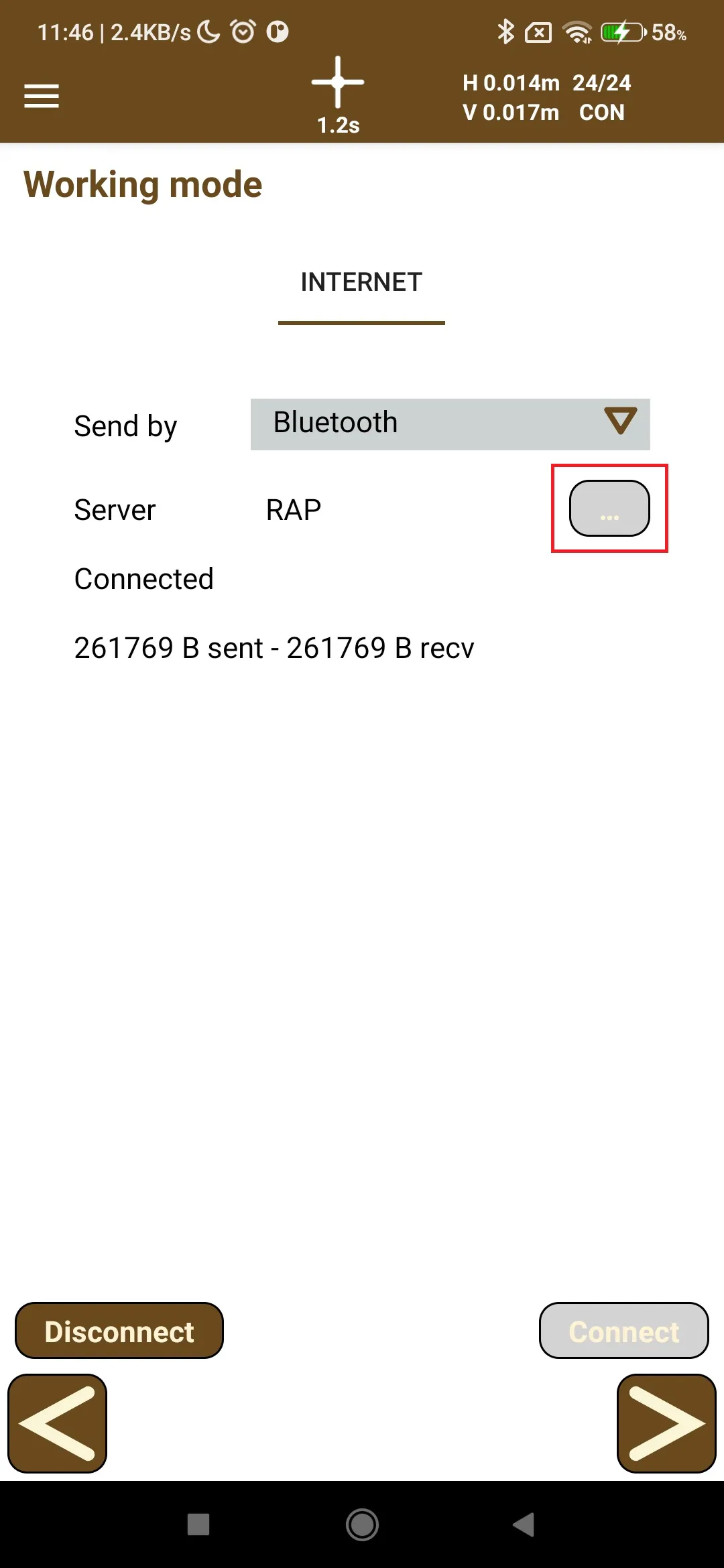
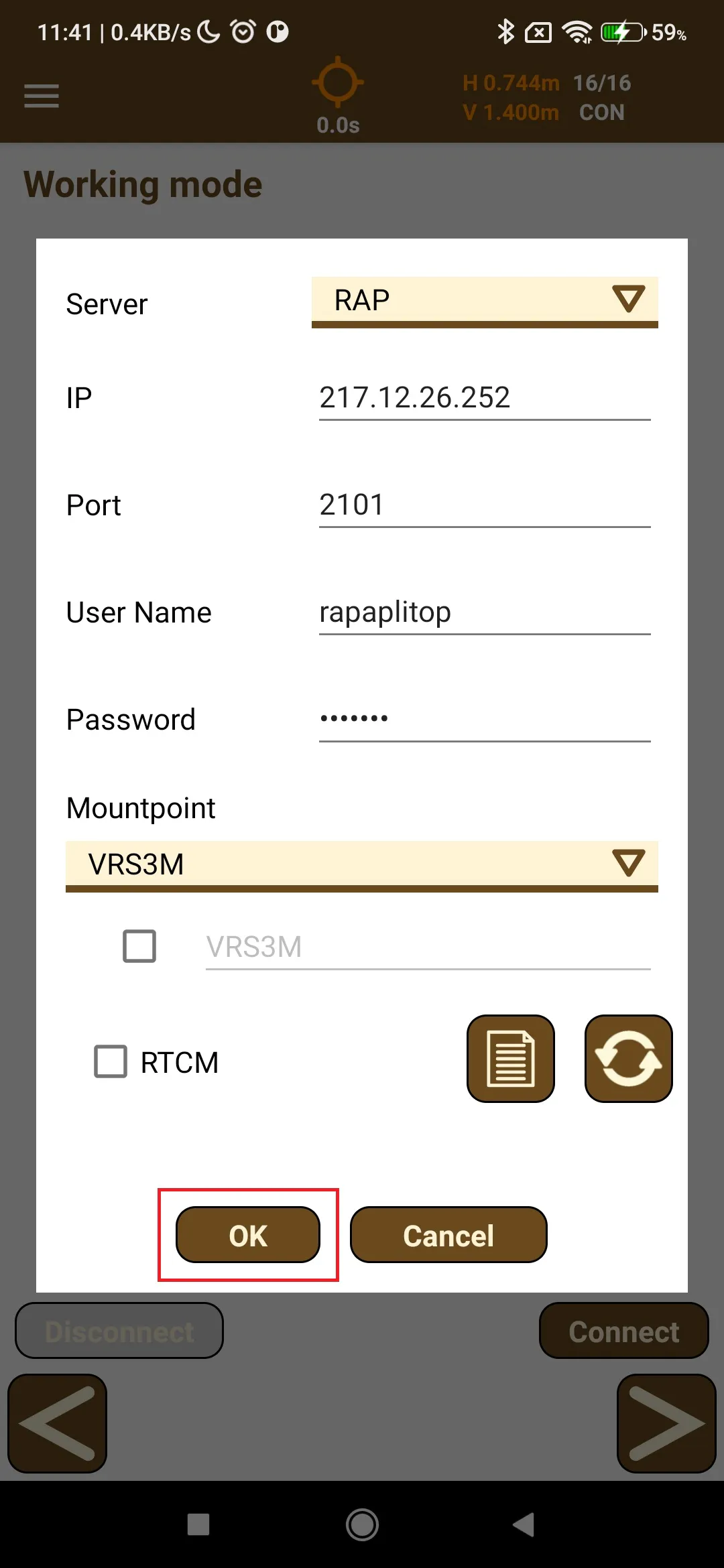
To set up the NTRIP server, tap the three-dot button and specify the following parameters:
Name
IP
Port
User name
Password
Mountpoint
After that, tap the OK button
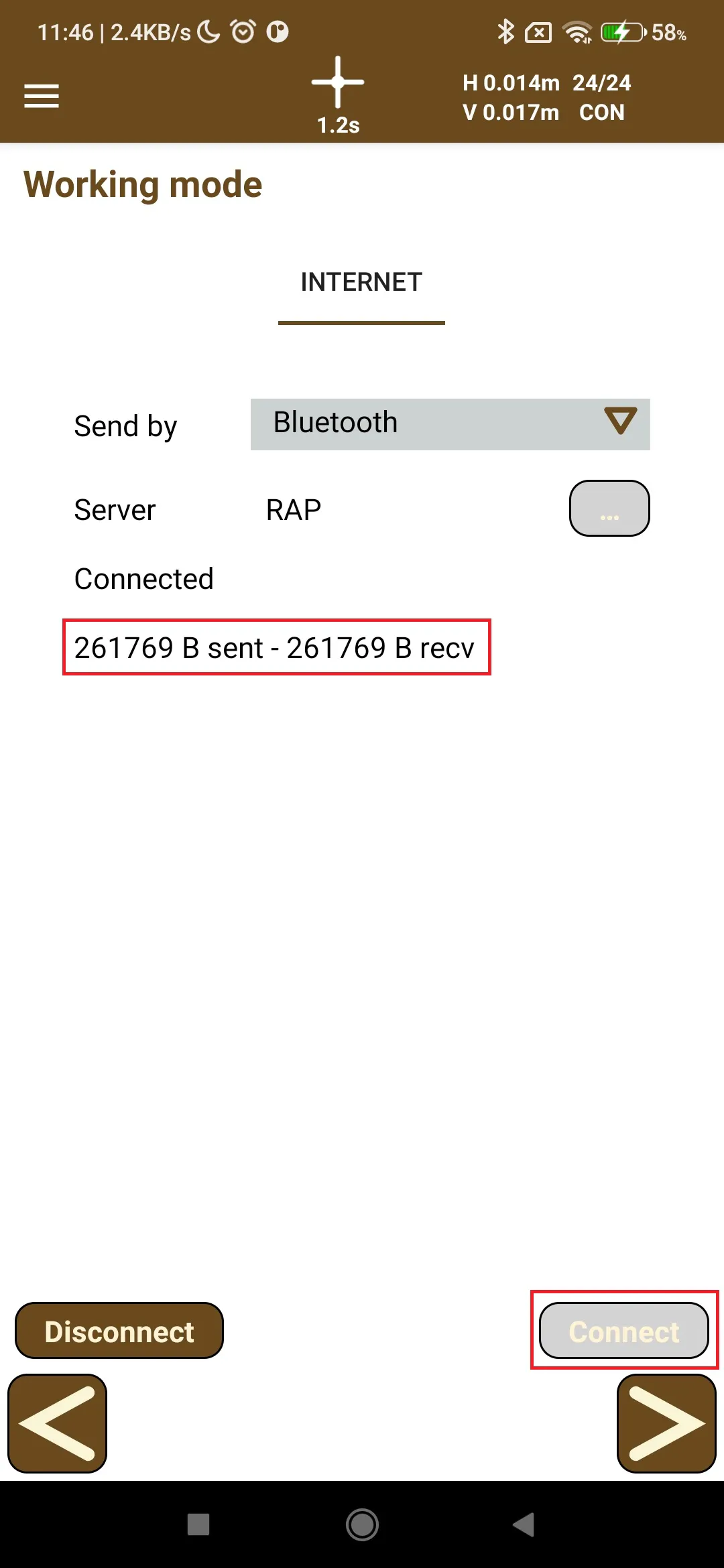
Tap the Connect button and check that the number of bytes sent and received increases
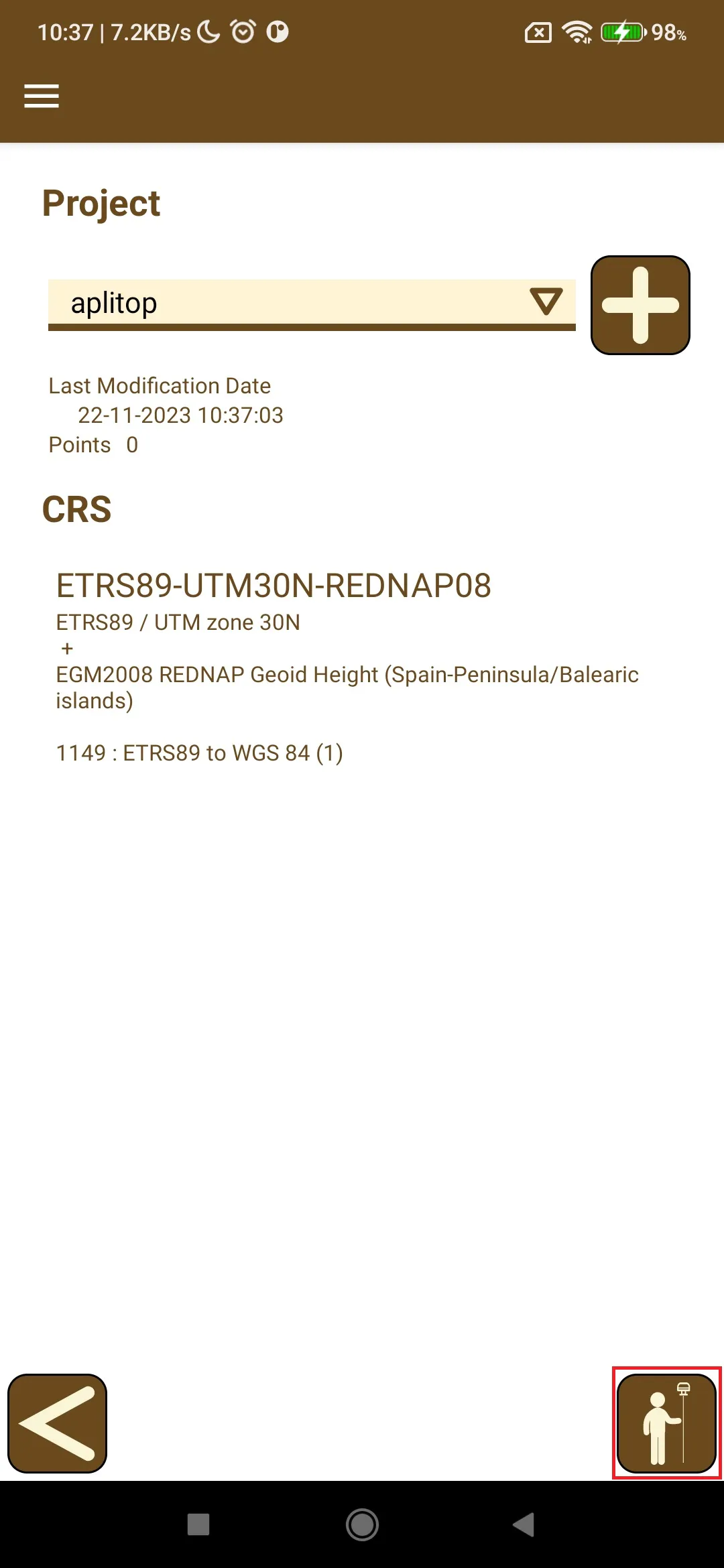
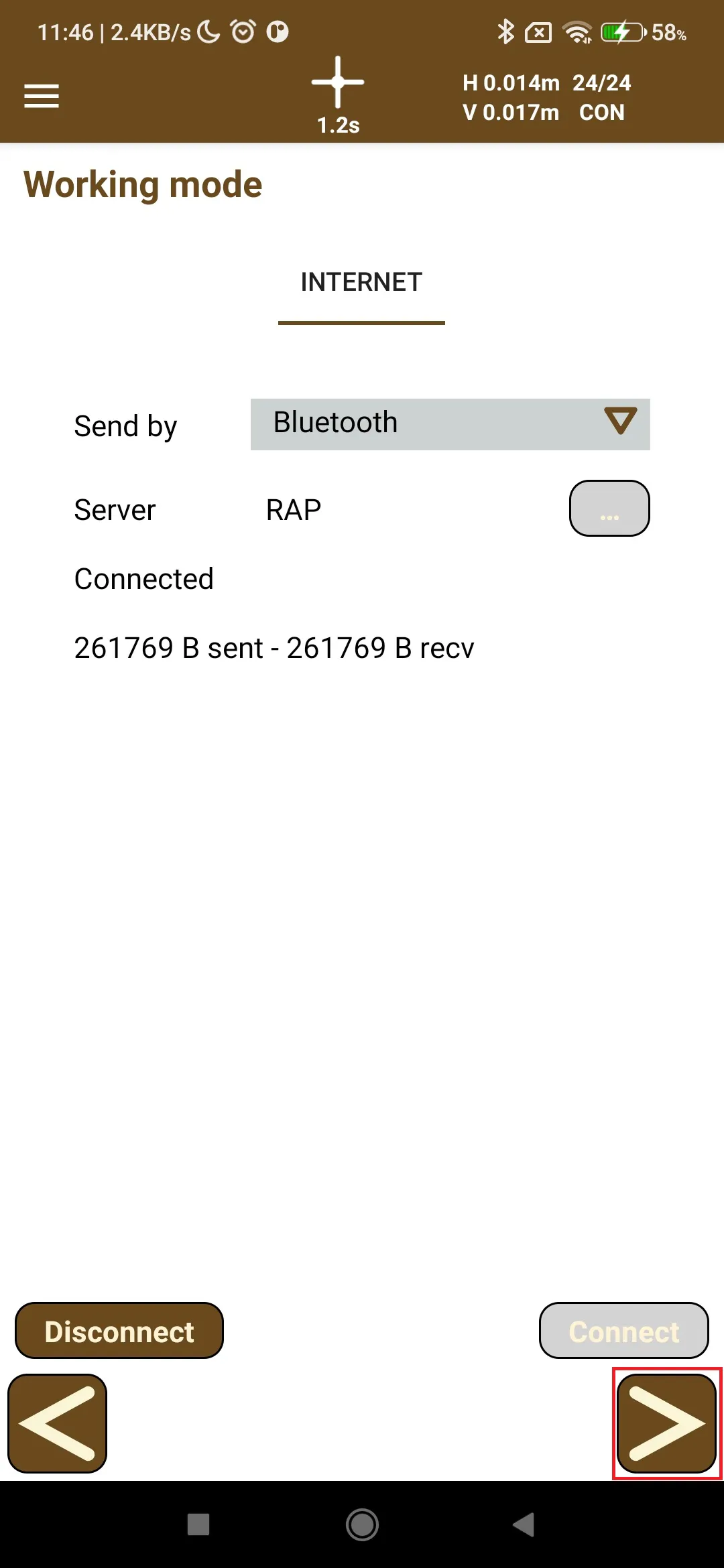
Tap the forward arrow button and select or create a project
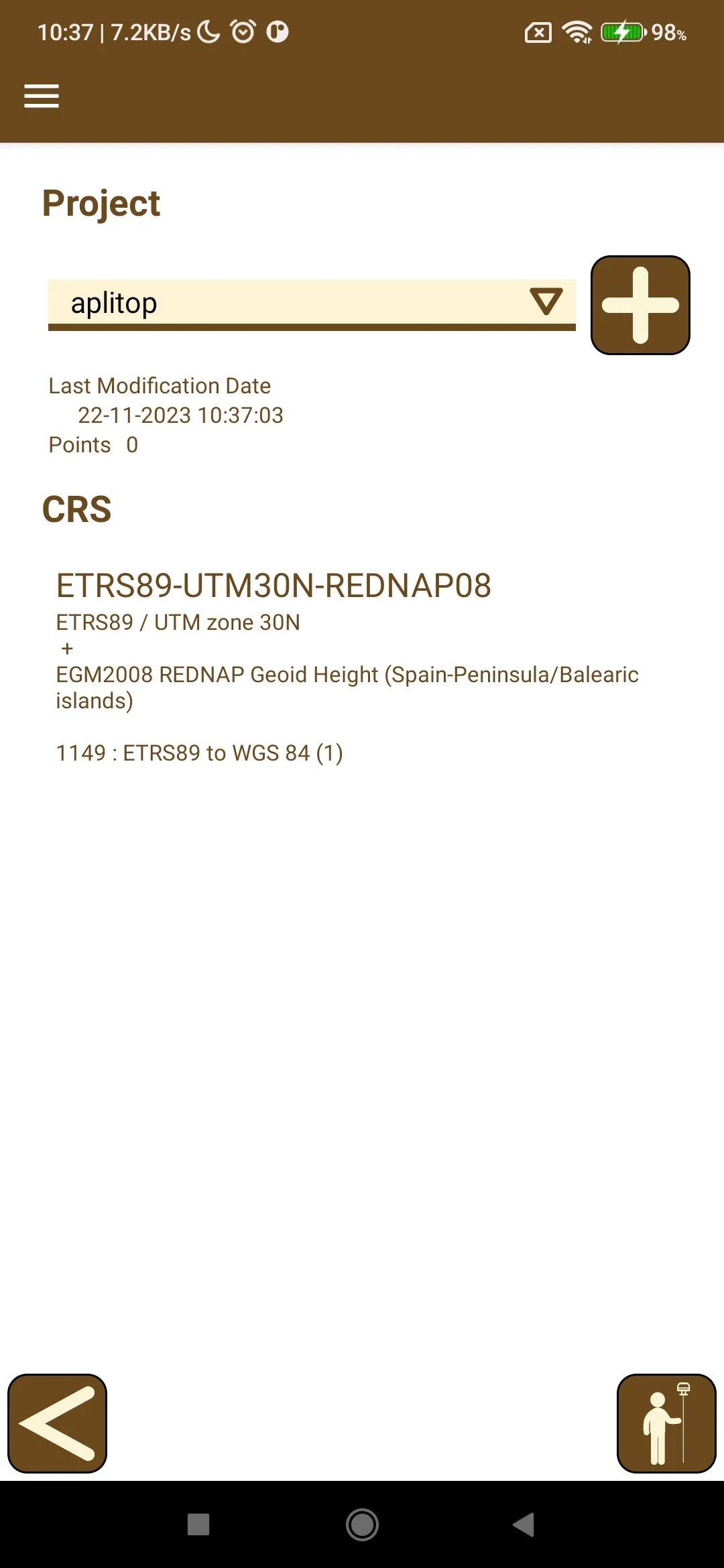
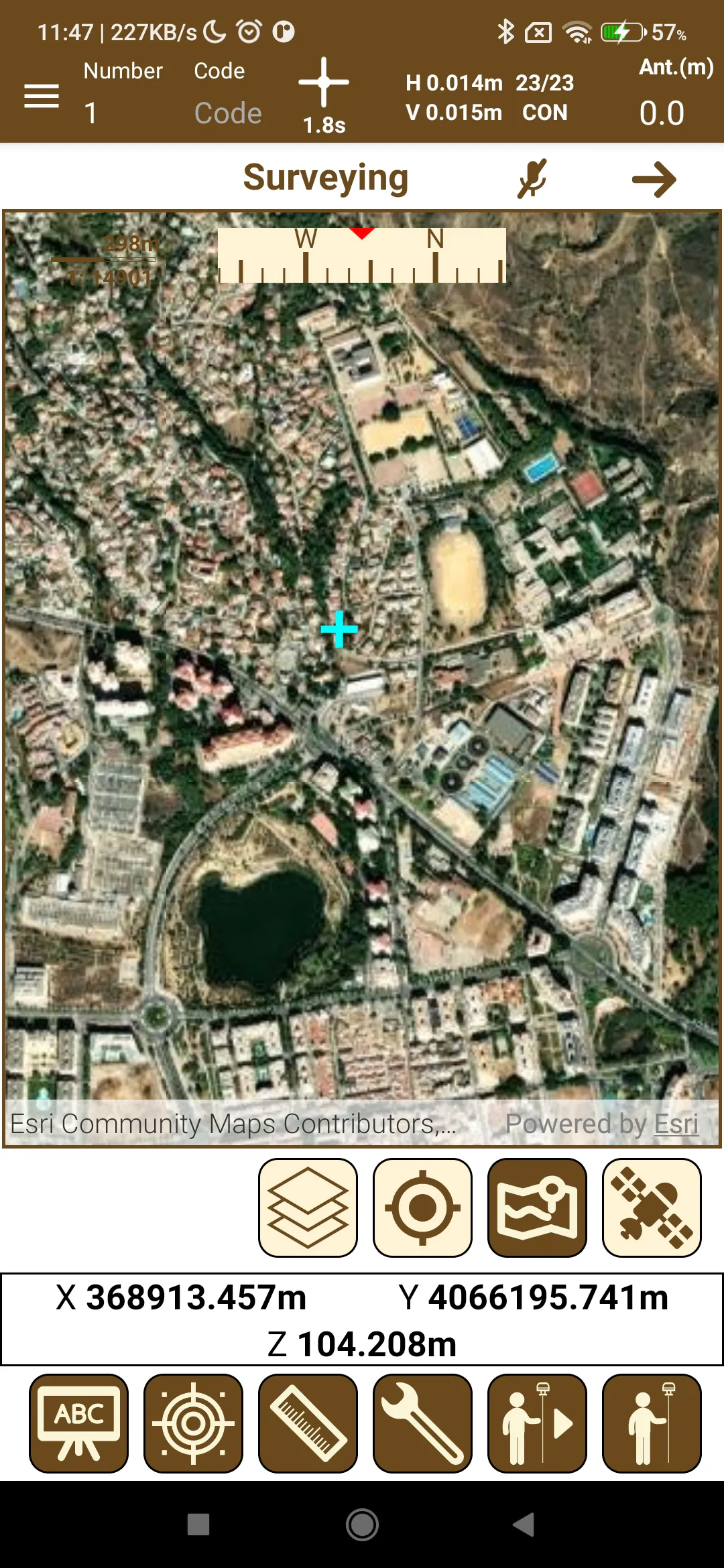
Tap the survey button and start working with TcpGPS for Android and the Reach RX GNSS receiver