
Support
How to connect Leica GNSS receivers with tcpGPS via Zeno Connect?
REQUIREMENTS
tcpGPS v2.0+
Leica Zeno Connect v3.3.1.1.1647+
Leica GNSS receiver GG02, GG03, GG04, GG04 PLUS, FLX100, FLX100 PLUS or GS05
Details
Previous considerations
The Leica Zeno Connect application, available for Android on the Google Play Store, allows configuring the GG02, GG03, GG04, GG04 PLUS, FLX100, FLX100 PLUS and GS05 receivers to work in RTK, via virtual bases, acting as a "bridge" between the receiver and tcpGPS.
There are two connection modes for these receivers with tcpGPS, depending on the model:
Via Mock Locations:
Models GG02, GG03, GG04 and GS05.
Within tcpGPS, these models are available by selecting GNSS Internal Receiver, and brand Leica.
Once the Zeno Connect app is installed, you must select it in the Mock location app section, within Android Settings > Developer options. The name of this option may vary depending on the brand and model of the Android device.
Via Bluetooth:
Models GG04 PLUS, FLX100 and FLX100 PLUS.
Within tcpGPS, these models are available by selecting GNSS External Receiver (Bluetooth), and brand Leica.
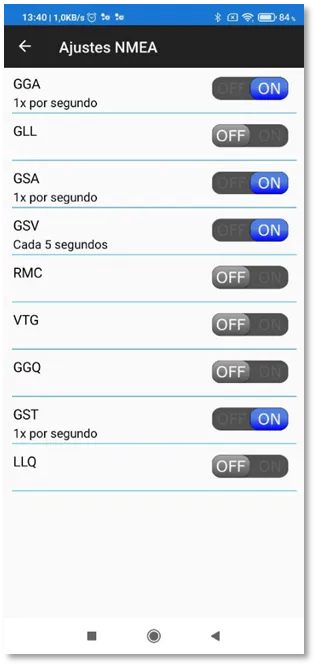
Requires enabling NMEA messages GGA, GSA, GSV and GST, within the Zeno Connect app, with a frequency of 1Hz for all of them except for GSV, which must be enabled every 5 seconds.
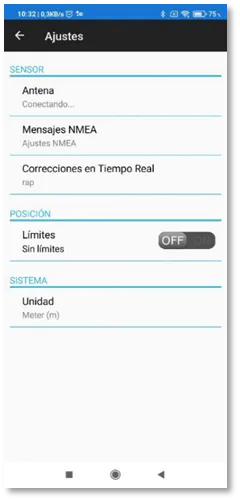
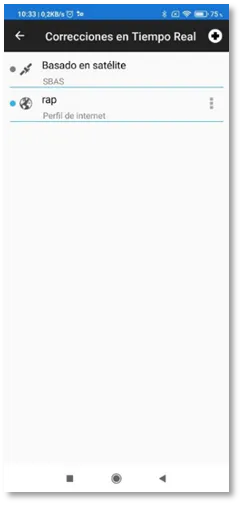
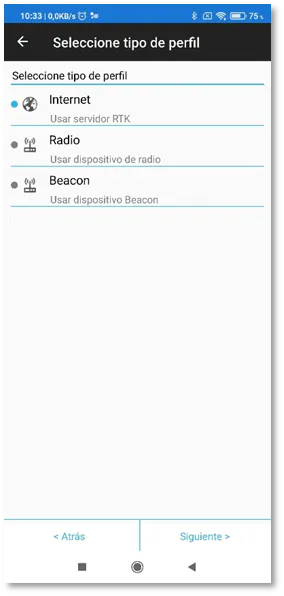
The RTK configuration is common to all models and is performed via Settings > Real-Time Corrections, within the Zeno Connect app.
Steps to connect with tcpGPS
Run Leica Zeno Connect.
Connect to the GNSS receiver.
Check that real-time corrections are being received.
Minimize Leica Zeno Connect.
Run tcpGPS.
Select the corresponding receiver model.
Press Console:.
Video
