tcpMDT
Updating profiles - MDT25
2.9 Updating Profiles
Here, we will update the drawing of the long section automatically from a modification on the alignment.
Thus, we execute the command Horizontal Alignments> Edit Alignment> Edit Vertex (or Horizontal Alignments> Edit> Edit Vertex), select the intermediate vertex of the alignment and assign a radius of -90.0.
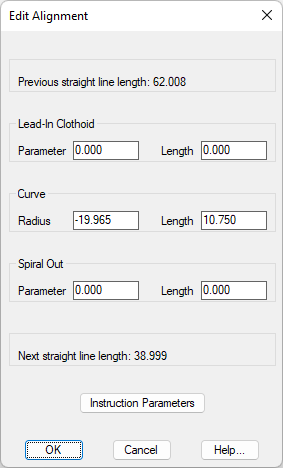
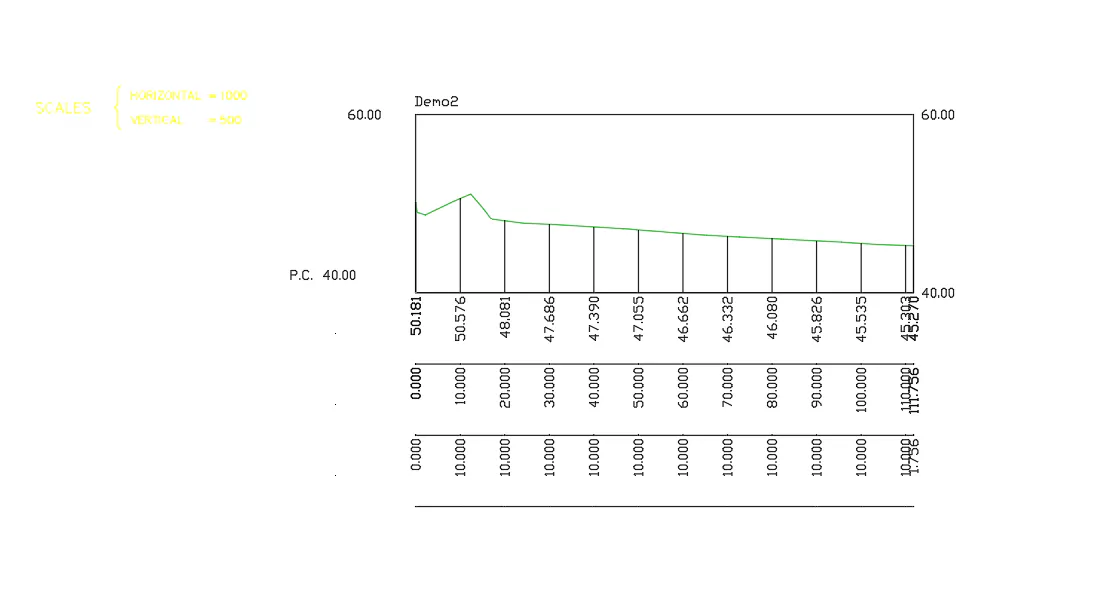
Then, the program will update automatically the long and cross sections drawn.
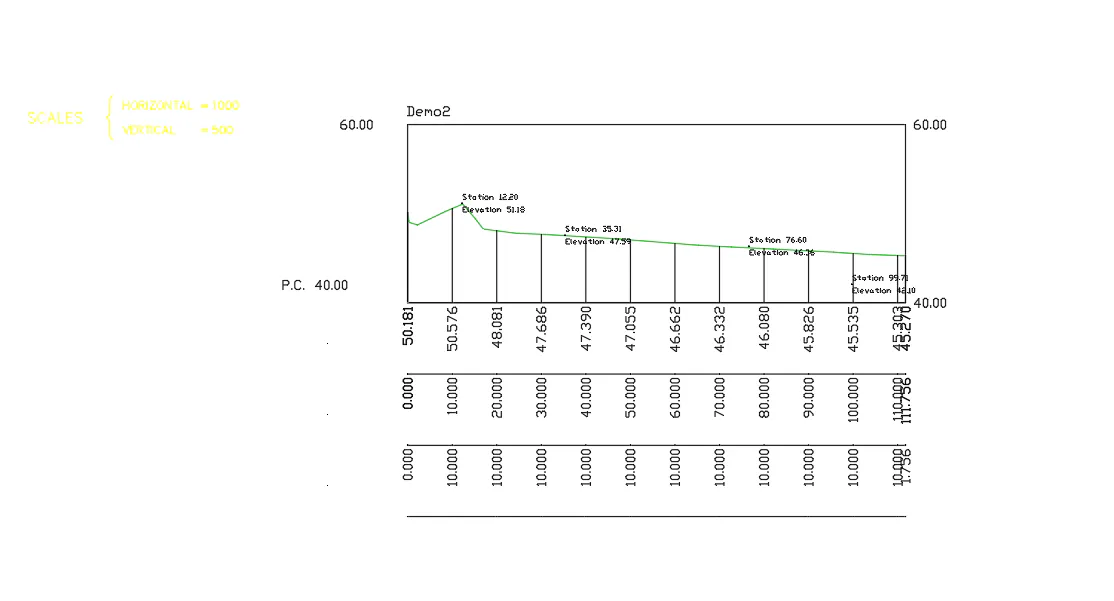
If we view the terrain values before and after the update, we can check the update that has been completed successfully.
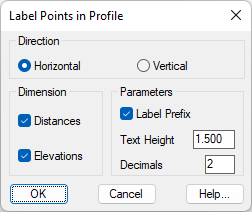
Finally, we will label the station and dimension information on certain points of interest on the drawn longitudinal profile. Thus, we execute the command Long Sections > Drawing> Draw Station and Elevation in Long Section, the following window will pop up, we validate the window with the default parameters.
Then, we select the drawn longitudinal profile and the points of interest of which we need to obtain this information, in the next screenshot you can see how a series of points have been selected above and below the profile.