
tcpMDT
Resize Image - MDT26
Resize Image
 | Command to execute in the CAD |
|---|---|
Vertical menu | MDT26 > Images > Resize Image |
Ribbon menu | Image > Tools > Image Size |
Command line |
This shows information about the selected image such as the width and height in pixels, the horizontal and vertical resolution in pixels per inch, the memory size in bytes and this allows the editing of the size and of the resolution with or without restriction of proportions and with the possibility of choosing the interpolation method which will be applied to the image when resizing it.
The three possible interpolation methods will be: Normal*, Bilinear and Bicubic***.
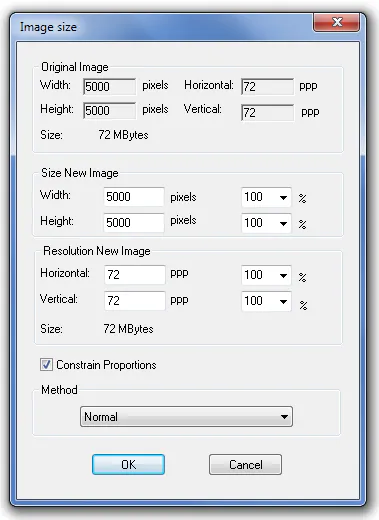
The dialogue has the following fields:
Original Image
Width: indicates the width of the image in pixels.
Height: indicates the height of the image in pixels.
Horizontal: indicates the horizontal resolution of the image in pixels per inch.
Vertical: indicates the vertical resolution of the image in pixels per inch.
Size of New Image
Width: this allows a new value to be entered or X per cent to be applied to the width of the image if we modify the value on the drop-down list. This list will also allow the entering of a new value of X per cent as well as those values which are default.
Height: this allows a new value to be entered or X per cent to be applied to the height of the image if we modify the value on the drop-down list. This list will also allow the entering of a new value of X per cent as well as those values which are default.
New Image Resolution
Horizontal: this allows a new value to be entered or X per cent to be applied to the value of the horizontal resolution of the image if we modify the value on the drop-down list. This list will also allow the entering of a new value of X per cent as well as those values which are default. When modifying this value, the image width is automatically modified too.
Vertical Resolution: this allows a new value to be entered or X per cent to be applied to the value of the vertical resolution of the image if we modify the value on the drop-down list. This list will also allow the entering of a new value of X per cent as well as those values which are default. When modifying this value, the image height is automatically modified too.
Restrict Proportions: if this box is activated when modifying the width value, the height will also be modified and also vice versa as it is endeavored to maintain the image appearance relationship. The same occurs with the horizontal and vertical resolution values.
Method: when changing the image size, a new image must be created and hence a pixel interpolation method must be used and the options are Normal, Resampling and Bicubic in order from lesser to greater quality in the resulting image.
When changing the size of a georeference image, it will also be modified with regard to the scale in X and Y. When pressing the OK button, it will request the destination directory for the new image which will be generated and its corresponding georeference.