tcpMDT
[PRO] Set Out Simple Section - MDT26

Set-out Simple Section
 | Command to execute in the CAD |
|---|---|
Vertical menu | MDT26 > Setting Out > Set-out Simple Section |
Ribbon menu | |
Command line |
This command is used to easily set out a roadway without the need to define the segment fully. It would be ideal for setting out a section with the platform and a few simple cut and fill slopes.
At first it requests the terrain cross-sections file and then the horizontal alignment, either graphically or by selecting it from the file.
After selecting the files, the following window is displayed for defining the characteristics of our section type.
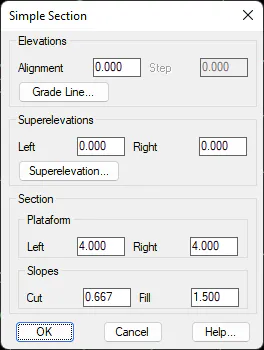
Elevations: Indicate the elevation of our road or extract the elevation from the vertical alignment selected. Also, if the vertical alignment file is selected, a positive or negative increment may be applied to the elevation calculated in the station to be set out.
Superelevation: Indicate the superelevation to apply to both sides of the horizontal alignment. Similarly, it can be established according to the selected superelevation file.
Section: Defines the basic parameters of our section type.
Platform: Left and right platform length.
Slopes: Slopes to apply in the case of cut and fill.
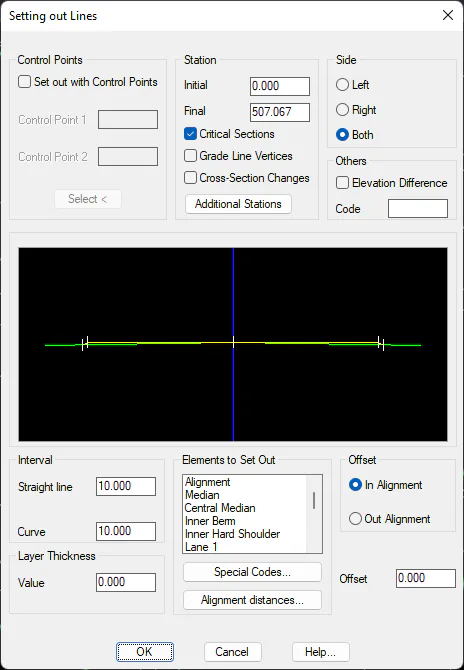
Once all the setting out values are established, the following window will be displayed to specify the elements we wish to set out in the section type created. This option will be similar to that explained in the Set-out Lines command.
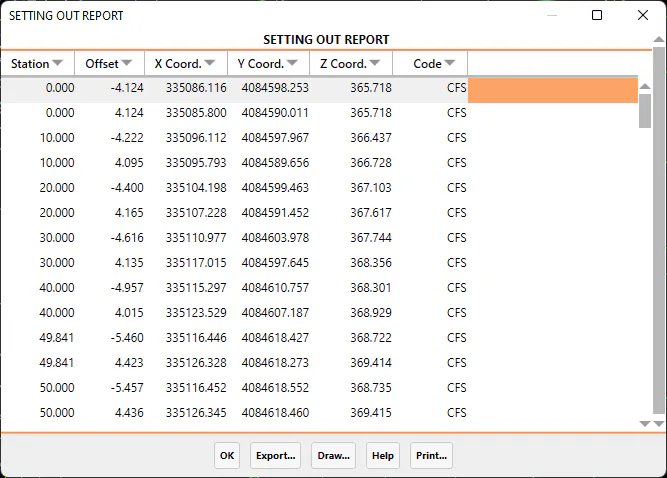
Once the dialog box is validated, the final setting out result is displayed.