
tcpMDT
Levelling - MDT26
Levelling
 | Command to execute in the CAD |
|---|---|
Vertical menu | MDT26 > Surveying > Utilities > Levelling |
Ribbon menu | |
Command line |
This utility allows one to calculate a station's height be means of the least squares adjustment method, using as data all the observations that have an observed station as the one to be calculated. This command is executed through the Surveying > Utilities > Levelling option or by clicking the Levelling button in Station Calculation, as long as there is an active instrument set-up. In the former case, the program requests a set-up through the Occupation Point selection dialog box, described elsewhere.
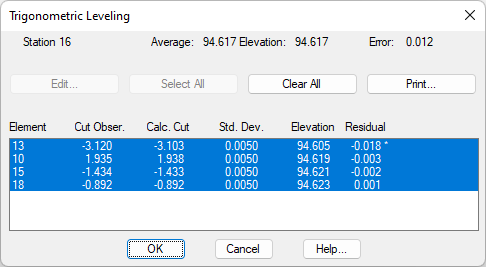
The observations can be activated or deactivated by clicking on the list. The data can also be edited by clicking the Edit button if only one observation is highlighted, allowing the corresponding station's observation data to be directly modified.
The program calculates the initial approximation by averaging the heights obtained for each observation. It then employs the least squares adjustment method. The screen displays the definitive Elevation and the Maximum Error. The results report has the following format:
TRIGONOMETRIC LEVELING
Element Observed Calculated Std. Dev. Elevation Residual D
11 1.801 1.752 0.0015 96.113 0.049 *
13 -1.592 -1.722 0.0015 96.194 0.130 *
14 2.599 2.812 0.0015 95.851 -0.213 *
Vertical Observations
RESULTS
Average elevation: 96.053
Solution: 96.055
Maximum Error: 0.204
All the vertical observations obtained from the observation information are displayed in height difference, definitive heights and maximum error results.
Once the calculation is deemed correct, one clicks on OK and the elevation is assigned to the origin station. It should be remembered that this process is performed in the coordinate information window, which also contains the fields "Direct.Int and Levelling" field, for instance.