
tcpMDT
Starting the assistant - MDT26
Starting the Assistant
Before beginning the exercises, make sure that both CAD and the AI assistant are running correctly.
Starting CAD and loading the MDT plugin
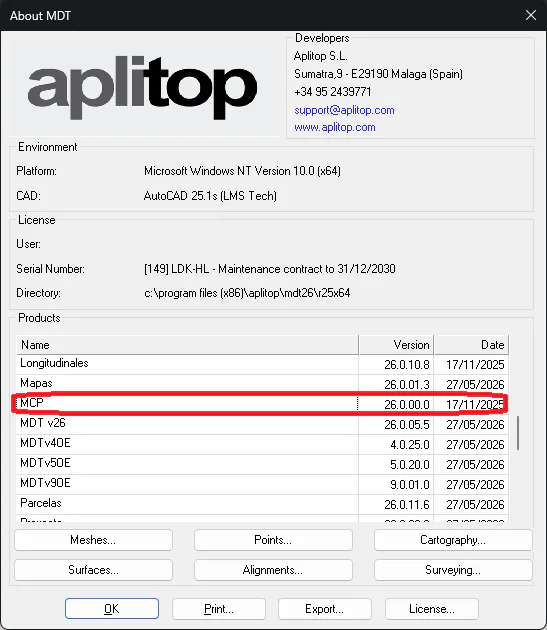
Once the drawing is open, run MDT26 > About TcpMDT and verify that the MCP module appears in the list.
Opening the assistant
Open the Claude Desktop application from the desktop icon or the Start menu. When it starts, the assistant shows the conversation window. If the MCP plugin is correctly configured, the assistant automatically recognises the tcpMDT 2026 tools when starting a new conversation.
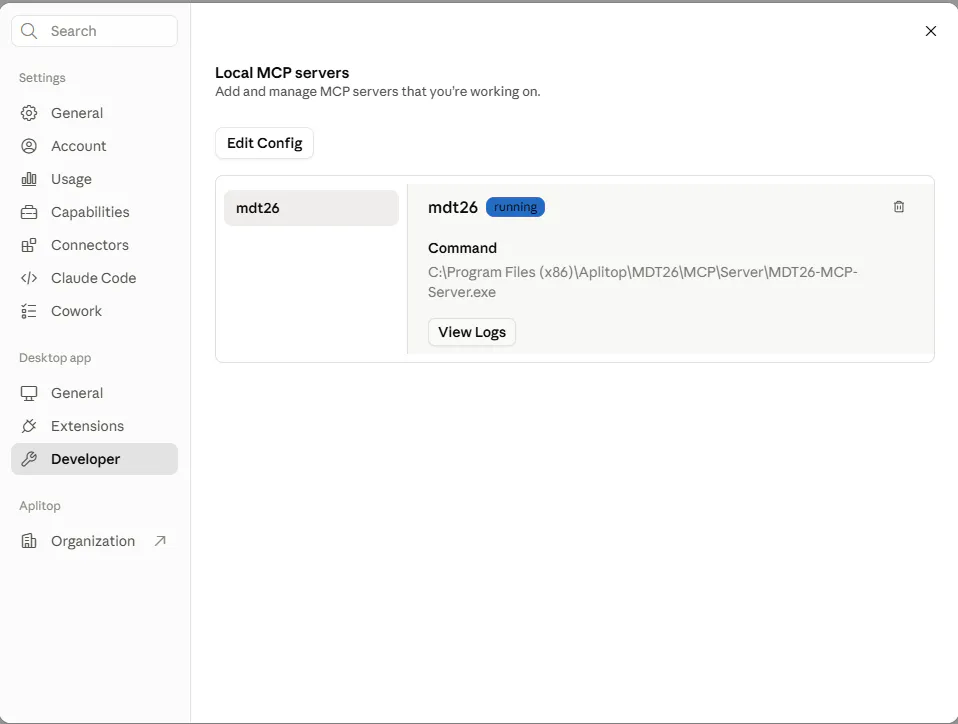
To check the configuration, go to Settings > Developer; you should see something similar to the following. The exact path must match the one specified during MDT installation.
To start a new conversation press the New chat button (Claude Desktop) in the left sidebar, or New session (Claude Code). Then type a prompt similar to the following:
Connect to MDT
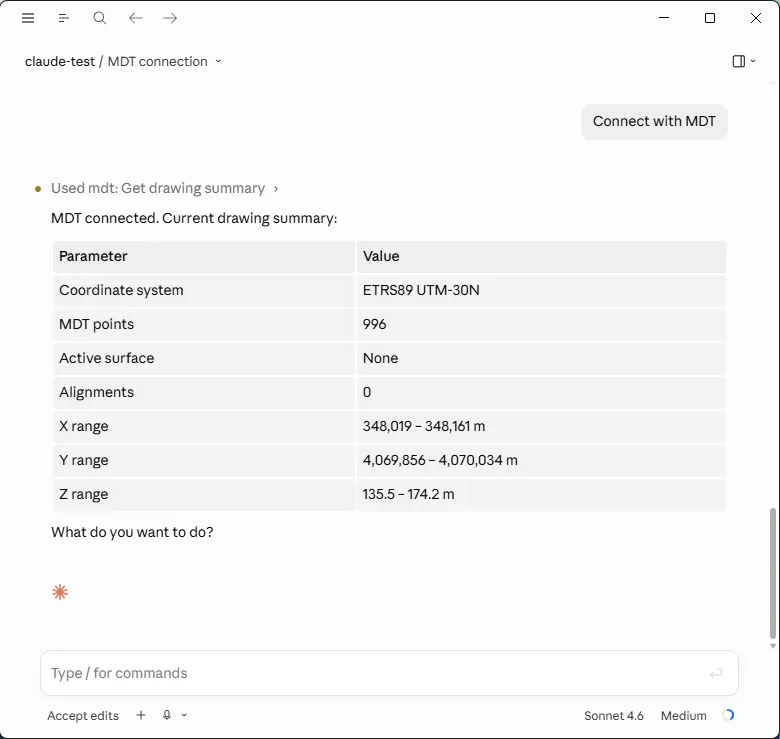
The assistant is ready to receive instructions. In the following exercises you type directly in the text box at the bottom of the window and press Enter or the send button to execute each instruction.