
tcpMDT
[PRO] Pond filling - MDT26
 | Command to execute in the CAD |
|---|---|
Vertical menu | MDT26 > Measurements > Volumes > Pond Filling |
Ribbon menu | |
Command line |
The Pond Filling command calculates the progressive filling of a pond or topographic depression based on an MDT surface. For each fill elevation between a start level and an end level, it incrementally computes the water surface area and the stored volume, allowing the hypsometric curve of the pond to be obtained. First, the command asks for a point with coordinates inside the pond, and then requests the calculation parameters.
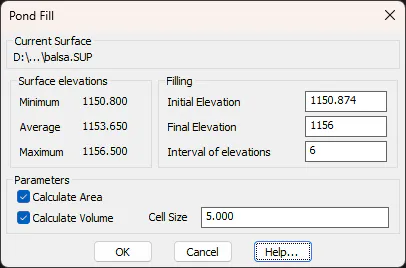
The Current Surface field displays the MDT surface file (.SUP) on which the calculation is performed. The Minimum, Average and Maximum elevations of that surface are also shown.
The Filling section defines the working range for the command. TheSInitial Elevation is the elevation at which the filling begins; by default it is copied from the elevation of the point requested at the start of the command. The Final Elevation is the maximum elevation up to which the filling is simulated, using the Interval of Elevations to set the increment between each calculation step.
The Parameters section controls which quantities are computed at each step. The Calculate Area option obtains the water surface area at each elevation. The Calculate Volume option obtains the cumulative stored volume up to that elevation. The Cell Size defines the size of the cell used to discretise the calculation: a smaller value improves the accuracy of the result.
Once the dialog is confirmed, the program performs the calculation and displays a list with the results:
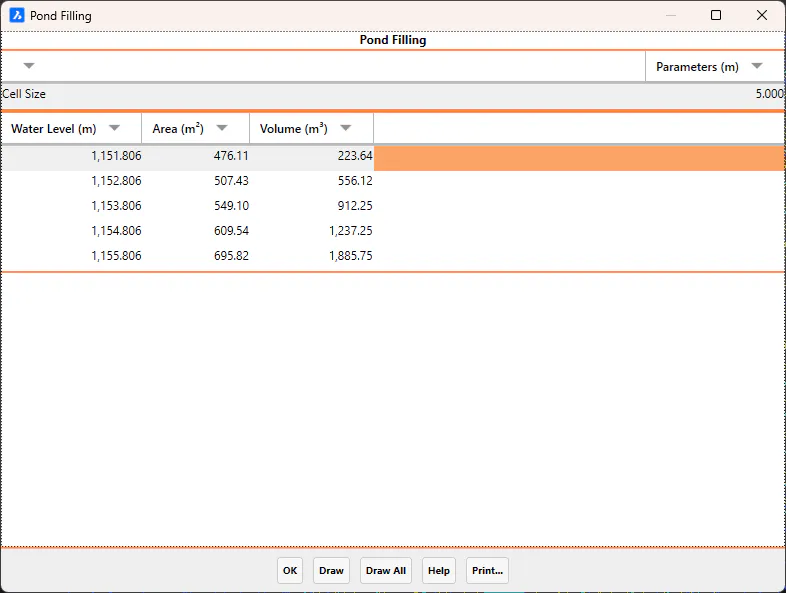
By selecting a row in the list and clicking Draw, the polyline representing the water surface at that elevation is drawn. The Draw All button draws all the polylines, each on a separate layer.