
tcpMDT
BIM classification configuration - MDT26
19.4 BIM Classification Configuration
One of the most significant new features of v26 is the ability to assign multiple classification systems simultaneously to the same MDT object. This concept did not exist in v25. Now, in step 3 of the export wizard, one or more systems can be activated and incorporated into the IFC file via IfcRelAssociatesClassification, each generating its own IfcClassificationReference linked to the element.
In this exercise, we will use two classification systems simultaneously:
● AplitopClass: Aplitop's native system for infrastructure. It accurately covers all MDT object types exportable to IFC and is always active by default.
● Uniclass 2015: An international classification system developed by RIBA Enterprises (United Kingdom), widely adopted on European BIM platforms. It adds interoperability with third-party tools.
The codes corresponding to the MDT objects in this exercise are:
MDT Object | AplitopClass | Uniclass 2015 |
Filling | MDT.02.02 | En_32_40_26 (Embankments) |
Cutting | MDT.02.03 | En_32_40_20 (Cuttings) |
Pavement layer | MDT.04.01–04 | Ss_30_14_05 (Asphalt road and paving systems) |
Road segment | MDT.03.01 | SL_80_35_13 (Carriageways) |
The assignment of these codes to MDT types is configured in Utilities >Configuration> BIM > Classification Systems. From this dialog, you can review and modify the code assigned by default to each object type for each active system.
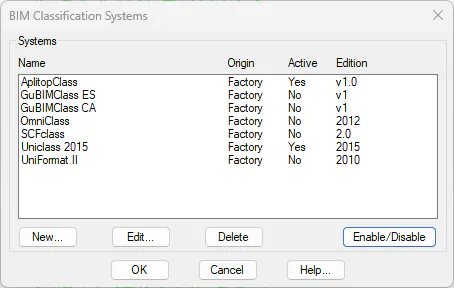
Run Utilities >Configuration> BIM > Classification Systems. In the list of available systems, verify that AplitopClass and Uniclass 2015 are active.
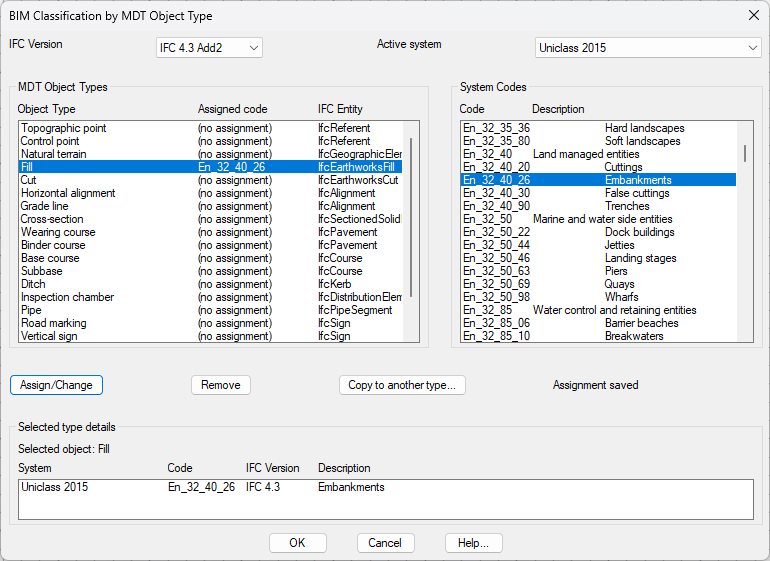
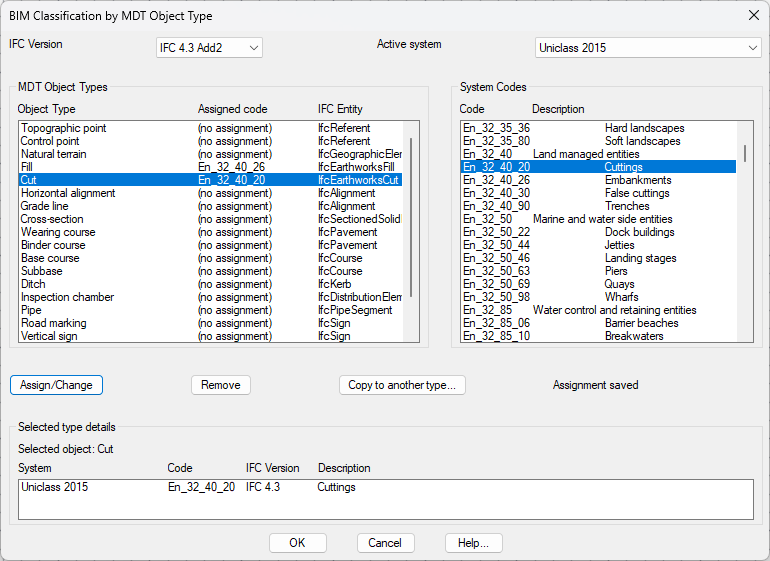
Run Utilities >Configuration> BIM > Object Assignment and select Uniclass 2015 in the systems list. In the MDT types table, locate Filling and verify it has the code En_32_40_26 assigned. Locate Cutting and verify En_32_40_20.
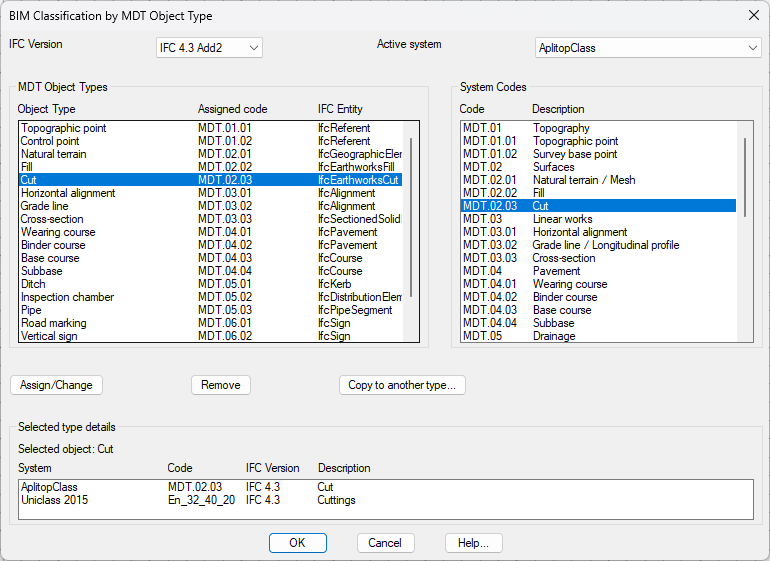
Repeat for AplitopClass: verify that Filling has MDT.02.02 and Cutting has MDT.02.03. Click OK to close.
NOTE: The code configuration is global for the installation and shared among all projects. The selection of which systems are exported in each specific IFC file is done in Step 3 of the export wizard, independently for each export.