tcpMDT
Earthworks export - MDT26
19.5 Earthworks Export
Run BIM > Export IFC. In v26 the export is done through a 4-step wizard, instead of the single dialog in v25.
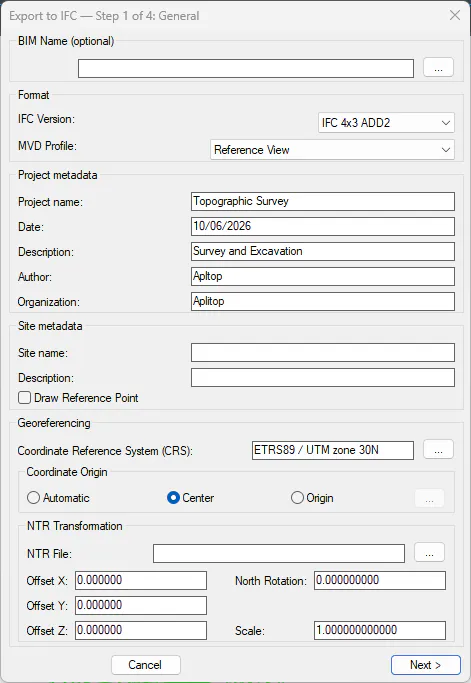
Step 1 — General Data: select version IFC 4.3 ADD2 and MVD profile Reference View. Verify that the detected CRS is correct (e.g., EPSG:25830).
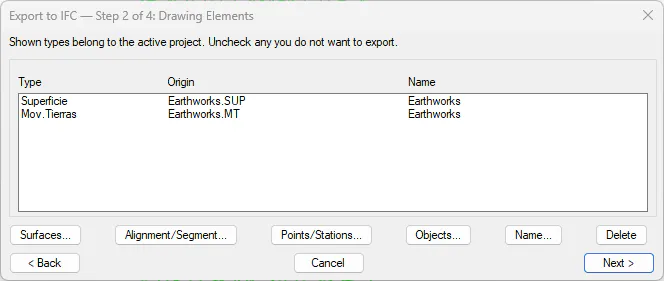
Step 2 — Elements: click Surface… and add Earthworks.mt as an element to export.
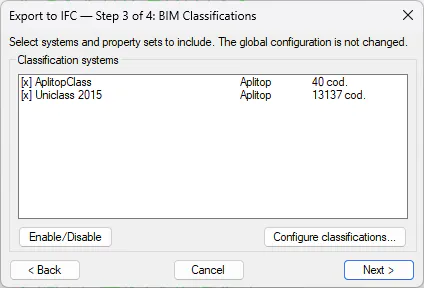
Step 3 — Classifications: all available classification systems are shown. Activate AplitopClass and Uniclass 2015. When both are activated, each IFC file element will receive two independent classification entries, one for each system.
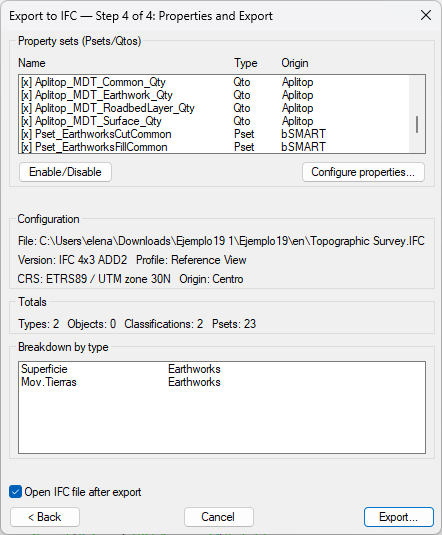
Step 4 — Properties: verify that the previously configured Psets and Qtos are active. Click Export and save as Earthworks.ifc.
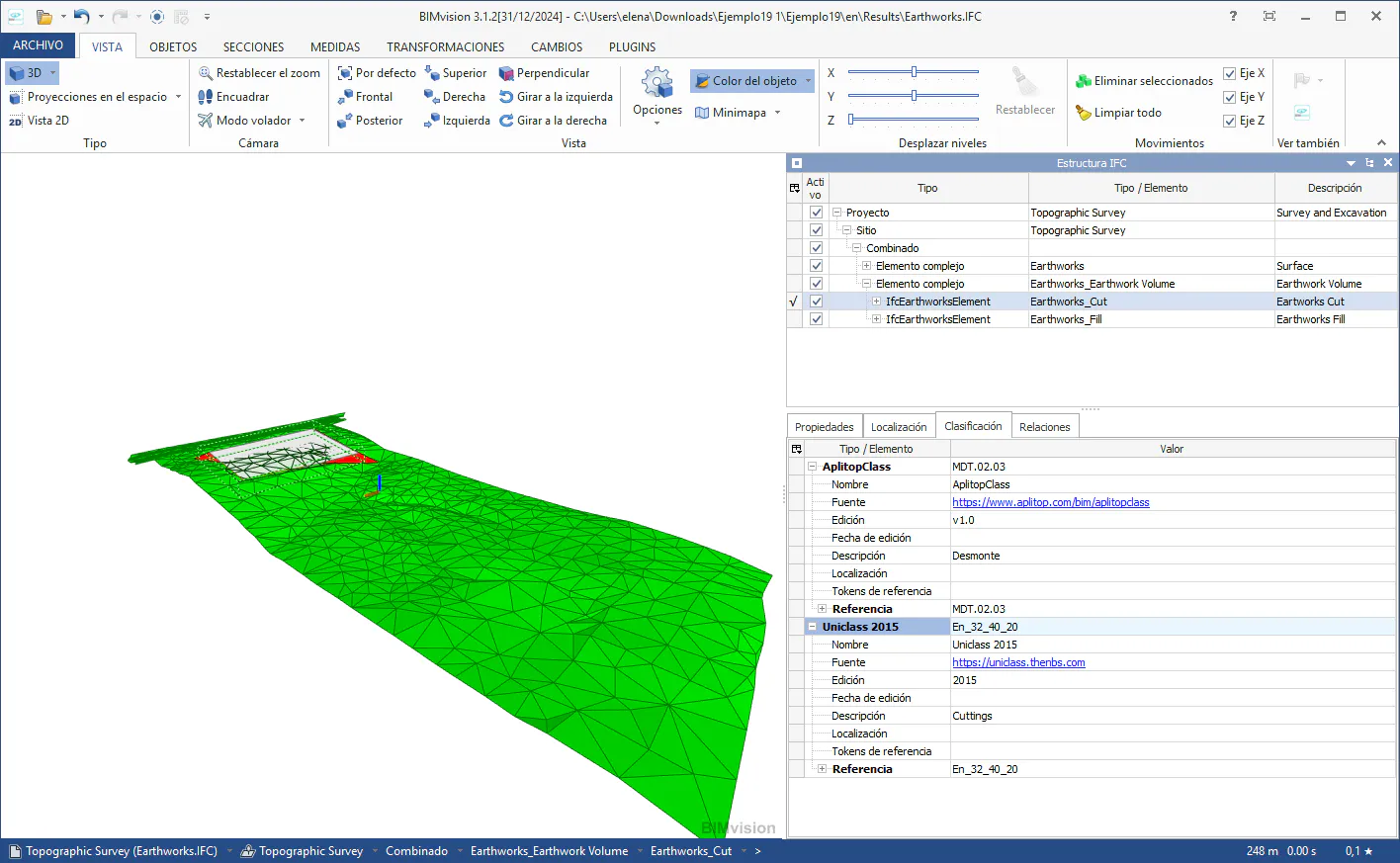
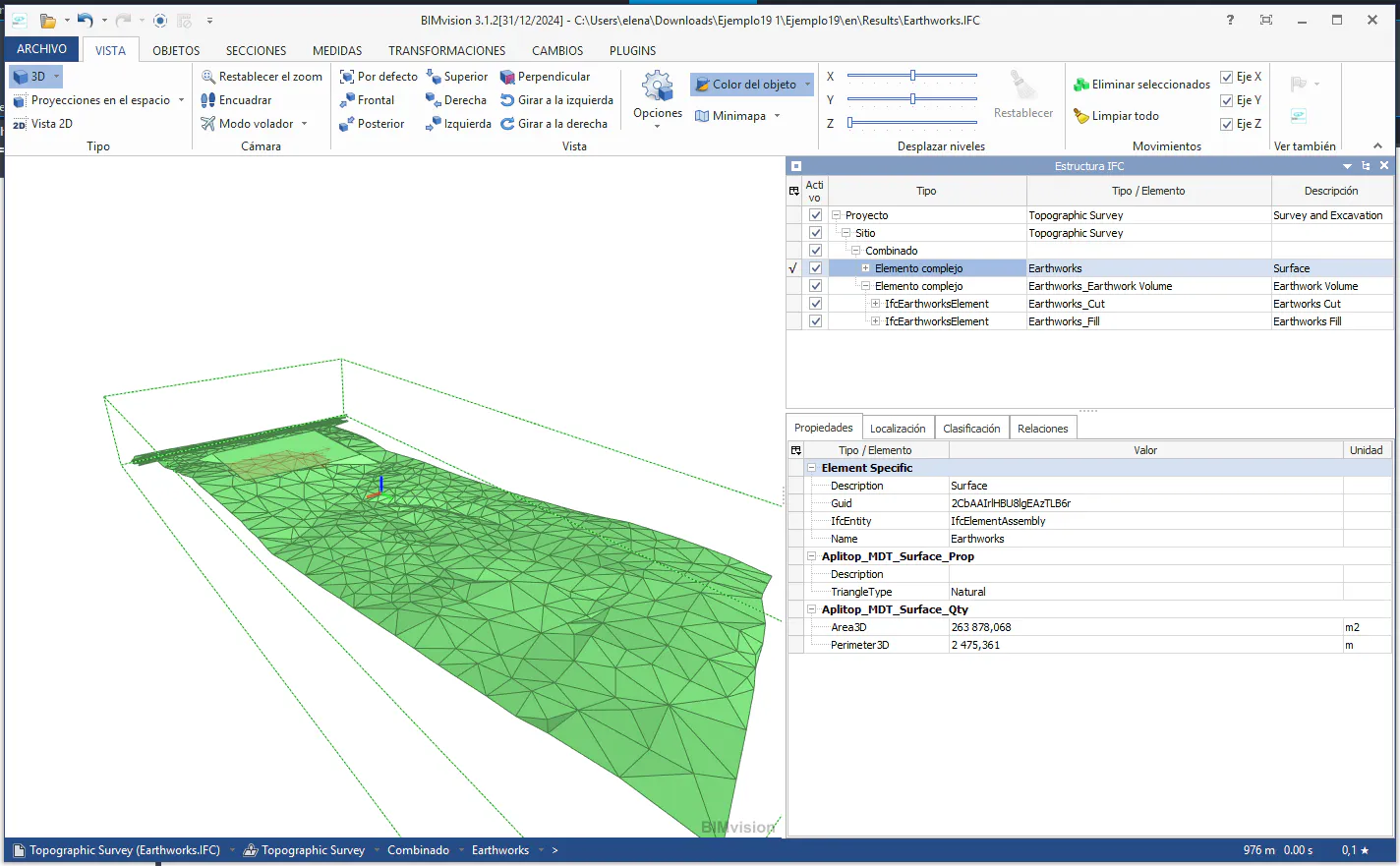
Open the file with BIM Vision. Select the object Earthworks and examine the properties and classifications panel. The following should appear:
● AplitopClass Classification: code MDT.02.02.
● Uniclass 2015 Classification: code En_32_40_26 (Embankments).
● Pset_MDT_Surface_Qty: Area3D and Perimeter3D have been calculated automatically.
Now select the cut solid and verify that its classifications are MDT.02.03 (AplitopClass) and En_32_40_20 (Uniclass 2015 — Cuttings).
Also verify that it has associated the set Pset_EarthworksCutCommon and Aplitop_MDT_Earthwork_Qty, where the property Volume is linked to the cut volume.