tcpMDT
Configuration of property sets (psets and qtos) - MDT26
19.3 Configuration of Property Sets (Psets and Qtos)
In v26 property sets are managed from BIM >Definition of Property Sets. The most important new feature compared to v25 is the distinction between Qtos (quantities automatically calculated by MDT, such as volumes and areas, which cannot be manually edited) and Psets (properties that the user configures and customizes).
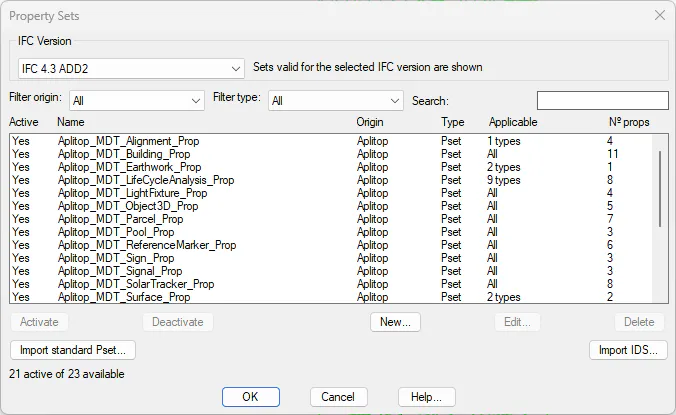
Verify that the following sets are active:
Name | Origin | Type | Applicable to |
Aplitop_MDT_Common_Qty | Aplitop | Qto | All objects with geometry |
Aplitop_MDT_Earthwork_Qty | Aplitop | Qto | Earthworks |
Aplitop_MDT_Earthwork_Prop | Aplitop | Pset | Earthworks |
Pset_ProjectCommon | buildingSMART | Pset | Project |
Pset_SiteCommon | buildingSMART | Pset | Drawing (site) |
Click Import Standard Pset… and check to import the buildingSMART sets for earthworks:
● Pset_EarthworksCutCommon (cut properties, IFC 4.3 ADD2)
● Pset_EarthworksFillCommon (fill properties, IFC 4.3 ADD2)
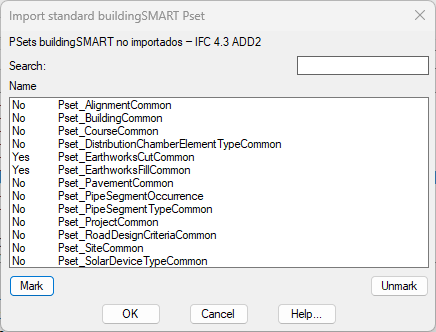
Click OK, select the newly imported sets and click Activate.
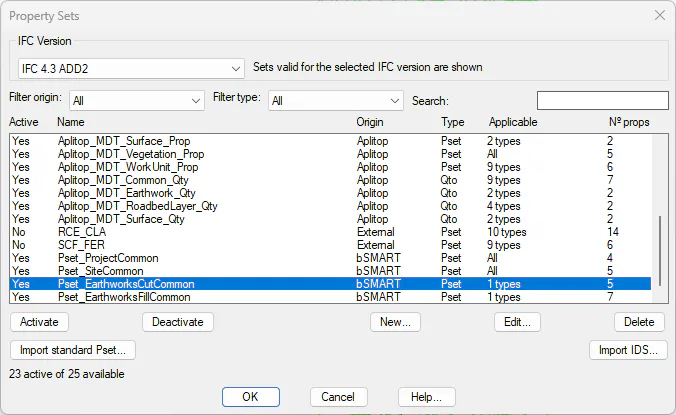
NOTE: In v25 these sets were called Pset_EarthworkCut and Pset_EarthworkFill. In v26 the names follow the buildingSMART standard for IFC 4.3 ADD2. v25 projects are not migrated automatically.
Run BIM > Assign Properties. Double-click on Fill.
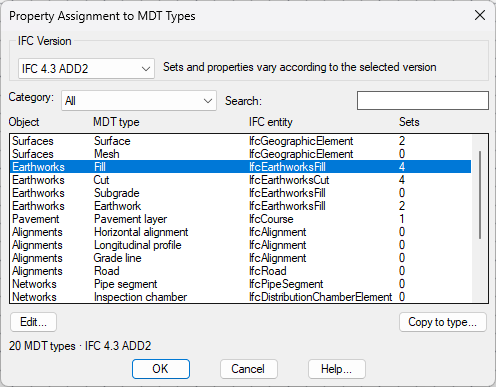
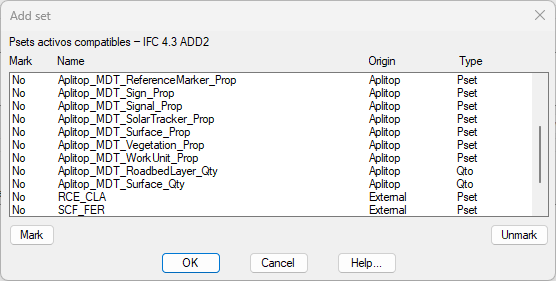
Add the following sets, if they do not appear:
Aplitop_MDT_Earthwork_Prop
Aplitop_MDT_Earthwork_Qty
Aplitop_MDT_Common_Qty
Pset_EarthworksFillCommon
With Pset_EarthworksFillCommon selected, locate the property Status in the lower list. Click Change value… and set it to NEW. Click OK.
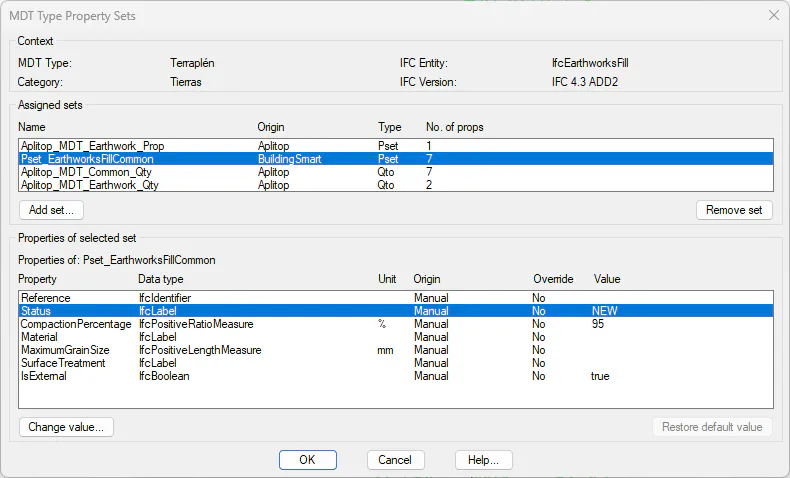
Repeat for Cut: add Pset_EarthworksCutCommon if it is not assigned and also set Status = NEW. Click OK in all dialogs.