
tcpScancyr
Drawing - TNSB3
25.3 Drawing
With this toolbar you can control the position and enlargement of the drawing.
If perspective projection is enabled, the zoom in, zoom out, enlarge extension and enlarge windows icons will be disabled.
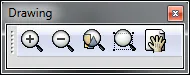
Figure 67 - Standard
The icons from left to right are:
Zoom in: Zooms out of the drawing from its middle. One can also use the mouse wheel by moving it forward, but in this case the zoom point will be the position of the mouse.
Zoom out: Zooms out of the drawing from its middle. One can also use the mouse wheel by moving it forward, but in this case the zoom point will be the position of the mouse.
Zoom Extension: The view is enlarged or reduced so as to see all the items in the drawing, only taking into account the visible layers.
Zoom Window: To zoom in on an area of the drawing, the first click of the mouse marks a corner of the window, and the second marks the opposite corner.
Pan: The drawing can be moved by clicking on the window and moving the mouse without letting go of the window.