
tcpScancyr
Points selection - TNSB3
25.7 Points Selection
When viewing a points cloud or cross sections you may select the points to be marked as filtered or remove this mark.
Having selected the points, these will appear marked. The right-hand icon will open a context menu, allowing you to filter points (Eliminate Selection), or remove the filter mark (Include Selection).
In the case of being selected by polyline you may use the option "Select" in order to finish the polyline and select the points that are within.
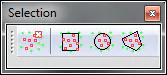
Figure 71 - Points Selection
The icons from left to right are:
Remove: Removes the points selection mark.
Window: Select the points via a rectangular window.
Circle: Select points via a circular window by first marking the center of the circle, moving the mouse to select the radius.
Polyline: Select the points via a polyline. By clicking on the left-hand icon you may add vertices, in order to finish the polyline, open the context menu with the right icon and select the corresponding option.