
tcpScancyr
Utility toolbar - TNSB3
25.14 Utility toolbar
In order to make the application more comfortable there is a toolbar displaying the most-used points options. This bar will only be enabled if you are viewing a points cloud.
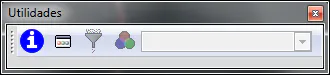
Figure 82 - Points Tools
From left to right these are, information, auxiliary windows, filters, symbols, color range.
Use the Information icon to consult details on any point on the points cloud. An information window on the selected point, depending on the available data (alignment, gradient), some of the field will be disabled.
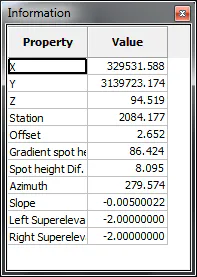
Figure 83 - Information Associated to a Point
The "Color Range" control is used to change the colors applied to a symbol without having to recalculate it.
If you have closed any of the floating windows (except filters) you can bring them up again by clicking on "Auxiliary Windows".