tcpMDT
Label Frame - MDT26
 | Command to execute in the CAD |
|---|---|
Vertical menu | MDT26 > Utilities > Label frame |
Ribbon menu | Utilities > Drawing > Label Frame |
Command line |
Label Frame
This tool is similar to the Crosses Drawing command, except that in addition it also labels the frame according to the dimensions specified.
When the command is executed, the program displays a dialog box where a set of parameters to configure is displayed before the frame is drawn.
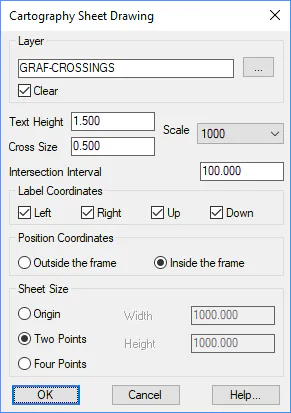
Layer: Layer in which the frame and crosses configured are drawn.
Clear: If this check box is activated, the program previously deletes any objects on the layer selected when it draws the frame.
Text Height: Height of the texts that are going to be labeled.
Cross Size: Value that defines the crosses' size.
Scale: Scale of the drawing.
Cross Interval: Interval of representation for the crosses. It is common for both the X and Y axes.
Width: Dimension of the frame along the abscissa.
Height: Dimension of the frame along the ordinate axis.
Label Coordinates: One activates the side of the grid in which one wishes to label the frame's coordinates.
Position Coordinates: You can label the coordinates on the Outside of the frame or on the Inside of the frame.
Sheet Size: There are three possibilities when defining the frame's size.
Origin: From a point selected on screen and with the Width and Height values set.
Two Points: Sets the frame's dimensions from two points selected on screen.
Four Points: The frame's dimensions are set by selecting four points that establish the frame's size.
Once the dialog box is validated, the program requests the origin from which the frame will be drawn. One can choose this point either graphically or by entering its coordinates in the command line.
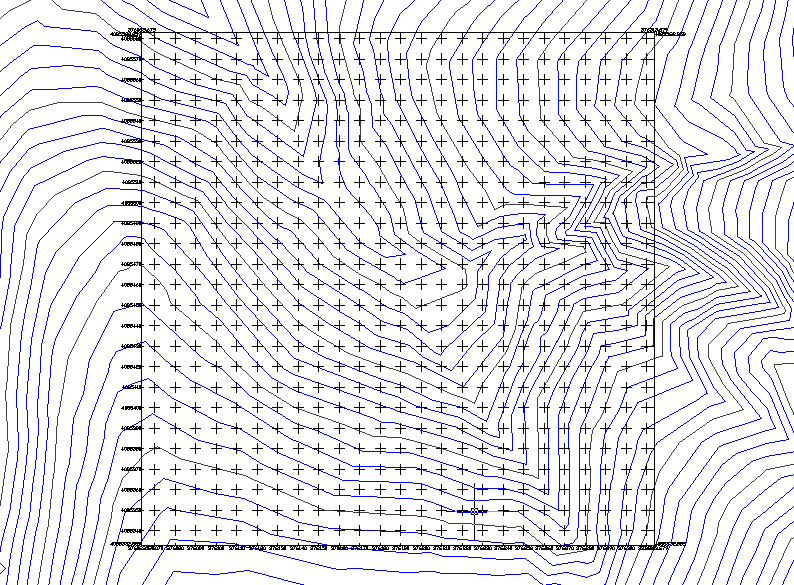
An example of this tool's use is shown below: