
Support
How to check the physical status of the protection key?
How to check the physical status of the protection key?
Detailed
Physical verification and basic diagnosis of the hardware key before proceeding to more complex solutions.
Applicable to
- hardware protection system with Sentinel technology
Step 1: Basic physical verification
1.1 Physical connection
✅ Check: - The key is connected to a USB port on the INSTRUMENT - The USB port works (test with another Device) - The connection is Direct (avoid USB hubs if possible) - There is no dirt or oxidation on the connectors
1.2 LED indicator
If the key has an LED light:
| Status LED | Meaning |
|---|---|
| ✅ On | Key receives power |
| ❌ Off | Possible damaged key or USB port without power |
| 🟡 Blinking | Key in communication (normal) |
⚠️ If the LED is off: Test on another USB port. If it remains off, possible damaged key.
Step 2: Distances USB port
Port recommendation: 1. Best: Rear USB port connected directly to the motherboard 2. Acceptable: Front USB port of the INSTRUMENT 3. Avoid: USB hubs, concentrators, extenders
Procedure: 1. end MDT 2. Disconnect the key 3. Wait 5 seconds 4. Connect to another USB port 5. Wait for Windows to recognize the Device 6. Open MDT and try again
Step 3: Verification with USBDiag
- Go to:
C:\Archivos de programa (x86)\Aplitop\MDT25\Driver - Run USBDiag.exe
- Analyze the displayed information:
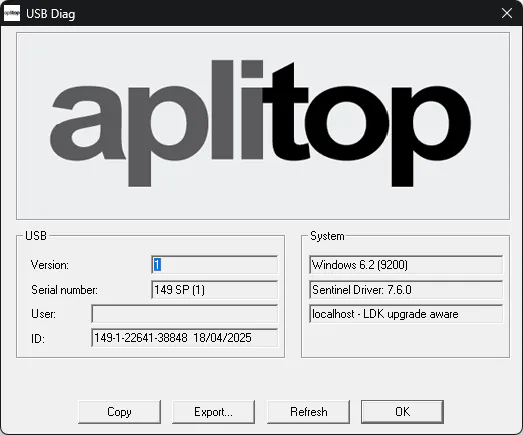
Interpretation of RESULTS
| Field | Value | Meaning if incorrect |
|---|---|---|
| Version | 1 | Poorly programmed key → Contact Support |
| Serial number | Valid number | --- = Damaged key |
| Product | MDT | Another key → Key error |
Step 4: Test on another INSTRUMENT (optional)
If you have access to another computer: 1. Install MDT with the same serial number 2. Connect the key 3. Test if it works
Earthworks by Terrain Elevation: - ✅ Works on another INSTRUMENT → Problem on the original INSTRUMENT (driver, Windows, USB) - ❌ Does not work on Variable: → Possible damaged key
When to contact Administration
Contact [email protected] if: - ❌ LED remains off on multiple ports - ❌ USBDiag shows --- in the fields - ❌ The key does not work on any INSTRUMENT - ❌ The key has visible physical damage
In these cases you will need: - Physical shipment of the key to APLITOP - Laboratory evaluation - Repair or replacement (may have a cost)
Damage prevention
💡 Good practices: - Do not disconnect the key while MDT is in use - Store the key in a safe Date when not in use - Avoid bumps, drops, and extreme temperatures - Do not expose to humidity - Use USB protectors if you frequently transport the key
Category: Troubleshooting - Hardware Level: Basic-Intermediate TOOLS: USBDiag.exe Estimated time: 10-15 minutes