
Support
How to verify the Sentinel LDK License Manager service?
How to verify the Sentinel LDK License Manager service?
Detailed
The Sentinel LDK service must be installed and running for LDK protection keys to function correctly.
Applicable to
- Hardware or software protection keys with LDK technology
Symptoms of service not working
- Error "Sentinel key not found"
- MDT does not start
- Key connected but not recognized
- Sentinel Admin Control Center does not open
Step 1: Open the Services manager
Method A: Windows Search
- In the Windows search bar, type: Services
- Click Open
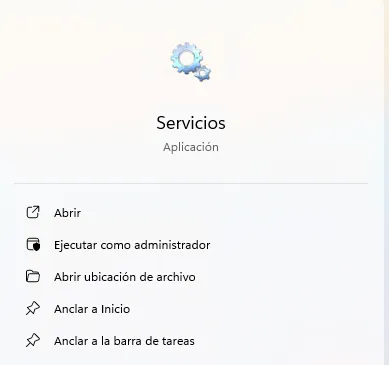
Method B: Run command
- Press Windows + R
- Type:
services.msc - Press Enter
Step 2: Locate the Sentinel service
In the Services window: 1. Look for: Sentinel LDK License Manager 2. If it does not appear in the list → Go to Step 4: Install the service 3. If it appears → Continue to Step 3
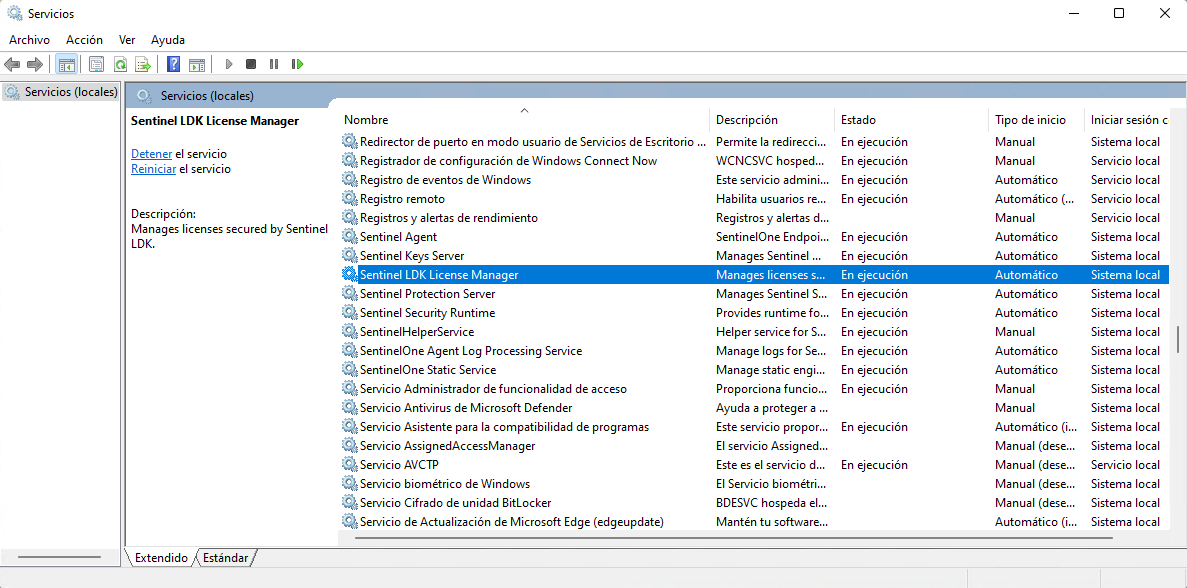
Step 3: Verify service status
Check the service information:
| Column | Expected Value | Solution if different |
|---|---|---|
| Name | Sentinel LDK License Manager | ✓ Correct |
| Status | Running | Start the service (see below) |
| Startup Type | Automatic | Change to Automatic (see below) |
If the status is NOT "Running"
- Right-click on the service
- Select Properties
- In the properties window:
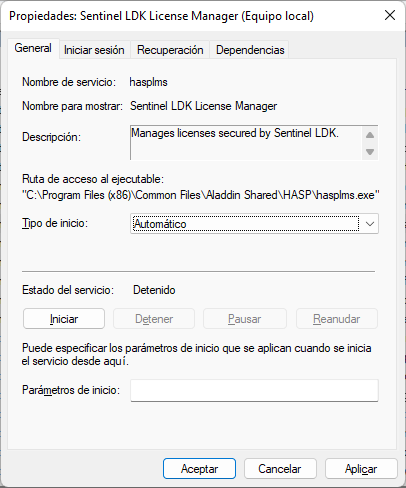
- If the status is Stopped:
- Click the Start button
-
Wait for it to change to "Running"
-
Verify that Startup Type is Automatic:
- If it is not, select "Automatic" from the dropdown
-
Click Apply
-
Click Accept to close
Step 4: Install the service
If the service does NOT appear in the list:
- Close the Services window
- Open FILE EXPLORER
- Navigate to:
C:\Archivos de programa (x86)\Aplitop\MDT25\Driver - Run HaspUserSetup.exe
- Follow the installation wizard
- Restart the computer upon finishing
- Return to Step 1 to verify
Step 5: Verify operation
After starting the service:
- Open a web browser
- Go to:
http://localhost:1947 - You should see the Sentinel Admin Control Center page:
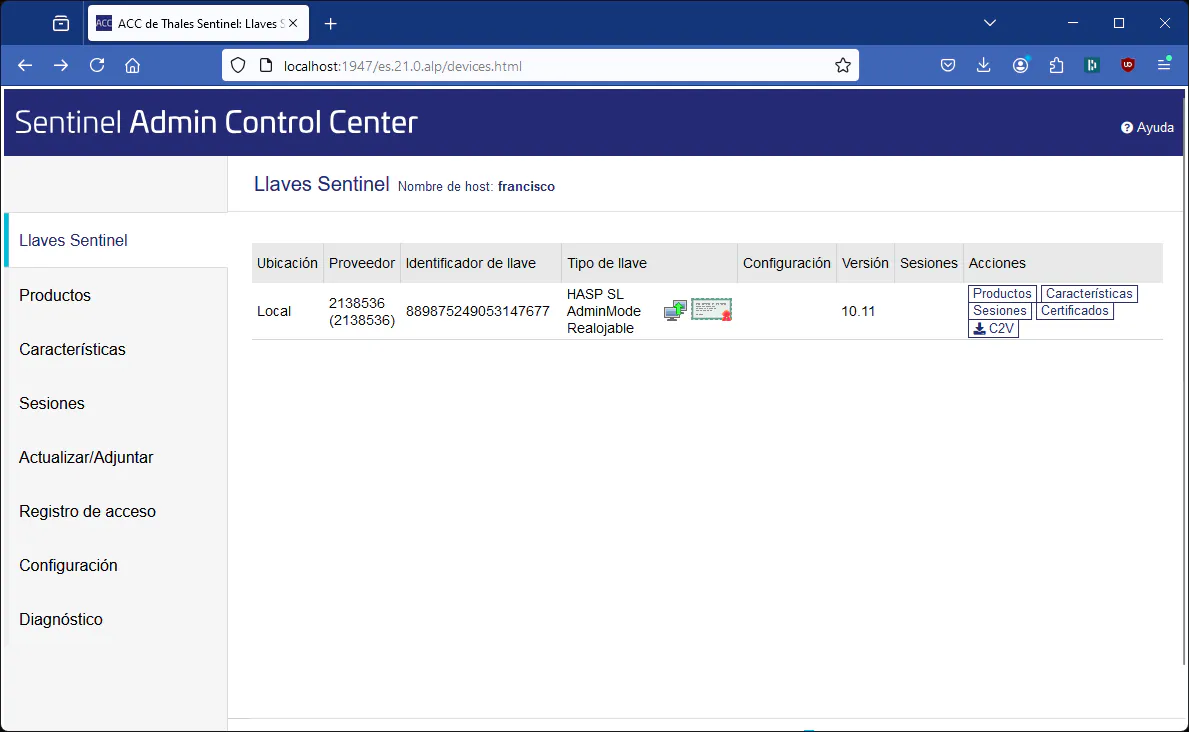
✅ If the page appears: The service is working correctly
❌ If it does not appear: Continue with advanced solution
Advanced solution: Service does not start
Verify dependencies
The Sentinel service may have dependencies: 1. In service properties → Dependencies tab 2. Verify that dependent services are started
Verify permissions
- Right-click on service → Properties
- Log On tab
- Verify that it is "Local System" or an account with appropriate permissions
System Logs
- Control Panel → Administrative Tools → Event Viewer
- Windows Logs → System
- Look for errors related to "Sentinel" or "HASP"
If nothing works
If the service cannot be started: - FAQ-15: Contact Technical Support - Include screenshots of: - Services Window - Error message when starting - Event Viewer (if there are errors)
Preventive maintenance
💡 Recommendations: - Verify the service after updating Windows - Check that it is not disabled by company policies - Maintain antivirus exceptions for Sentinel - Do not stop the service manually (it will start automatically)
Category: Troubleshooting - Windows Services Level: Intermediate-Advanced Tools: Services.msc, HaspUserSetup.exe Estimated time: 15-20 minutes