tcpMDT
Tools Menu - MDT26
Tools Menu
Measurements
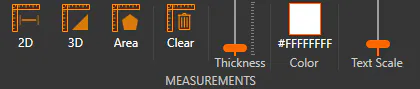
These tools allow us to make measurements on the 3D viewer.
 Performs a distance measurement in XY, designating two points in the viewer.
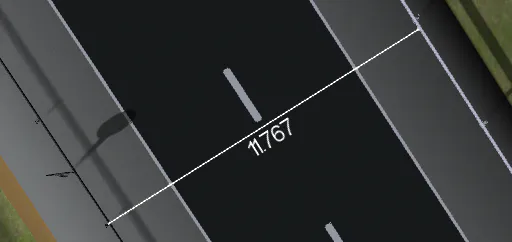
 Performs an XYZ distance measurement, designating two points in the viewer.
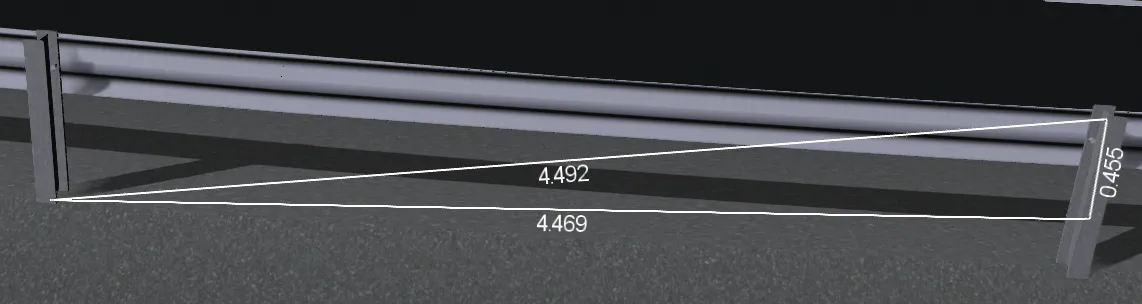
 Take an area measurement, designating at least three points in the viewer.
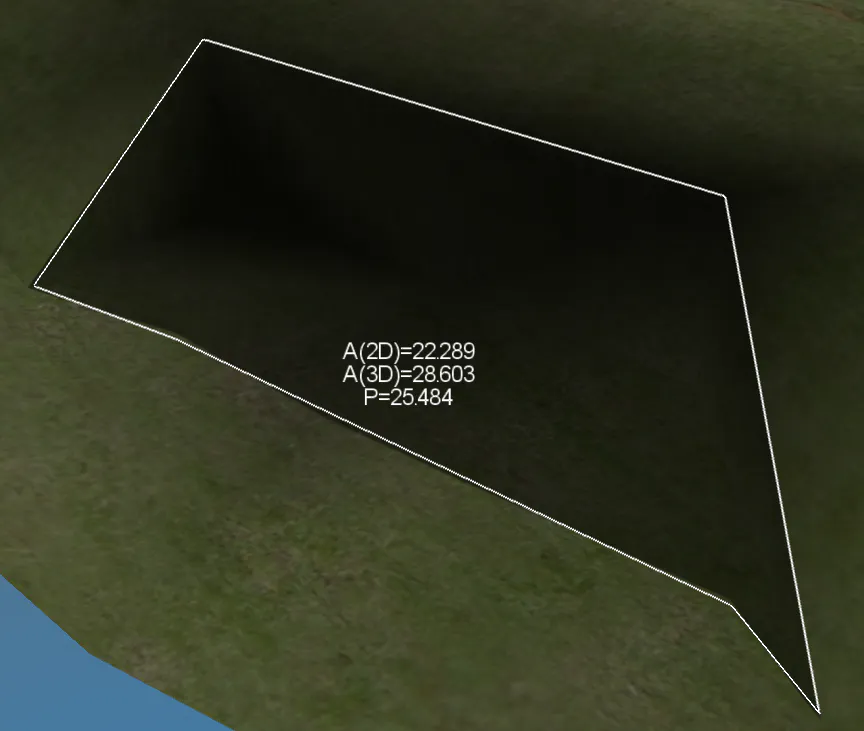
 Clear all measurements from the viewer.
 Sets the line thickness of measurements.
 Sets the color of measurements.
 Sets the text size of measurements.
Mini map

Show or hide the minimap
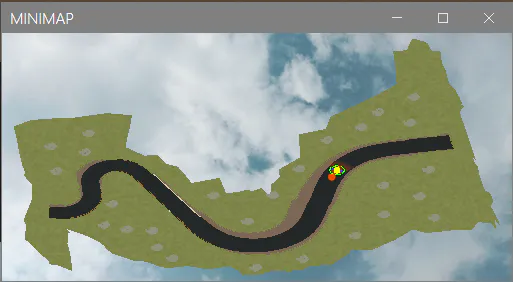
The minimap is displayed as a floating window that can be positioned and sized as desired. It can be hidden by closing the window or clicking on the Tools button > Minimap > Activate.
The orange dot represents the camera, the orange cone indicates the direction of the camera, and the yellow dot is the target point.
Left-clicking on the minimap immediately moves the camera to those XY coordinates (keeping whatever Z it had).
Right-clicking orients the camera to face the direction the click was made.
It is only possible to click on the minimap if the camera is not in Alignment mode.
Capture

Record a screenshot of the current view. Allows you to set its resolution, allowing you to set a maximum dimension of 8192 pixels.
Record Tour
This dialog will appear when you start the viewer from the Maps/Render > Generate Video... command, or by clicking the Record Alignment Travel button from Alignment mode (if you are viewing a road track).
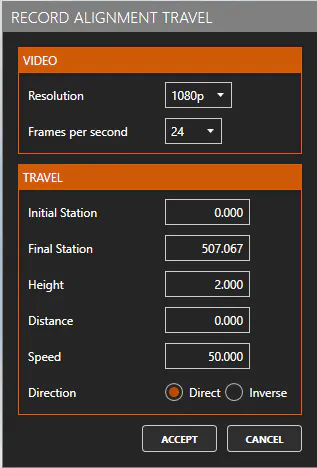
Video
Resolution: Choose the video resolution. The following are allowed:
480p (640 x 480)
720p (1280 x 720)
1080p (1920 x 1080)
1440p (2560 x 1440)
2K (2048 x 1080)
4K (3840 x 2160)
Frames per second: Determine the number of images per second. The following are allowed: 24, 30 or 60.
Route
Initial Station: At which station the video starts
Final Station: In which station the video ends
Height: At what distance from the ground level the video is recorded
Distance: At what XY distance from the alignment the video is recorded
Speed: At what speed the alignment is traversed in the video
Direction: In which direction the alignment is traversed in the video
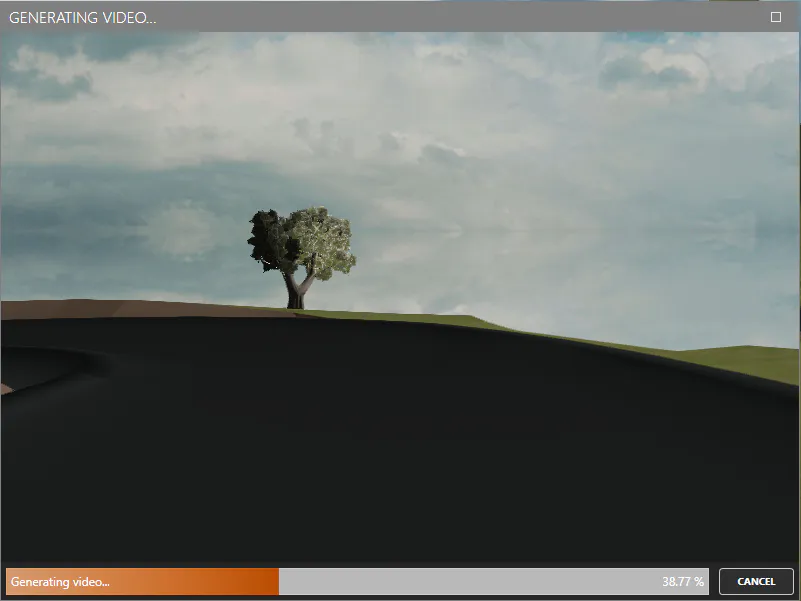
By accepting the dialog, the recording will start and a window will be displayed where you will see a "preview" of the video as well as the progress of the recording. The process can be canceled, being able to retouch the parameters.