
tcpMDT
Generate Widenings - MDT26
Generate Widenings
 | Command to execute in the CAD |
|---|---|
Vertical menu | MDT26 > Roads/Segments > Widenings > Generate Widenings |
Ribbon menu | Roads > Widenings > Generate |
Command line |
Using this command, the Widenings associated with a pre-defined alignment are generated.
MDT initially asks for the file in which the alignment defined is contain and then the file where it is wished to save the widenings (extension .SOB).
The widenings will be generated in line with the road standards for the selected country. At present MDT has the possibility of working with the standards of different countries and the software is prepared for the user to modify or incorporate its own standards.
The software configuration folder contains the different tables deployed to generate them and a screenshot can then be viewed where their location can be seen.
If the standards of a country are chosen which has several associated tables, the program, before carrying out the conversion, will ask the user to indicate the widenings table he wishes to use to carry out the conversion.
Widenings Table 
Executing this command will open a window containing the widenings table for the file in question. This window contains a list comprising the Radius and Widening columns in accordance with the speed selected.
The table may be amended or personalized depending on the characteristics of the sketch and the speed assigned to the same. First of all, the user is asked for the widenings file and then a text appears with the settings for the same. Each widenings table may feature different values in accordance with the speed of the sketch. The characteristics of the text are specified below.
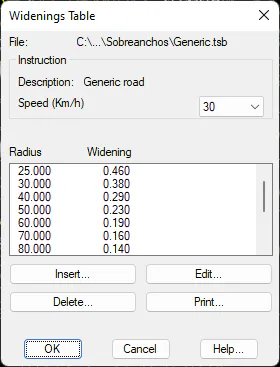
Description: Provides a description of the widenings table in question.
Speed: the option of selecting one of the different speeds available in the widenings table in question.
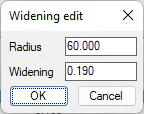
Insert and Edit: The entries in the widenings table can be edited by activating any of these tabs, whereby the following text will appear in which to conduct the changes.
Delete: Removes the entry in the table marked on the list.
Print: Transfers the information from the widenings table to the system printer or a file.