tcpMDT
[PRO] Analyze Points on Profile - MDT26

Analyze Points on Profile
 | Command to execute in the CAD |
|---|---|
Vertical menu | MDT26 > Vertical Alignments > Analyze Points on Profile |
Ribbon menu | V.Alignments > Utilities > Analyze Point |
Command line |
It is necessary to have a terrain long section with an associated vertical alignment on screen to use this command. The program requests a vertical alignment to be selected in Graphic or File fashion. The following dialog box is then displayed, whose characteristics are described below.
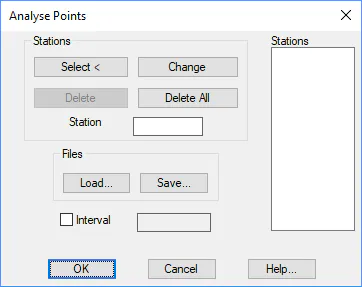
Select: One graphically selects on the profile the stations from which information is to be obtained.
Change: Changes the station selected from the list for the one entered in the Station box.
Delete: Deletes the station from the list.
Delete All: Reinitiates the list, which then becomes completely empty.
Load: It is possible to load any file containing a station in its first column, so that the list is filled in automatically.
Save: Once all the stations are entered, the information on the stations can be saved on a file using this option.
Interval: Additionally, it is possible to set a specific interval to obtain the list. This option does not exclude the aforementioned options.
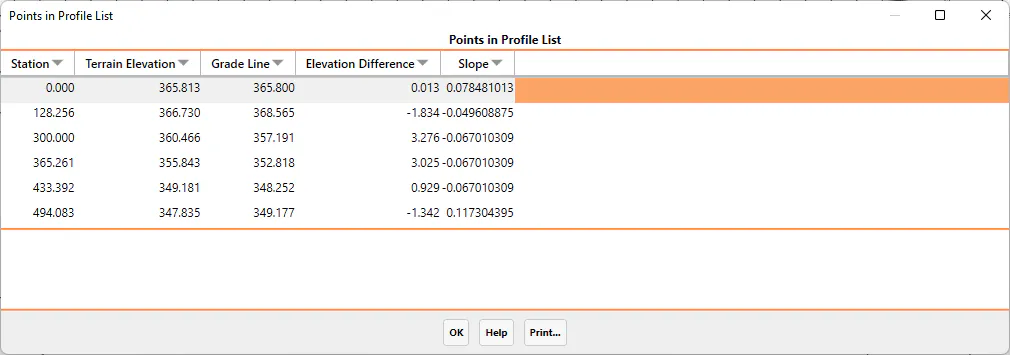
Lastly, the program displays a dialog box containing the information about the corresponding vertical alignment projected orthogonally on the terrain, its corresponding elevation on the terrain (Terrain Elevation), the elevation of the vertical alignment used for the calculation (Vertical alignment), as well as the difference between both along with its sign (Elevation Difference), depending on whether it is a fill (+) or a cutting (-).
These results can be printed or exported to an ASCII file or to a Microsoft Excel worksheet.