
tcpMDT
[PRO] List Vertical Alignment - MDT26

List Vertical Alignment
 | Command to execute in the CAD |
|---|---|
Vertical menu | MDT26 > Vertical Alignments > List Vertical Alignment |
Ribbon menu | V.Alignments > Edit > List |
Command line |
This command gives you the listing of a vertical alignment with the option of customizing the stations to be listed. When executing this option in the first place, it will request the gradient either graphically or from a file and then the following dialogue box will appear where you can configure the list you want to generate.
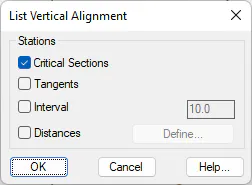
Critical Sections: Stations of the vertical alignment vertices.
Tangents: Entry and exit tangents for each curve.
Interval: Option of creating the list with a given station interval.
Distances: With this option you can include certain stations that you want to be shown in the list.
Once validated, a list of the selected vertices will be displayed on the screen. The characteristics and functionalities of the dialogue box are described below.
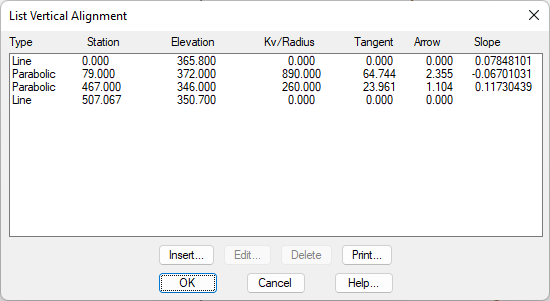
Edit/Insert: Activating this button will automatically edit the characteristics of the curve marked in the list., When you press the "Insert" button, the empty window will be displayed for the user to enter the data. In this new dialogue box, you can modify the characteristics of the edited vertex curve as well as define the curve as asymmetric, for this you need to tick the "asymmetric vertex" box.
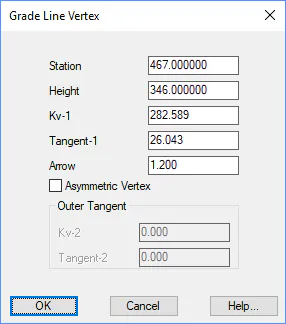
Delete: Deletes the vertex of the vertical alignment marked in the list maintaining the previous and subsequent characteristics.
Print: Dumps contents of the list into the system printer.
Only the Insert, Edit and Delete buttons are enabled if just the vertices or Singular Points of the vertical alignment have been listed.