
tcpMDT
Assign Properties to Object - MDT26
 | Command to execute in the CAD |
|---|---|
Vertical menu | MDT26 > BIM > Assign Properties to Object |
Ribbon menu | |
Command line |
Overview
The Assign Properties to Object command allows viewing and editing the BIM property values of a specific MDT object, all objects of the same type, or a set of selected objects. Unlike the Assign Properties to MDT Types command, which operates at the global type level, this command operates at the individual instance level, allowing each object to have property values that differ from the rest of its type.
Values assigned through this command are stored as instance overrides and have the highest priority in the value resolution chain during IFC export, above type overrides, XLS values, calculated values and Pset default values.
The MDT object can be selected directly in the drawing (ARX entity) or by choosing it from the MDT file list of the project.
Object selection
When the command is executed, the command line prompts:
Select object [F]:
Click on an entity in the drawing — Selects the ARX entity in the active drawing. MDT identifies the object and determines its MDT type if the necessary data is available.
F key — When objects are not directly accessible in the drawing, or the object is an MDT file on disk, pressing F opens the Select MDT file window to choose the object from the project file tree.
Select MDT File Window
Opens when pressing the F key during object selection. Shows the MDT files in the active project directory, organised by category.
Category — Drop-down list that filters the displayed MDT files by object type. Available categories are: All, Surfaces, Meshes, Earthworks, Alignments and Roads. Helps locate objects when the project contains many files.
File list — Shows the MDT files found in the active drawing's directory. Each row shows the file name (without extension), the MDT type it corresponds to based on its extension, and the full path on disk. Double-clicking a row selects the file and closes the dialog automatically.
Informational text — Appears when a file is selected and shows the object name and the number of property sets assigned to it.
Assign Properties to MDT Object Window
The main window of the command. Opens once the object has been selected, either from the drawing or from the file selector.
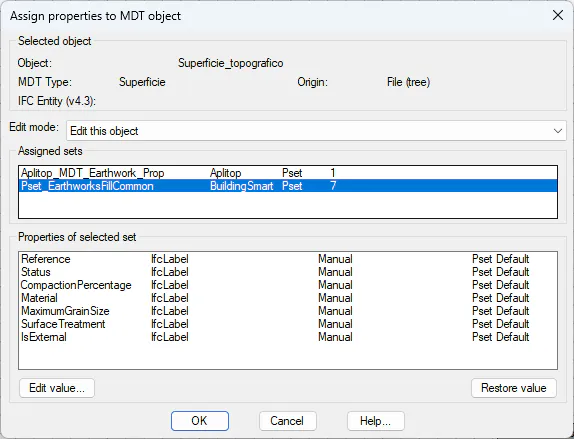
Selected object section
Displays read-only information about the object being edited:
Object — Name of the selected MDT object (file name without extension for file-based objects, or entity identifier for drawing objects).
MDT Type — MDT category of the object (Surface, Embankment, Alignment, etc.).
Origin — Indicates how the object was selected: "Drawing" if selected as an ARX entity in the active drawing, or "File (tree)" if chosen via the file selector.
IFC Entity — The IFC standard entity this object will be exported to according to the MDT→IFC mapping of the active version.
Edit mode
Drop-down list that determines how many objects the changes made in this session will affect:
Edit this object — Changes only affect the selected object. This is the most precise mode: it assigns unique values to a specific instance without altering other objects of the same type.
Edit all objects of this type — Changes are applied to all MDT objects of the same type in the project, not just the selected one. This is equivalent to a type-level MDT override applied in bulk.
Edit selected objects only — Available when a multiple selection was made beforehand. Changes affect only the objects in that selection. If the selected objects belong to different MDT types, the message "Selected objects are of different MDT types. Only common properties will be shown. Continue?" is displayed, and the list shows only properties present in all the types.
Assigned sets section
Lists the property sets linked to the MDT type of the selected object. Only active sets are shown. Selecting a set updates the lower section to show its properties with the current values for this object.
Properties of selected set section
Shows all properties of the selected set with the values that will be exported for this specific object. The Origin column indicates where the current value comes from:
Instance — The value has been edited specifically for this object using this command. This is the highest priority level.
XLS — The value comes from the XLS template imported with the Import XLS Data command.
MDT Type — The value comes from an MDT type override configured in Assign Properties to MDT Types.
Pset Default — The default value defined in the Pset is being used. No active override exists.
Calculated MDT — The property is calculated automatically by MDT at export time and cannot be edited manually.
The Override column shows "Yes" when an active instance override exists for that property on this object, and "No" otherwise.
Edit value... — Opens the value editing sub-dialog to enter or modify the instance override for the selected property. The value entered here has the highest priority and overwrites any other value during IFC export. The button is disabled for properties with origin "Calculated MDT", as their value is managed by the export engine.
Restore value — Removes the instance override for the selected property, causing it to revert to the next available value in the priority order (XLS → MDT Type → Pset Default). Displays the message "Override removed. The property now takes its value from: [source]." Only enabled when the Override column shows "Yes".
Reference generated for tcpMDT 26 — IFC-PropertiesSet