
tcpMDT
Definition of Property Sets - MDT26
Command to execute in the CAD | |
|---|---|
Vertical menu | MDT26 > BIM > Definition of Property Sets |
Ribbon menu | BIM > Properties > Define Properties |
Command line |
Overview
The Definition of Property Sets command manages the IFC property sets (Psets) and quantity sets (Qtos) that are exported alongside MDT objects when generating an IFC file.
Each set groups a series of typed properties (name, IFC data type, default value, value origin) and can be assigned to one or more MDT object types. During IFC export, the engine iterates through the active assignments and adds the corresponding IfcPropertySet or IfcElementQuantity entities to the IFC file.
Sets are organised into five origins:
Origin | Description | Editable |
|---|---|---|
Aplitop | MDT's own catalogue (specific Qtos and Psets) | Default value only |
buildingSMART | International standard library | Default value only |
User | Created by the user | Fully editable |
IDS | Imported from an IDS 1.0 file | Default value only |
External | Public bodies (DGC, RCEclass, etc.) | Default value only |
Property Sets Window
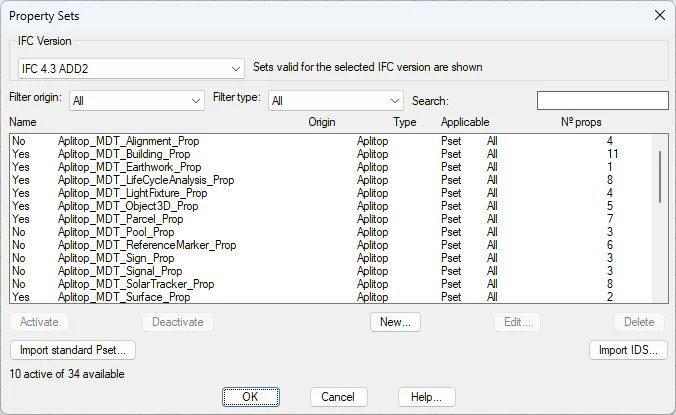
Controls
IFC Version — Drop-down list that filters the set list to show only those compatible with the selected IFC version. The available options are IFC 2x3, IFC 4.0 and IFC 4.3 ADD2. The selection is saved between sessions and also affects the export.
Filter origin — Restricts the list to a specific origin: All, Aplitop, buildingSMART, User, IDS or External. Useful for quickly locating sets of a specific type when the list is long.
Filter type — Restricts the list to Pset type sets, Qto type sets, or shows both (All). Allows quick distinction between configurable properties and calculated quantities.
Search — Text field that filters the list in real time by the set name. The search is case-insensitive and matches any substring within the name.
Set list — Shows all sets matching the active filters. Each row shows the Active status (Yes/No), the set name, its origin, whether it is a Pset or Qto, the number of MDT types it is assigned to, and the number of properties it contains. Double-clicking a row opens the edit window directly.
Activate / Deactivate — Toggles the
isActivestate of the selected set. Only sets marked as active are included in the IFC export. Deactivated sets remain in the model and can be reactivated at any time.New... — Opens the Edit Property Set window in creation mode to add a new User-origin set. The created set is saved in the user layer and is fully editable.
Edit... — Opens the Edit Property Set window to review or modify the selected set. For sets of Aplitop, buildingSMART, IDS or External origin, only the default value of each property can be changed; all other fields are disabled.
Delete — Permanently removes the selected set from the model along with all its MDT type assignments. Only enabled for User and IDS origin sets. Aplitop and buildingSMART sets cannot be deleted; use Deactivate to exclude them from export.
Import standard Pset... — Opens the Import Standard Pset window to add sets from the official buildingSMART library that have not yet been imported into the model.
Import IDS... — Opens the Import IDS window to import property sets defined in a buildingSMART IDS 1.0 file.
Counter — Informational text below the list showing the number of active sets out of the total sets visible with the currently applied filters.
Edit Property Set Window
Opens when clicking New... or Edit... from the main window.
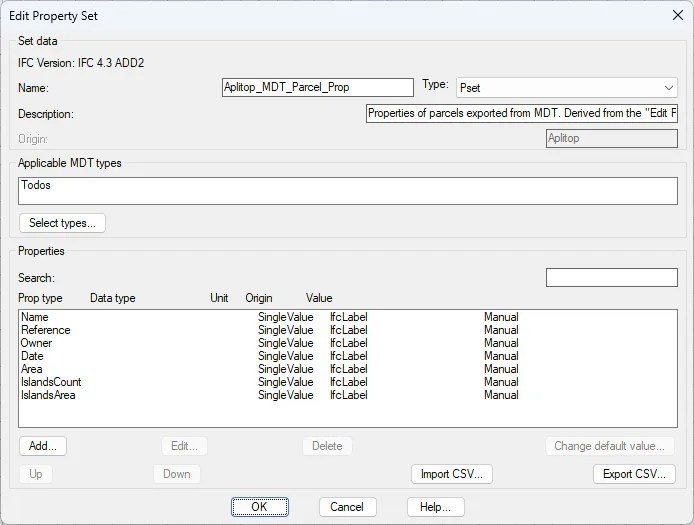
Set data section
Name — Unique identifier of the set within the model. It should follow IFC naming conventions:
Pset_prefix for PropertySets andQto_prefix for QuantitySets. This field is disabled for sets of Aplitop, buildingSMART and IDS origin, since their name is part of the standard and must not be modified.Type — Indicates whether the set is an
IfcPropertySet(Pset) or anIfcElementQuantity(Qto). Psets contain configurable properties with free values, while Qtos group quantities with restricted numeric data types. This field is disabled for sets that are not of User origin.Description — Free text explaining the purpose of the set. It is incorporated into the IFC file as the description of the
IfcPropertySetorIfcElementQuantity. Disabled for read-only sets.Origin — Read-only field showing the origin of the set: Aplitop, buildingSMART, User, IDS or External. The origin determines which operations are available on the set.
Applicable MDT types section
Shows the list of MDT object types the set is assigned to. If the list is empty, the set applies to all MDT types without exception. The Select types... button opens the Select MDT Types window to modify this selection.
Properties section
Lists all properties in the set. Each row shows the property name, the IFC property type (SingleValue, EnumeratedValue), the IFC data type, the unit of measure, the value origin and the current default value.
Search — Filters the visible properties by name using a substring. Useful in sets with many properties.
Add... — Opens the Edit Property window in creation mode to add a new property to the set. Only available for User-origin sets.
Edit... — Opens the Edit Property window with the data of the selected property for modification. Only available for User-origin sets.
Delete — Permanently removes the selected property from the set. Only available for User-origin sets.
Change default value... — Opens the Change Default Value window to modify only the default value of the selected property, without editing its full definition. Available for sets of any origin.
Up / Down — Changes the order of the selected property within the list. The order is preserved when exporting to the IFC file. Only available for User-origin sets.
Import CSV... — Imports one or more properties from a CSV file in the MDT standard format (UTF-8,
;separator). Properties whose name already exists in the set are skipped. Only available for User-origin sets.Export CSV... — Exports all properties in the set to a CSV file. The generated format can be edited externally and re-imported later. Available for sets of any origin.
CSV property format
name;property_type;data_type;unit;value_origin;default_value;description;enumeration
Status;EnumeratedValue;IfcLabel;;Manual;NEW;Element status;NEW|EXISTING|DEMOLISH
Area;SingleValue;IfcAreaMeasure;m²;CalculatedMdt;;Calculated area;
Edit Property Window
Opens when clicking Add... or Edit... within the Edit Property Set window.
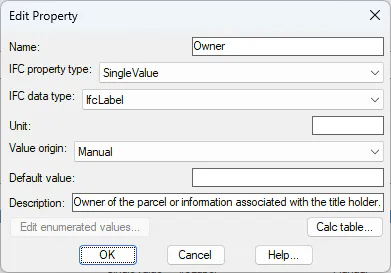
Name — Identifier of the property within the set. It must be unique in the set and should follow IFC naming conventions (no spaces, in English for standard sets).
IFC property type — Defines the IFC structure used to export the property.
SingleValuefor a single value andEnumeratedValuefor a closed list of allowed values. In v26 only these two types are operational.IFC data type — Specifies the type of the concrete value. Available values are:
IfcLabel(short text),IfcText(long text),IfcIdentifier(code),IfcBoolean(true/false),IfcInteger(integer),IfcReal(decimal),IfcLengthMeasure,IfcPositiveLengthMeasure,IfcAreaMeasure,IfcVolumeMeasure,IfcMassMeasure,IfcRatioMeasure,IfcPositiveRatioMeasure,IfcDateandIfcTimeStamp.Unit — Symbol of the unit of measure displayed in the interface and in IFC viewers (for example
m,m²,m³,%). It is an informational field; unit conversion is managed by the IFC viewer.Value origin — Determines how the value is obtained during export.
Manualrequires the user to enter it.Calculated MDTdelegates the calculation to the export engine based on geometry.Imported XLSreads the value from the XLS template loaded beforehand.Default value — Value that will be exported to the IFC when no override or XLS value exists for the object. For
EnumeratedValueproperties, it must match one of the enumeration values.Description — Explanatory text for the property included as a description in the IFC entity. It helps to understand the data in viewers and BIM tools.
Edit enumerated values... — Opens the Enumerated Values window to define the list of valid options for the property. Only enabled when the property type is
EnumeratedValue.
Enumerated Values Window
Opens from the Edit Property window when the type is EnumeratedValue.
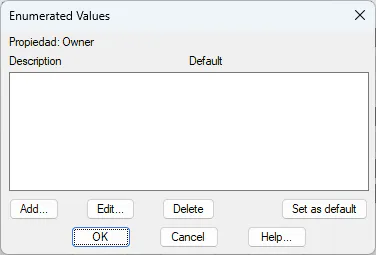
Value list — Shows all possible values for the enumeration. Each row contains the value code (as written in the IFC file), a human-readable description and whether that value is the default one.
Add... — Prompts for the code and description of a new value via an input field and adds it to the list.
Edit... — Allows modifying the code or description of the selected value.
Delete — Removes the selected value from the enumeration. If it was the default value, the first item in the list is automatically set as default.
Set as default — Sets the selected value as the default value for the property. Only one value can be marked as default at a time; all others revert to No. When the window is closed with Accept, the property's
Default valuefield is updated automatically.
Change Default Value Window
Allows modifying the default value of a property without editing its full definition. Available for sets of any origin, including Aplitop, buildingSMART, IDS and External.
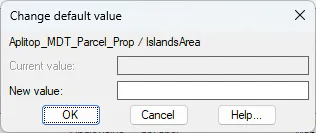
Context — Informational text identifying the set and property being modified, to avoid mistakes when editing in long lists.
Current value — Shows the currently stored default value. It is a read-only field used as a reference before making a change.
New value — Editable control that varies according to the property's data type. For
EnumeratedValueorIfcBooleanproperties a drop-down list with the valid options is shown. For other types (text, numeric, date) a free text field is shown.
Select MDT Types Window
Opens when clicking Select types... within the Edit Property Set window.
Category — Drop-down list that filters MDT types by thematic group to facilitate selection. Available categories are: All, Surfaces, Earthworks, Road layers, Alignments, Networks, Others and Meta.
Type list — Shows the MDT types in the project with a column indicating whether they are selected (Yes) or not (No). The list updates when the category changes. The Mark and Unmark buttons act on the row currently highlighted in the list.
Mark — Activates the checkbox of the selected MDT type in the list, indicating that the set will be applicable to that type.
Unmark — Deactivates the checkbox of the selected MDT type, excluding that type from the set's applicability.
Import Standard Pset Window
Opens when clicking Import standard Pset... from the main window. Shows the buildingSMART Psets from the official library installed with MDT that have not yet been added to the active model, filtered by the IFC version selected in the main window.
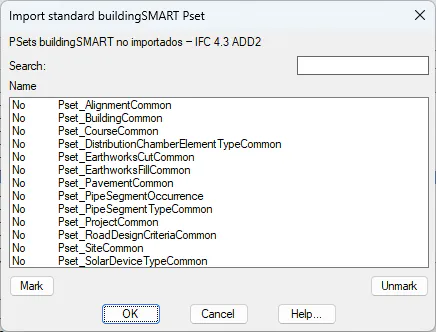
Version information — Text at the top showing the active IFC version and confirming that only Psets compatible with it and not yet imported are displayed.
Search — Text field to filter the list by Pset name using a substring.
Available Psets list — Shows each buildingSMART Pset with a column indicating whether it is marked for import (Yes) or not (No). The column changes when clicking Mark or Unmark on the selected row.
Mark / Unmark — Activate or deactivate the selection of the highlighted Pset in the list. Multiple Psets can be marked before clicking Accept.
Import IDS Window
Opens when clicking Import IDS... from the main window. Allows incorporating property sets defined in a buildingSMART IDS 1.0 file (Information Delivery Specification), the standard format for specifying information requirements in BIM projects.
Workflow
The operating system file selector opens with an
*.idsfilter.MDT parses the file and groups properties by set name.
For each detected set, the corresponding action is determined.
A preview window is shown so the user can review the result before applying it.
Clicking Accept applies the changes to the model.
File path — Shows the full path of the selected IDS file.
Summary — Two lines of text indicating how many new sets will be created, how many existing sets will be updated, and how many are in conflict and will not be imported.
Detected sets list — Shows each set found in the IDS file along with the action that will be applied:
New — the set does not exist in the model and will be created with IDS origin.
Update — the set already exists with IDS origin and new properties detected in the file will be added to it.
Conflict — a set with the same name exists but with a different origin (Aplitop, buildingSMART, User or External); it is not modified and the row appears for information only.
Sets with no changes are not shown in the list.
Accept — Only enabled if there is at least one set with a New or Update action. Clicking it applies the changes to the model.
Integration with IFC export
When exporting to IFC, the engine iterates through all active sets assigned to each MDT type and generates the corresponding IFC entities:
Pset type sets generate an
IfcPropertySetentity linked to the object viaIfcRelDefinesByProperties.Qto type sets generate an
IfcElementQuantityentity linked in the same way.
The value of each property is resolved in the following priority order:
MDT type override — value specifically overridden for that object type from the Property Assignment dialog.
Imported XLS value — value read from the XLS template loaded before export, when the property origin is
ImportedXls.Calculated MDT value — value automatically calculated by the engine from the object geometry, when the origin is
CalculatedMdt.Default value — value stored in the Pset definition, used when none of the above conditions are met.
Reference generated for tcpMDT 26 — IFC-PropertiesSet