
tcpMDT
Export XLS Template - MD26
 | Command to execute in the CAD |
|---|---|
Vertical menu | MDT26 > BIM > Export XLS Template |
Ribbon menu | |
Command line |
Overview
The Export XLS Template command generates a Microsoft Excel file that serves as an editable template for entering or completing BIM property values for MDT objects in the project before performing the IFC export.
The template contains one column for each property marked with origin ImportedXls in the active property sets assigned to the included MDT types. The user fills in the values in Excel and then re-imports them using the Import XLS Data command, so that the next IFC export assigns each object its individual value.
> [!important] Prerequisite
> Microsoft Excel must be installed on the system. If it is not detected, the command displays the message "Excel is not installed. This command requires Microsoft Excel." and does not proceed.
Complete workflow
In the Definition of Property Sets command, mark the desired properties with origin Imported XLS.
Run Export XLS Template to generate the file with the corresponding columns.
Fill in the values in Excel for each object in the project.
Run Import XLS Data to load the values.
Run Export IFC: each object will receive its individual value in the IFC file.
Export XLS Template Window
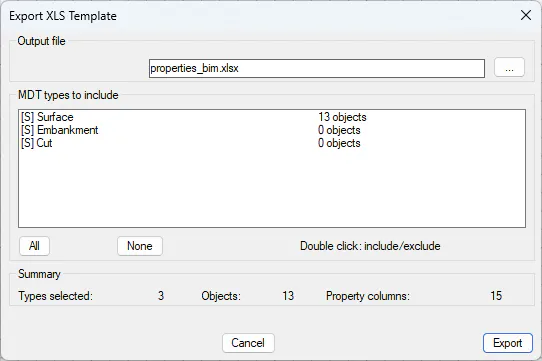
Output file section
File path — Editable text field showing the full path of the
.xlsxfile to be generated. The first time the dialog is opened, the path<drawing_directory>\bim_properties.xlsxis suggested automatically. Subsequent runs remember the last path used, which is saved in theexport_config.xmlconfiguration file in the user BIM layer.
... button — Opens the operating system file selector to browse to the desired folder and choose the output file name. The filter is restricted to
.xlsxfiles.
MDT types to include section
Lists the MDT object types that have active property sets with at least one property of origin ImportedXls assigned. Only types for which BIM Psets are configured and active are shown; types without BIM property assignments do not appear.
Type list — Each row shows the prefix
[S]if the type is included in the export or[ ]if it is excluded, followed by the MDT type name and the number of objects detected in the project directory. The object count is informational; if it is 0, the template is still generated correctly with the proper columns but without data rows.
Double-click on a row — Toggles the inclusion state of the selected type between included and excluded, without needing to use the All or None buttons.
All — Marks all types in the list as included in the export.
None — Unmarks all types, excluding them. With all types excluded, the Export button is disabled.
Help text — A short label next to the buttons reminding the user that double-clicking a row toggles its inclusion state.
Summary section
Displays in real time, updating whenever the type selection changes:
Types selected — Number of MDT types currently marked as included in the export.
Objects — Total number of MDT objects found on disk for all selected types. This number determines how many data rows the
MDT_BIM_DATAsheet will contain in the generated file.
Property columns — Number of property columns that will be added to the data sheet, one for each unique
Pset.Propertycombination across all selected types.
Main buttons
Cancel — Closes the dialog without generating any file. The saved configuration is not modified.
Export — Generates the Excel file, opens it automatically in Microsoft Excel, and closes the dialog. It is disabled if no MDT type is selected or if the path field is empty. Displays the overwrite confirmation prompt if the file already exists.
Structure of the generated Excel file
The file contains two worksheets with fixed names.
Sheet 1 — MDT_META
Metadata sheet with two columns (Key and Value) that identify the template and allow the importer to validate it:
Key | Value | Description |
|---|---|---|
|
| Application that generated the template. |
|
| Template format version. |
| (empty) | Project identifier, reserved for future versions. |
|
| Generation date and time in ISO 8601 format. |
| Integer | Number of data rows included in |
| Integer | Number of property columns in |
Sheet 2 — MDT_BIM_DATA
Main data sheet. Row 1 contains the header; from row 2 onwards there is one row per MDT object found.
Fixed columns (A, B, C) — protected against editing:
Column A — ObjectKey — Unique internal identifier of the MDT object in the project. This is the key used by the importer to associate values with the correct object during re-import. In a blank template this field is populated by MDT; if generated without detected objects, it is left empty for the user to fill in.
Column B — ObjectName — Human-readable name of the MDT object (for example, the surface file name without extension). It is an informational field that helps visually identify the object in Excel but does not participate in the import process.
Column C — MdtType — Name of the MDT type the object belongs to (for example,
Surface,Alignment). Allows the user to identify what type each row represents and apply the correct values accordingly.
Dynamic columns (D onwards) — editable:
One column per unique Pset.Property combination from the selected types. The header follows the format PsetName.PropertyName (for example, Pset_MDT_Surface.Status or Aplitop_MDT_Earthwork_Prop.Material). These are the columns the user fills in with the specific values for each object.
Command messages
"Excel is not installed. This command requires Microsoft Excel." — Displayed before the dialog opens if MDT does not detect a Microsoft Excel installation on the system. The command stops.
"No MDT types with BIM property assignments were found in the project." — Appears if no MDT type has active property sets with properties of origin
ImportedXls. This indicates that property sets must first be configured in the Definition of Property Sets command.
"File already exists. Overwrite?" — Confirmation prompt that appears when clicking Export if the path points to an existing file. Answering No leaves the dialog open so the user can change the path.
"You must select at least one MDT type." — Displayed when clicking Export with no type selected in the list.
"Template exported: N objects, M properties." — Success confirmation after the file is generated. Indicates the number of data rows and the number of property columns in the template.
"Error exporting template: could not write file." — Displayed if Excel cannot save the file (permissions issue, invalid path, Excel locked by another operation, etc.).
Relationship with other commands
Definition of Property Sets (
IFC_PROPSETS) — Determines which properties have originImportedXlsand therefore generate columns in the template. If no property has that origin, the template will have no useful data columns.
Import XLS Data (
IFC_IMPXLS) — Complementary command that reads the file filled in by the user and loads the values into the project BIM model, making them available for the next IFC export.
Export IFC (
IFC_EXPORTAR) — During export, the engine applies the imported XLS values as the third priority level in the property value resolution chain (Override → XLS → Calculated MDT → Default value).
Reference generated for tcpMDT 26 — IFC-PropertiesSet