
tcpMDT
Assign Properties to MDT Types - MDT26
 | Command to execute in the CAD |
|---|---|
Vertical menu | MDT26 > BIM > Assign Properties |
Ribbon menu | |
Command line |
Overview
The Assign Properties to MDT Types command configures which property sets (Psets) and quantity sets (Qtos) are linked to each MDT object type for IFC export.
While the Definition of Property Sets command manages the internal definition of sets (name, properties, data types), this command manages the global assignment by type: which active sets apply to each MDT object category (Surface, Embankment, Alignment, etc.), and allows customising property values for each type individually through overrides.
The configuration made here directly determines which IfcPropertySet and IfcElementQuantity entities are generated during IFC export for each object type.
Property Assignment to MDT Types Window
Controls
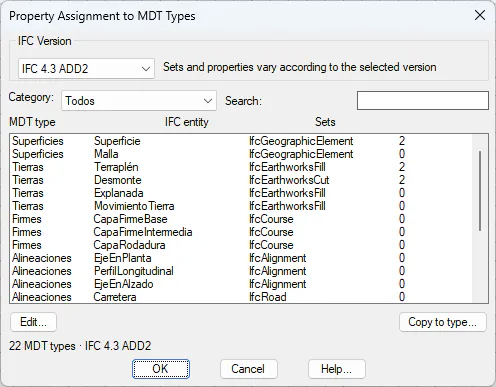
IFC Version — Drop-down list that filters the MDT type list to show only types compatible with the selected IFC version (IFC 2x3, IFC 4.0 or IFC 4.3 ADD2). Changing the version also affects which sets are available to assign. The selection is saved between sessions.
Category — Filters the MDT type list by thematic group to ease navigation. Available categories are: All, Surfaces, Earthworks, Road layers, Alignments, Networks, Others and Meta.
Search — Text field that filters the list in real time by MDT type name using a substring. Case-insensitive.
MDT type list — Shows all MDT types matching the active filters. Each row shows the MDT type name, the IFC entity it maps to, and the number of property sets currently assigned. Double-clicking a row is equivalent to clicking Edit.
Edit... — Opens the MDT Type Property Sets window for the selected type, where the assigned sets are managed and per-type value overrides are configured.
Copy to another type... — Opens the Copy sets window to duplicate all sets and overrides from the selected type to one or more destination MDT types. Useful for applying the same BIM configuration to similar types without configuring them individually.
Counter — Informational text below the list showing the total number of MDT types visible with the active filters and the selected IFC version.
MDT Type Property Sets Window
Opens when clicking Edit... or double-clicking a type in the main window. Allows managing the sets assigned to a specific MDT type and customising each property value for that type.
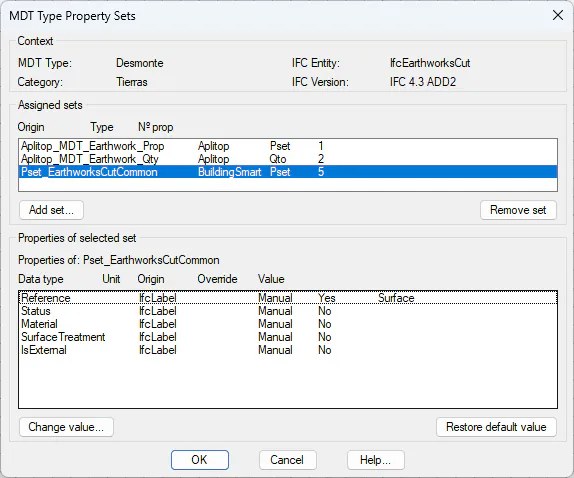
Context section
Displays read-only information about the MDT type being edited:
MDT Type — Name of the selected MDT object type (e.g. Embankment, Surface, Alignment).
IFC Entity — The IFC standard entity this MDT type maps to during export (e.g.
IfcEarthworksFill,IfcAlignment,IfcCourse).
Category — Thematic group the MDT type belongs to (Earthworks, Surfaces, Road layers, Alignments, etc.).
IFC Version — Active IFC version selected in the main window. Affects which sets are available to add.
Assigned sets section
Lists all property sets linked to the MDT type. Each row shows the set name, its origin, whether it is a Pset or Qto, and the number of properties it contains. Selecting a row updates the lower section to show that set's properties.
Add set... — Opens the Add set window to select and add one or more active sets compatible with this MDT type that are not yet assigned to it.
Remove set — Removes the assignment of the selected set for this MDT type. The set is not deleted from the model; it simply stops being linked to this type. This button is disabled for Aplitop-origin sets, which are mandatory factory assignments.
Properties of selected set section
Shows the properties of the set selected in the upper section, with the values that will be exported for this specific MDT type. Each row shows whether an active override exists (Override column) and the effective value that will be written to the IFC file.
Informational text — Displays "Properties of: [set name]" to clearly identify the set being shown.
Property list — Each row contains: property name, IFC data type, unit of measure, value origin (Manual, Calculated MDT, XLS, Instance), whether there is an active override for this type (Yes/No) and the value that will be exported. Properties calculated by MDT display
<calculated>instead of an editable value.
Change value... — Opens the Change default value window (defined in Definition of Property Sets) to set a value override specific to this MDT type. Unlike changing the default value in the Pset itself, this override only affects objects of this MDT type; other types using the same set retain their own default value. The button is disabled for properties with Calculated MDT origin.
Restore default value — Removes the type-specific override and causes the property to revert to the default value defined in the Pset. Only enabled when the Override column shows Yes, meaning an active override exists.
Add Set Window
Opens when clicking Add set... within the MDT Type Property Sets window. Shows the active sets in the model that are compatible with the current MDT type and not yet assigned to it.
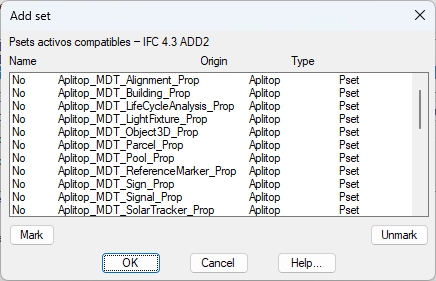
Informational text — States the destination MDT type and the active IFC version, confirming that the list is filtered to show only compatible, not-yet-assigned sets.
Available sets list — Shows each set with a column indicating whether it is marked to be added (Yes) or not (No), followed by its name, origin and type (Pset/Qto). Only sets that are active in the model and not yet assigned to this MDT type are shown.
Mark / Unmark — Activate or deactivate the selection of the highlighted set in the list. Multiple sets can be marked before clicking Accept to add them all at once.
Copy Sets Window
Opens when clicking Copy to another type... from the main window. Allows replicating all assigned sets and value overrides from a source MDT type to one or more destination MDT types, saving configuration time for similar types.
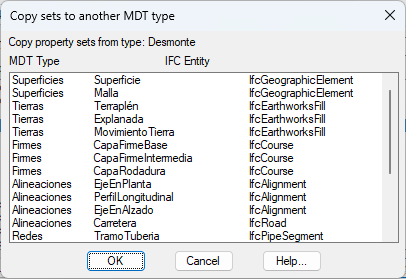
Informational text — Confirms the source MDT type whose configuration will be copied.
Destination type list — Shows all MDT types available except the source type. Supports multiple selection: several destination types can be selected by holding Ctrl or Shift.
Integration with IFC export
The configuration made in this command directly determines the BIM output of the IFC file:
For each MDT type with assigned sets, the export engine generates the corresponding
IfcPropertySetandIfcElementQuantityentities and links them to each IFC object viaIfcRelDefinesByProperties.
The exported value for each property follows the priority order: instance override → MDT type override (configured here) → XLS value → Calculated MDT value → Pset default value.
Sets marked as inactive in Definition of Property Sets are not exported even if assigned here.
Reference generated for tcpMDT 26 — IFC-PropertiesSet