tcpMDT
Insert Blocks - MDT26
Insert Blocks
 | Command to execute in the CAD |
|---|---|
Vertical menu | MDT26 > Profiles > Drawing > Insert Blocks |
Ribbon menu | L.Sections > Drawing > Insert Blocks |
Command line |
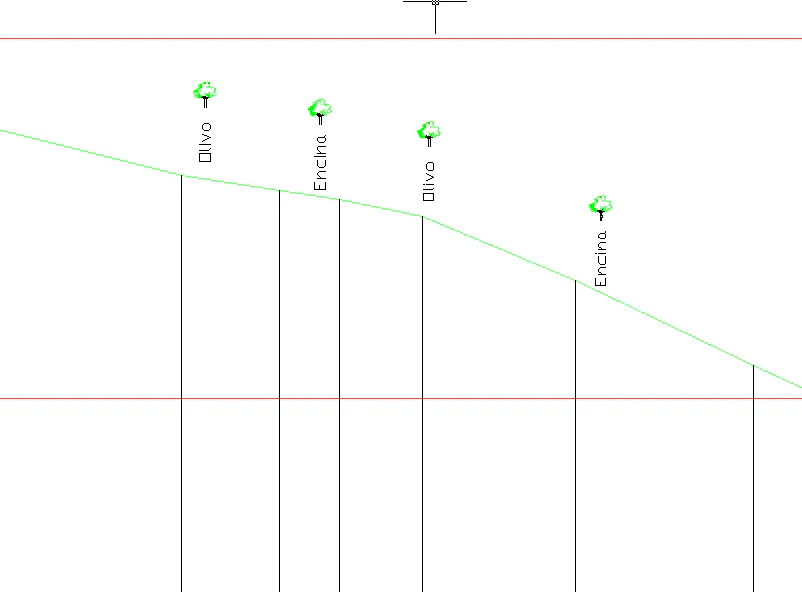
This command allows one to insert the block selected on a previously drawn long section by selecting the insertion station and height.
When this option is activated, the following window is displayed, which is described below:
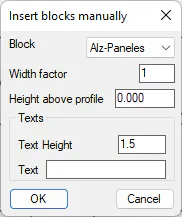
Block: Block to be inserted. The program loads this block in the blocks folder. So, if one wishes to insert one's own block, it should have previously been copied to that folder.
Width factor: Multiplication factor for insertion of the block width into the CAD drawing.
Height above profile: The block will be inserted by default at the long section's height at the station selected. Additionally, a height increment equivalent to the height selected will be applied to it.
Text Height: Optionally, the command allows one to label a text on the lower part of the block in a vertical position. This option enables one to configure its height.
Text: Text one wishes to label next to the block.
Once the dialog box is validated, the program firstly requests the long section. It then requests the points at which one wishes to insert the block selected.